---
title: "Communication"
slug: "communication"
updated: 2026-07-22T12:37:26Z
published: 2026-07-22T12:37:26Z
canonical: "kb-journey.easysend.io/communication"
---
> ## Documentation Index
> Fetch the complete documentation index at: https://kb-journey.easysend.io/llms.txt
> Use this file to discover all available pages before exploring further.
# Communication
## **Article Overview**
The following article describes the Email and SMS building blocks located under the Communication category.
## **Communication**
(See **Figure 1**)
The Communication category contains three building blocks:
- Email
- SMS
- Messaging
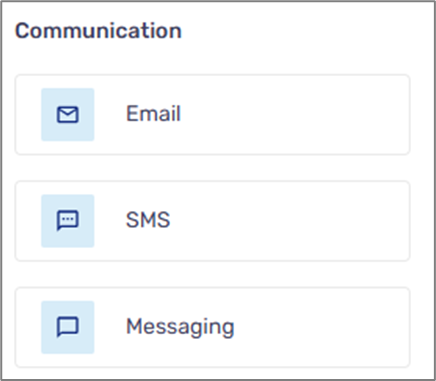
**Figure 1: Communication**
The building blocks are used to configure communication channels for interacting with different end-users (roles) during the life cycle of a process, for example:
- When starting a new step, upon the initiation of the process
- Upon submission, for example, sending an email notifying an end-user that their part of the process is complete
### **Email**
(See **Figure 2** to **Figure 9**)
The Email contains the following options and fields:
- Label
- Role
- Edit Message
- Description

**Figure 2: Email**

**Figure 3: Label and Role**
When clicking the Edit Message button, the Edit Message window appears. This window is divided into two sections:
- Message Content
- Advanced
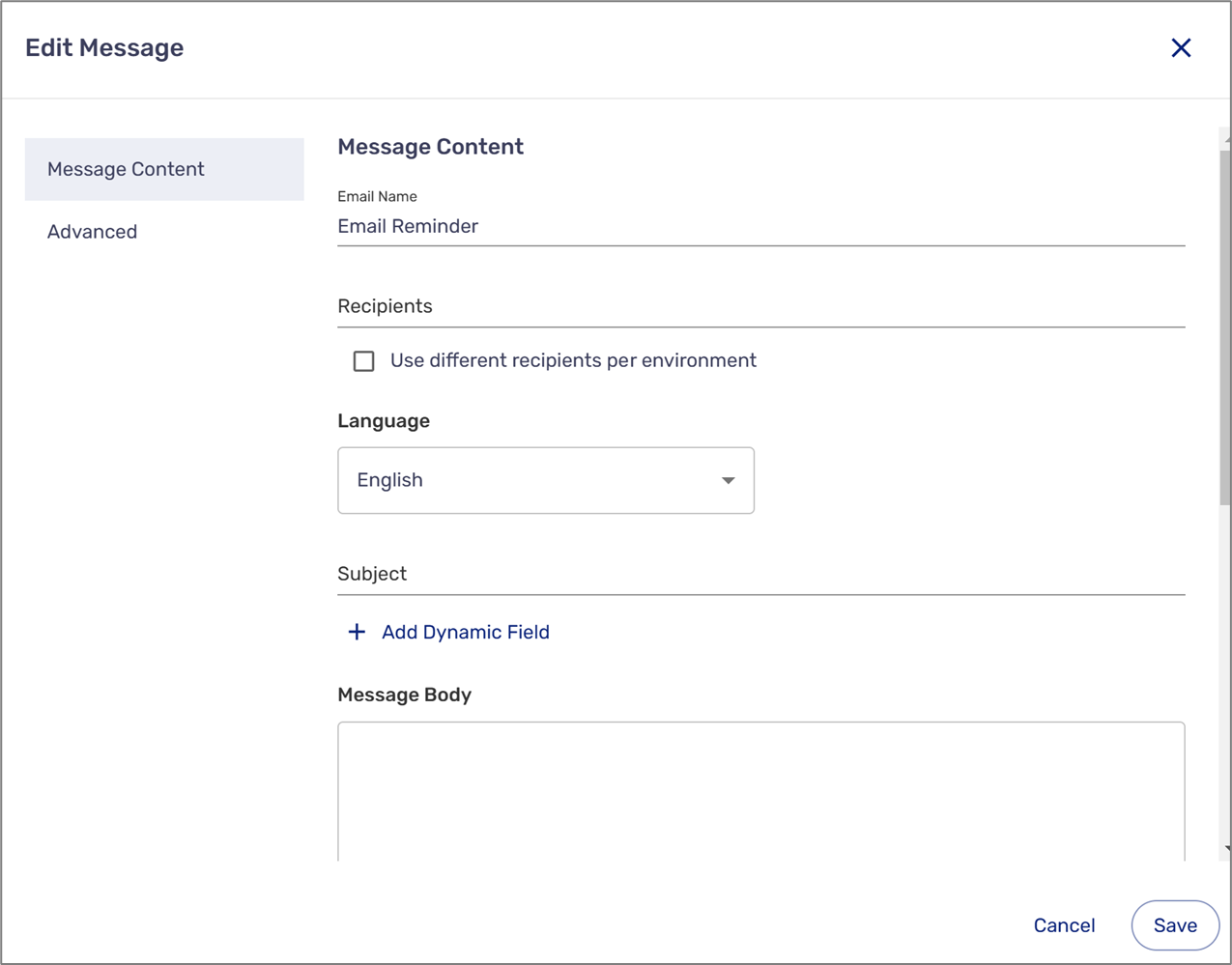
**Figure 4: Edit Window Message**
The Message Content section contains the following fields and options:
- Email Name
- Recipients - can be static or dynamic:
- Static - for example, **r.riback@easysend.io**
- Dynamic - data items and/or metadata items
**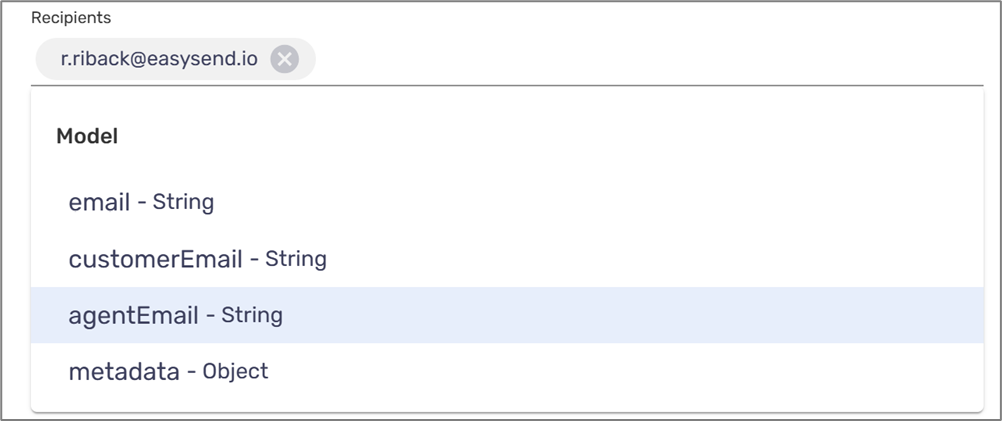Figure 5: Adding Recipients**
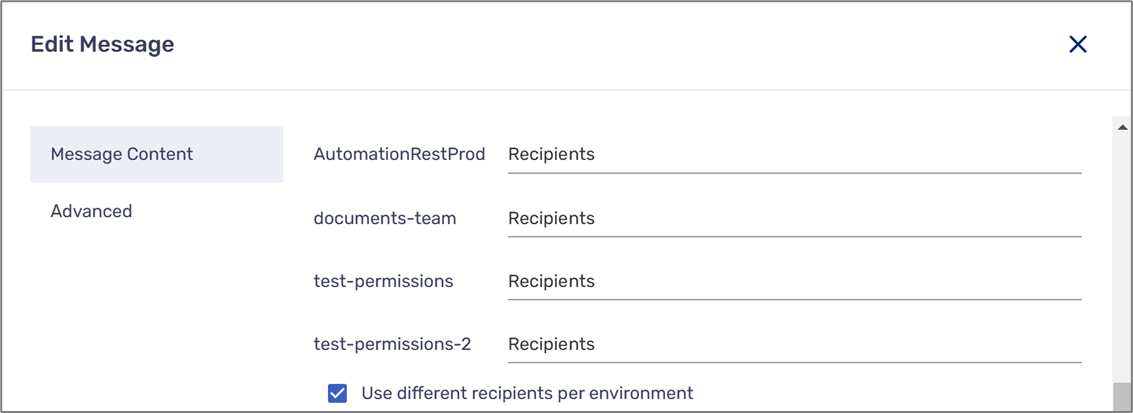
**NOTE**
You can add recipients to different environments.
- The language of the email (according to available languages in your environment)
- Subject - can include dynamic data items and/or metadata items

**Figure 6: Subject**
- Message Body - the content of the email:
- Written in HTML
- HTML tags such as
and can be used
- The content can include dynamic fields:
- Data items
- Metadata items
- A Process link and a Co-Browsing link can be included in the content by clicking the + Add Dynamic Field option and selecting from the list under the Workflow category (1):
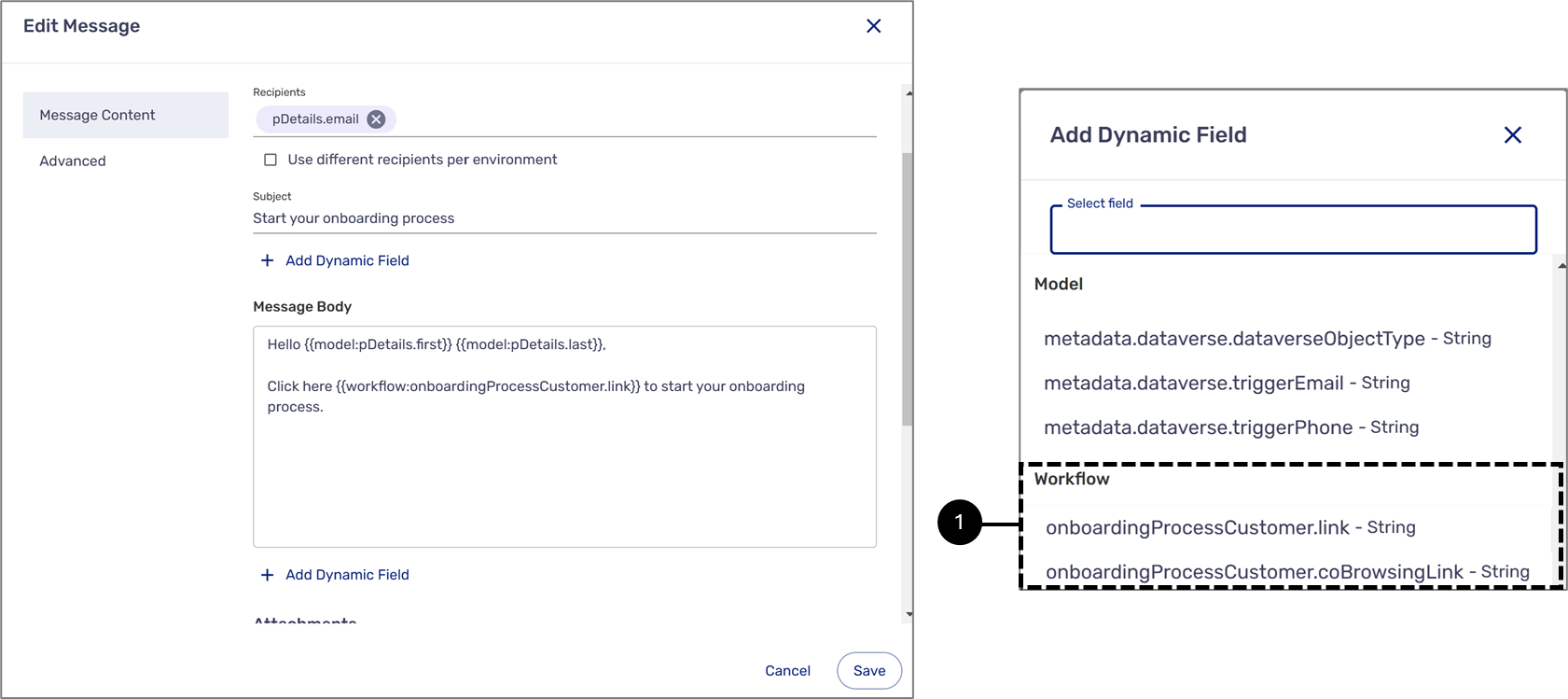
**Figure 7: Message Body**
> [!NOTE]
> NOTE
>
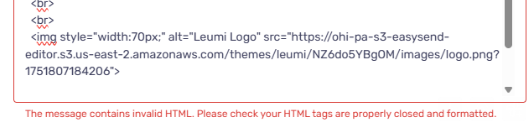
> When writing HTML code in the message body, EasySend will automatically validate the content and will display an error message in case of incorrect syntax, for example:
>
> 
The Advanced section contains the following fields and options:
- Attachments - can include:
- PDF - the PDF files that were uploaded to the Builder platform as part of the platform
**NOTE**
This option will appear only if one or more PDF files are uploaded to the Builder platform.
-
- User Files - the files that were uploaded by the end-user during the process
**NOTE**
This option will appear only if one or more files are uploaded to the process.
-
- Model As - a copy of the Model of the process in three different formats:
- JSON
- XML
- CSV
- Audit Trail As - an audit trail copy of the process in two different formats:
- JSON
- PDF
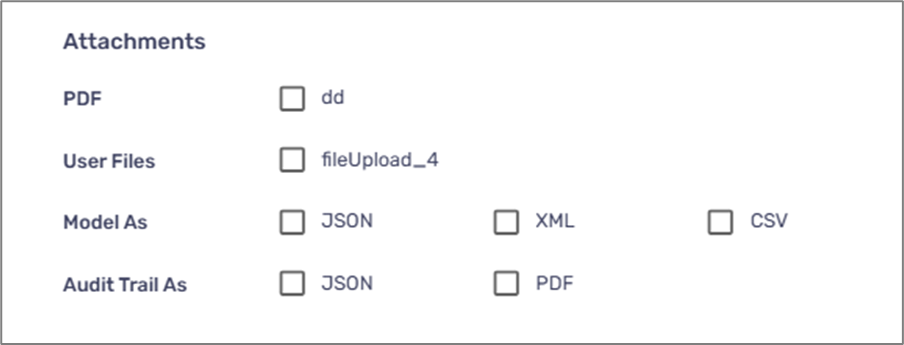
**Figure 8: Message Body**
- Advanced options:
- Set a custom reply-to email address:
- When toggle to on - enables to set a custom reply-to email address
- When toggle to off - the option is disabled
- Encrypt all PDF documents attached to email:
- When toggle to on - enables to encrypt attached PDF documents with a password
- When toggle to off - the option is disabled
- Email footer:
- When toggle to on - enables to select a footer template
- When toggle to off - the option is disabled
**NOTE**
Templates are created using the Output Manager.
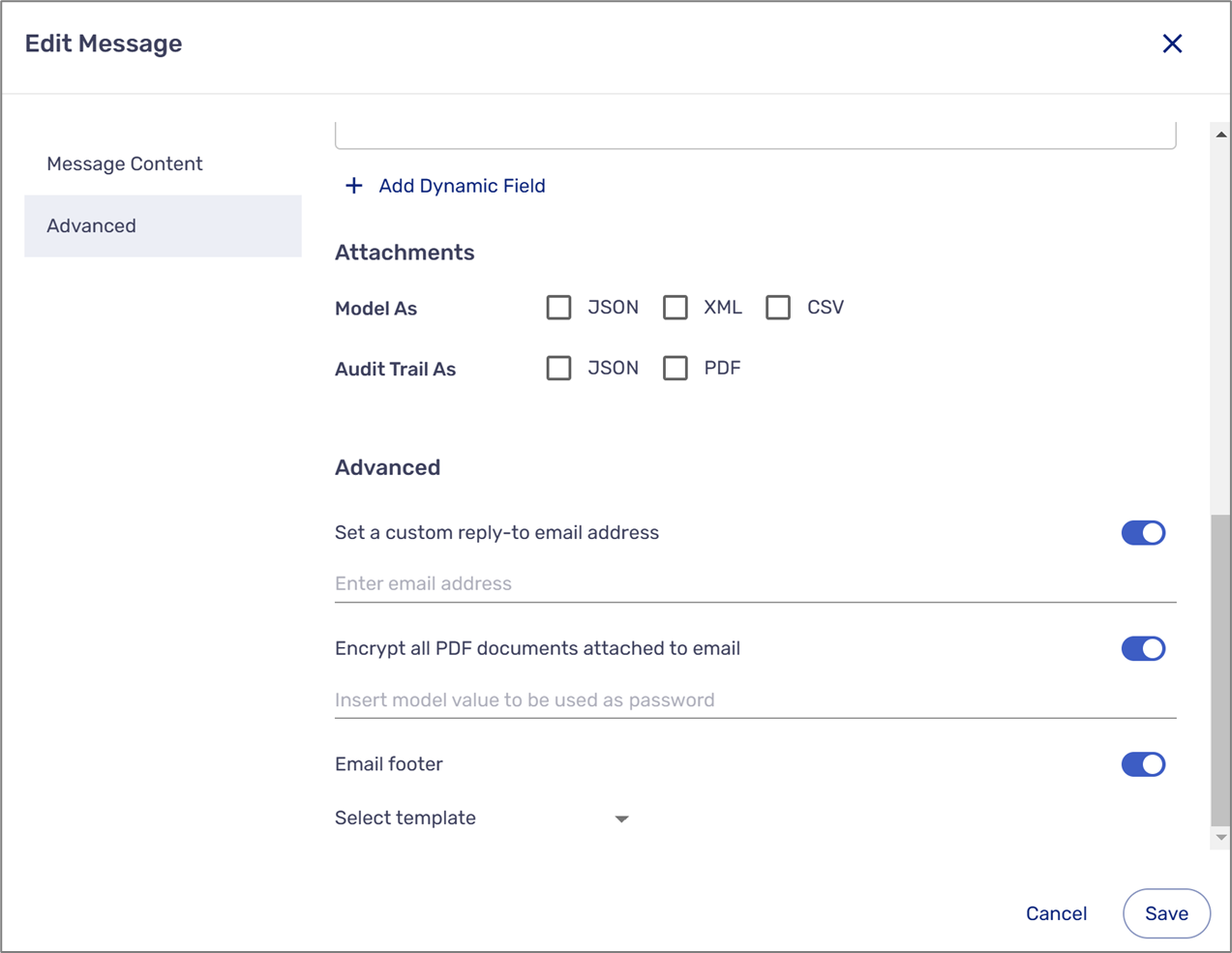
**Figure 9: Advanced Options**
### Preview Email
(See **Figure 10**)
When writing an email, you can toggle between two modes:
- Edit - enables you to write the email in HTML, using HTML tags, and add dynamic fields
- Preview - displays how the email will look, in desktop view or mobile view, as it is received in the recipient’s mailbox
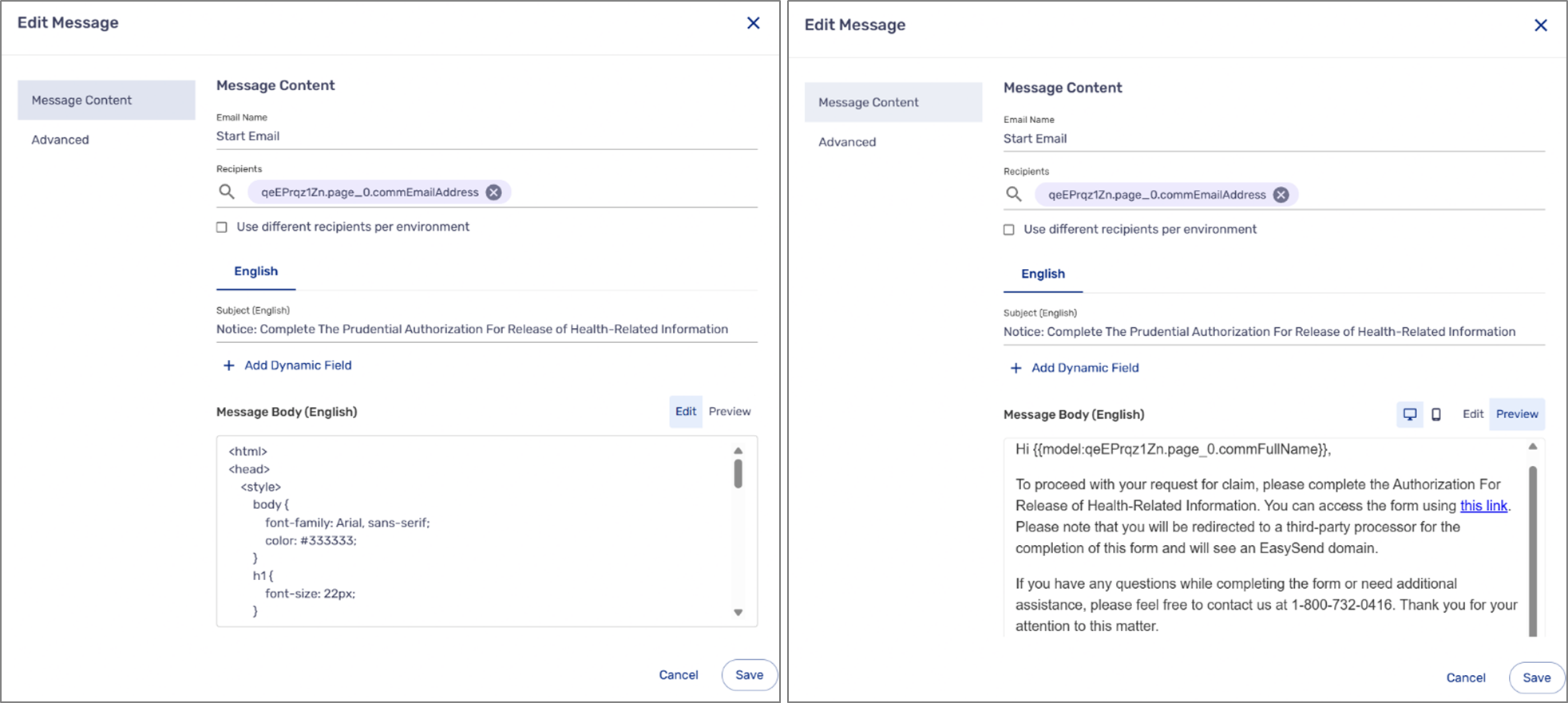
**Figure 10: Edit and Preview**
### **SMS**
(See **Figure 11** to **Figure 15**)
The SMS contains the following options and fields:
- Label
- Role
- Edit Message
- Description

**Figure 11: SMS/Label and Role**
When clicking the Edit Message button, the Edit Message window appears. This window contains the Message Content section with the following fields and options:
- Email Name
- Recipients - can be static or dynamic:
- Static - for example, **2679834455**
- Dynamic - data items and/or metadata items
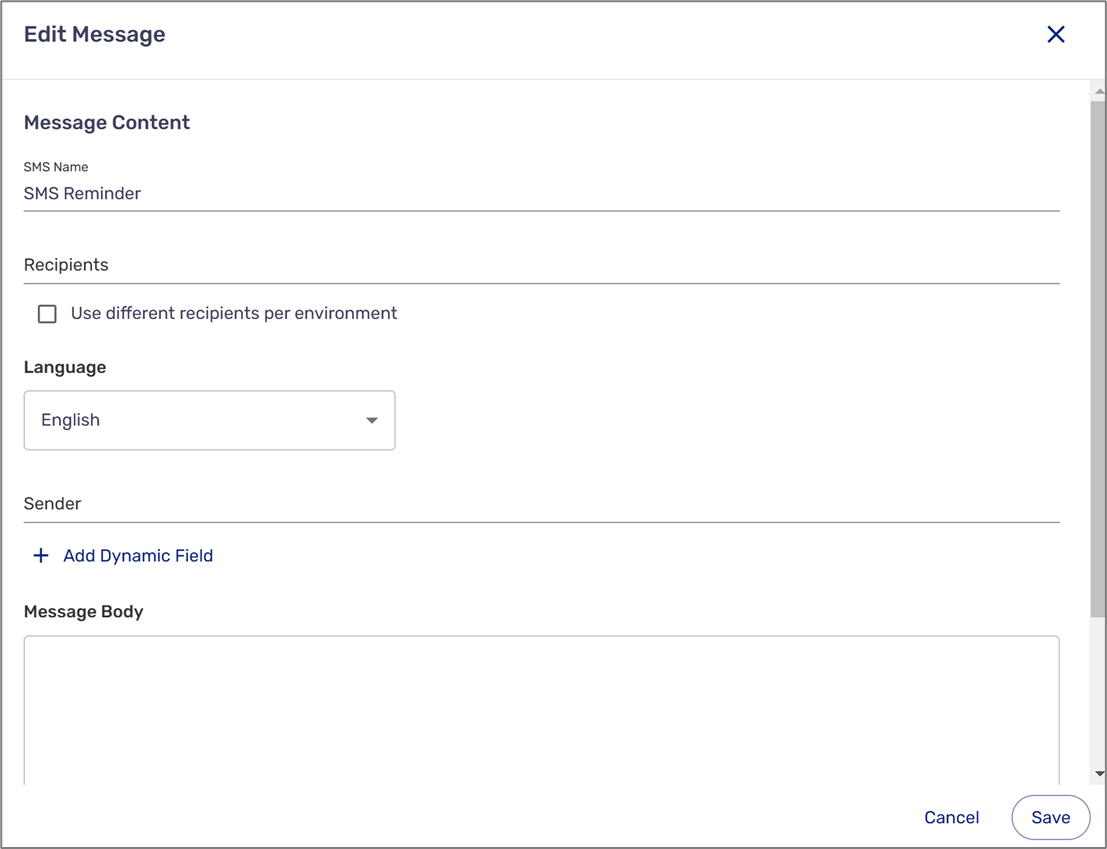
**Figure 12: Edit Message Window**
**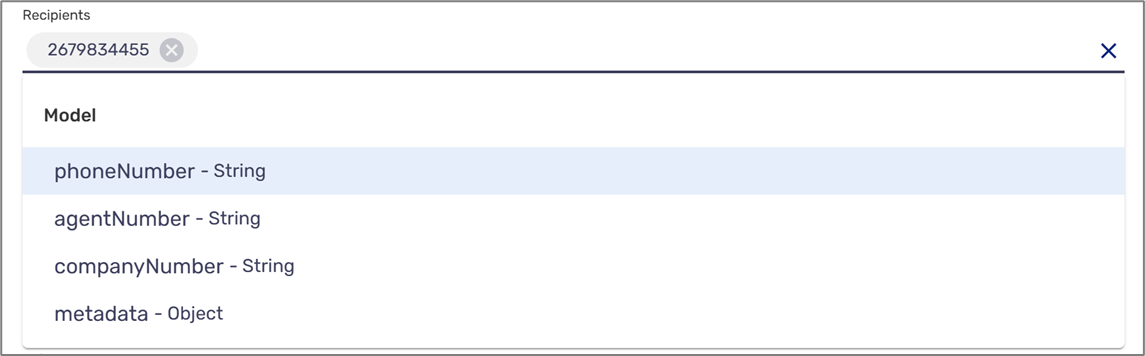Figure 13: Adding Recipients**
**NOTE**
You can add recipients to different environments.
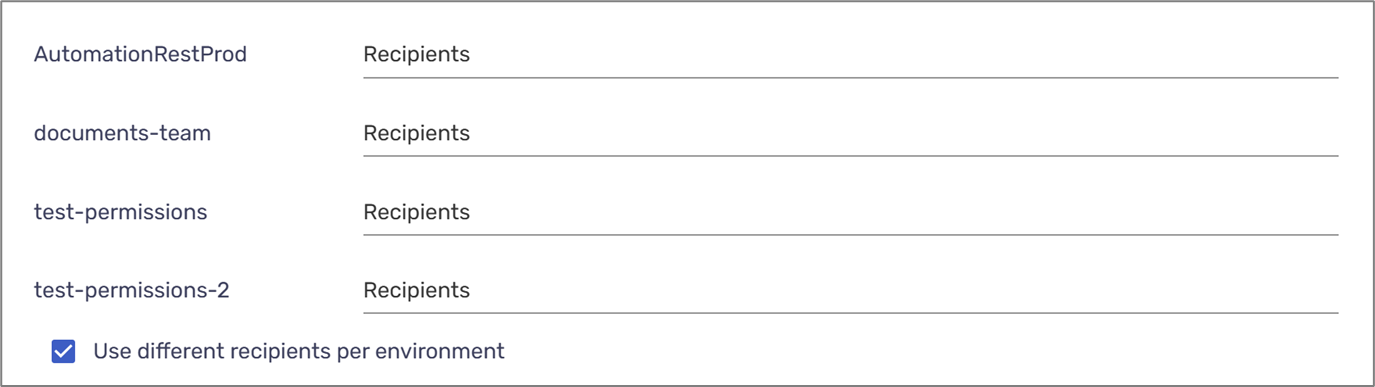
- The language of the SMS (according to available languages in your environment)
- Sender - can include dynamic data items and/or metadata items

**Figure 14: Sender**
- Message Body - the content of the SMS:
- The content can include dynamic fields:
- Data items
- Metadata items
- A Process link and a Co-Browsing link can be included in the content by clicking the + Add Dynamic Field option and selecting from the list under the Workflow category (1):
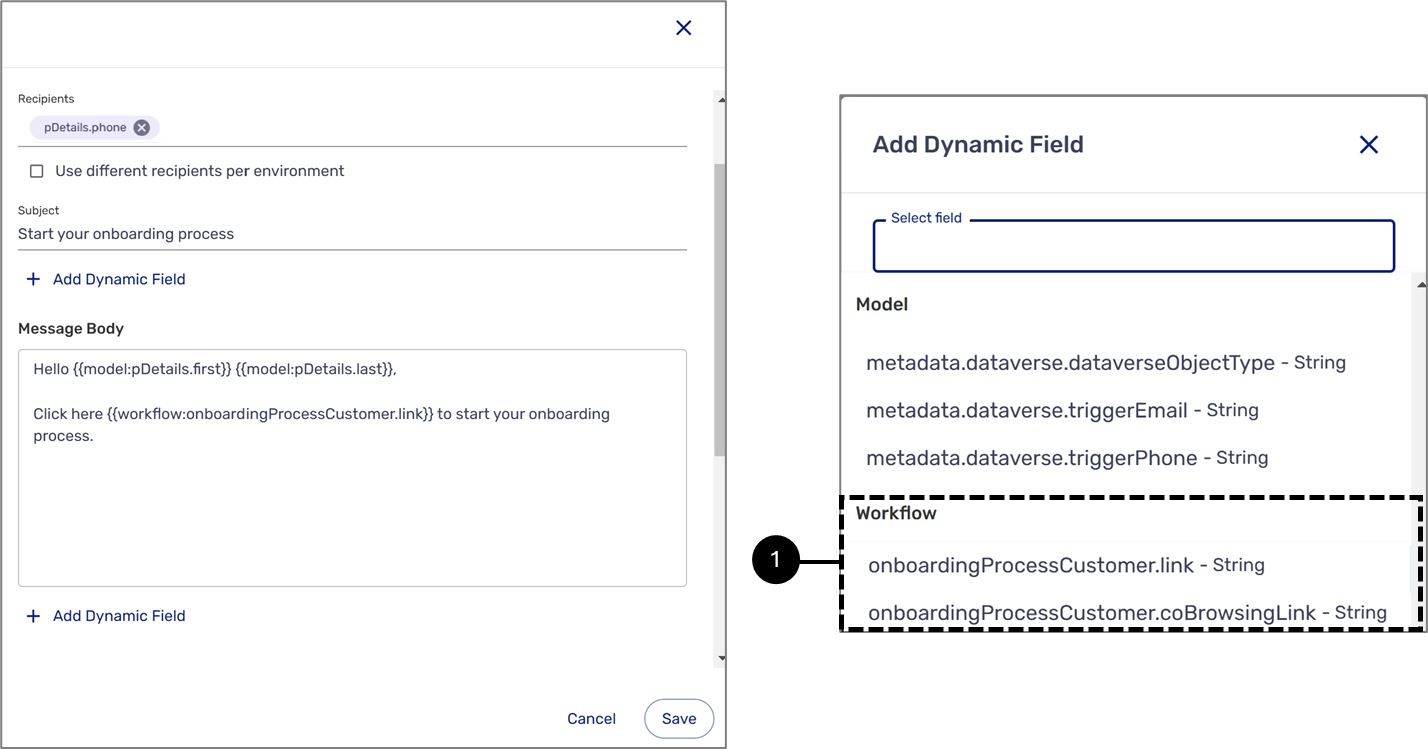
**Figure 15: Message Body**
### **Messaging**
For detailed information about messaging, click [here](https://kb-journey.easysend.io/docs/messaging).
**NOTE**
To use Messaging, please upgrade your environment servers to version 50.1.0 or above.