Article Overview
The following article describes the Email and SMS building blocks located under the Communication category.
Communication
(See Figure 1)
The Communication category contains three building blocks:
Email
SMS
Messaging
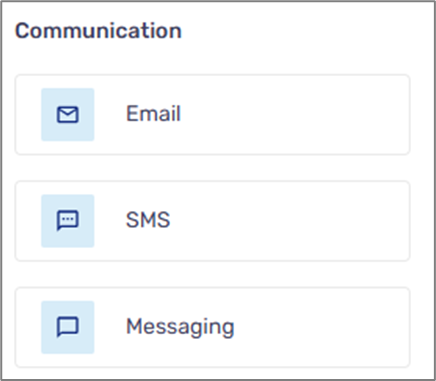
Figure 1: Communication
The building blocks are used to configure communication channels for interacting with different end-users (roles) during the life cycle of a process, for example:
When starting a new step, upon the initiation of the process
Upon submission, for example, sending an email notifying an end-user that their part of the process is complete
(See Figure 2 to Figure 9)
The Email contains the following options and fields:
Label
Role
Edit Message
Description

Figure 2: Email

Figure 3: Label and Role
When clicking the Edit Message button, the Edit Message window appears. This window is divided into two sections:
Message Content
Advanced
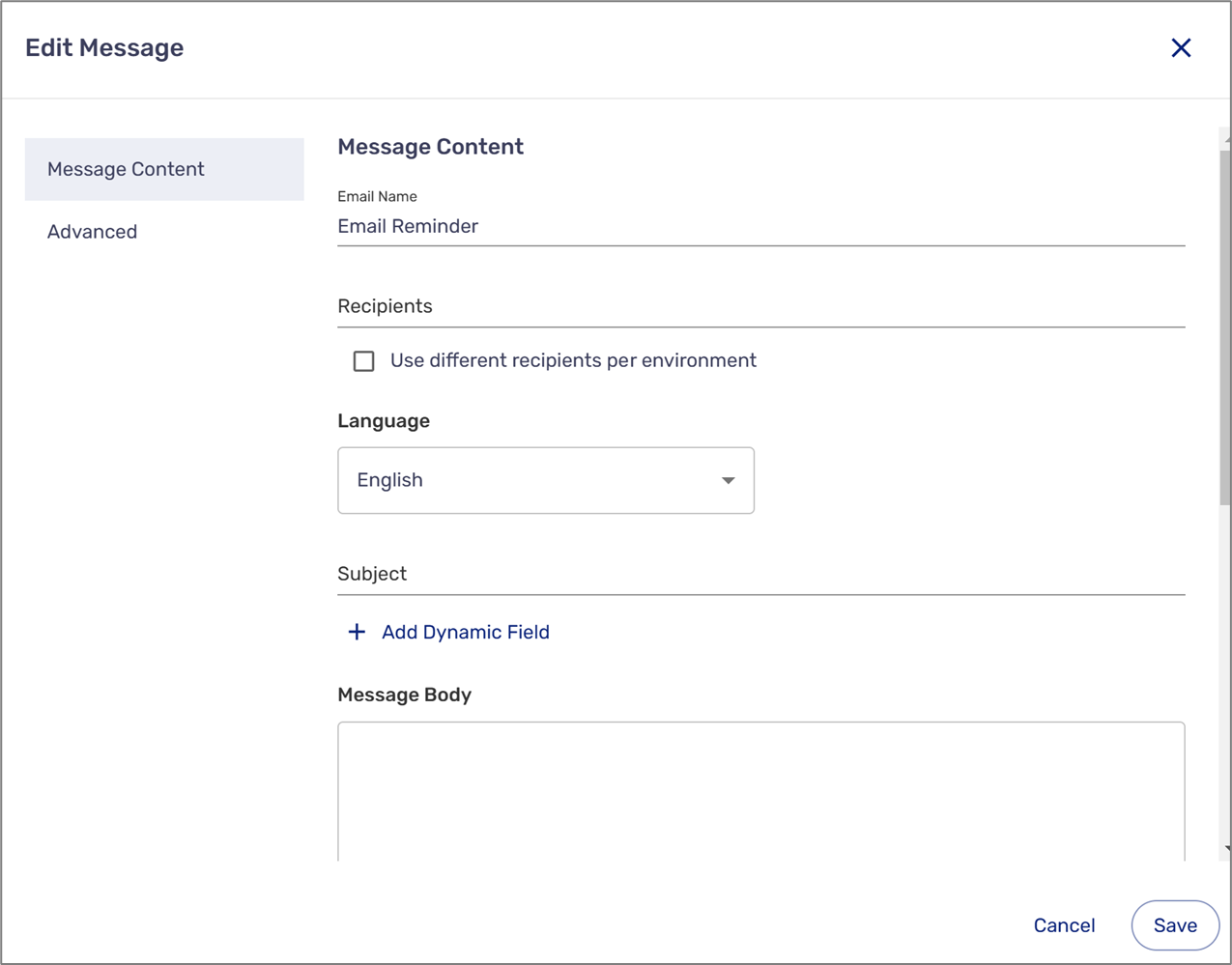
Figure 4: Edit Window Message
The Message Content section contains the following fields and options:
Email Name
Recipients - can be static or dynamic:
Static - for example, [email protected]
Dynamic - data items and/or metadata items
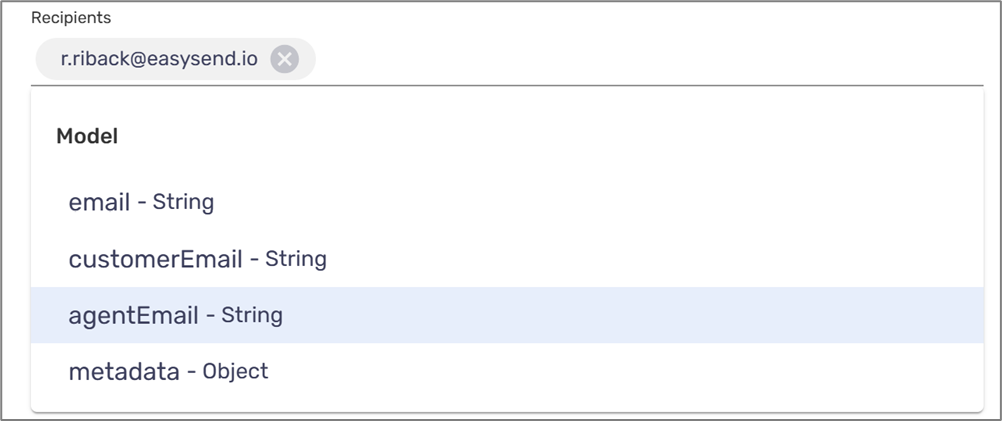 Figure 5: Adding Recipients
NOTE
You can add recipients to different environments.
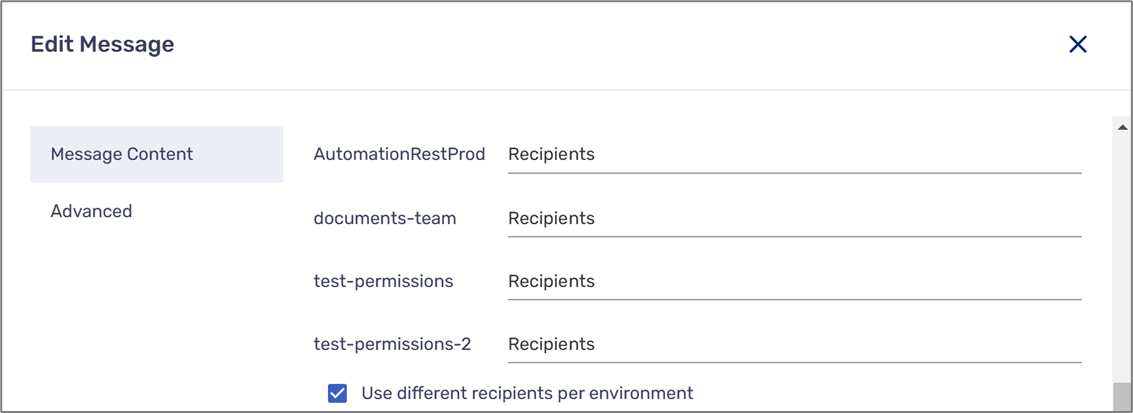
The language of the email (according to available languages in your environment)
Subject - can include dynamic data items and/or metadata items

Figure 6: Subject
Message Body - the content of the email:
Written in HTML
HTML tags such as <br> and <a> can be used
The content can include dynamic fields:
Data items
Metadata items
A Process link and a Co-Browsing link can be included in the content by clicking the + Add Dynamic Field option and selecting from the list under the Workflow category (1):
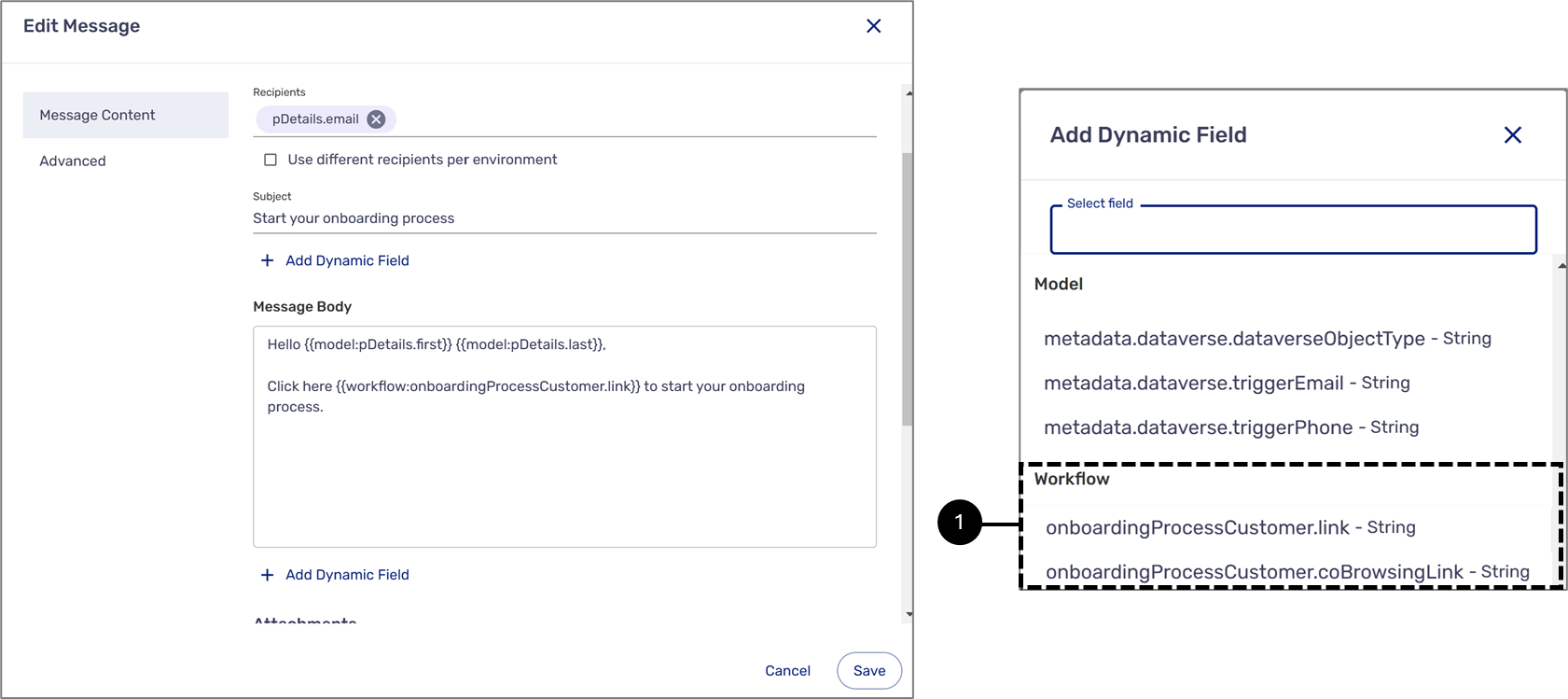
Figure 7: Message Body
NOTE
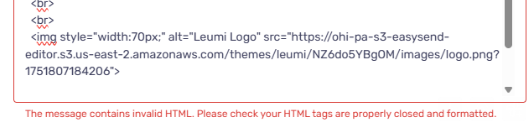
When writing HTML code in the message body, EasySend will automatically validate the content and will display an error message in case of incorrect syntax, for example:
The Advanced section contains the following fields and options:
Attachments - can include:
PDF - the PDF files that were uploaded to the Builder platform as part of the platform
NOTE
This option will appear only if one or more PDF files are uploaded to the Builder platform.
User Files - the files that were uploaded by the end-user during the process
NOTE
This option will appear only if one or more files are uploaded to the process.
Model As - a copy of the Model of the process in three different formats:
JSON
XML
CSV
Audit Trail As - an audit trail copy of the process in two different formats:
JSON
PDF
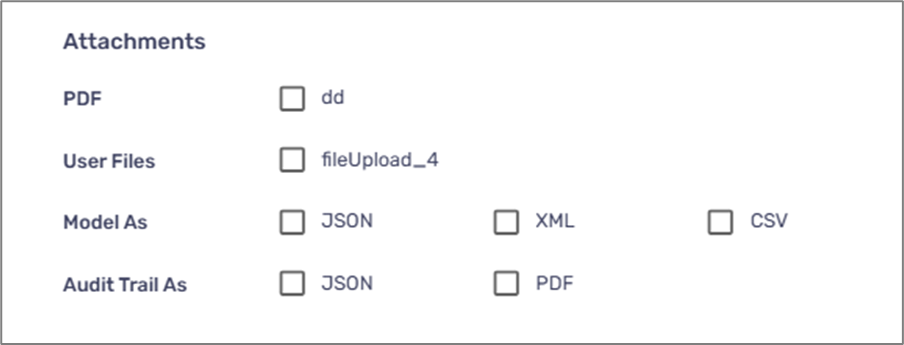
Figure 8: Message Body
Advanced options:
Set a custom reply-to email address:
When toggle to on - enables to set a custom reply-to email address
When toggle to off - the option is disabled
Encrypt all PDF documents attached to email:
When toggle to on - enables to encrypt attached PDF documents with a password
When toggle to off - the option is disabled
Email footer:
When toggle to on - enables to select a footer template
When toggle to off - the option is disabled
NOTE
Templates are created using the Output Manager.
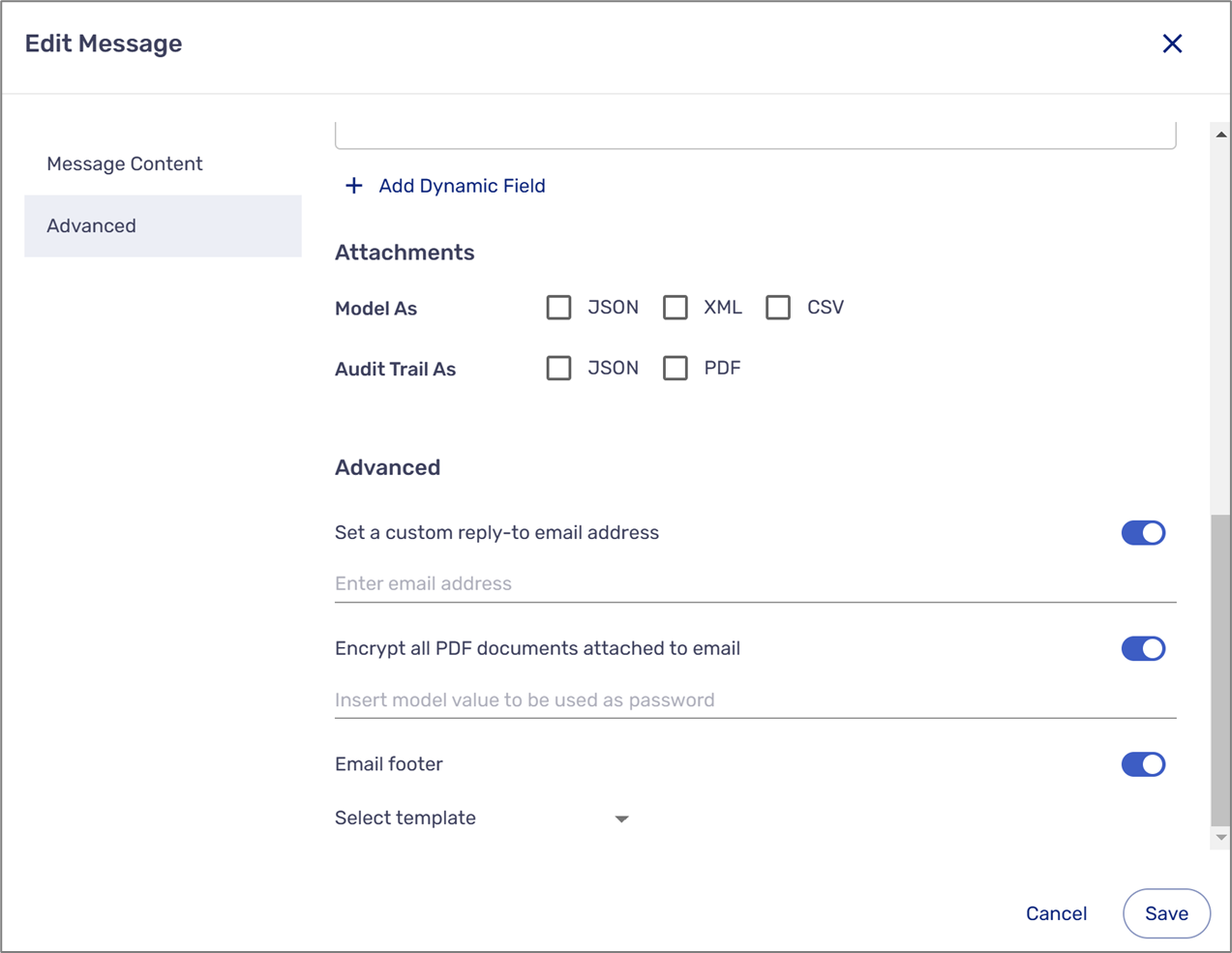
Figure 9: Advanced Options
Preview Email
(See Figure 10)
When writing an email, you can toggle between two modes:
Edit - enables you to write the email in HTML, using HTML tags, and add dynamic fields
Preview - displays how the email will look, in desktop view or mobile view, as it is received in the recipient’s mailbox
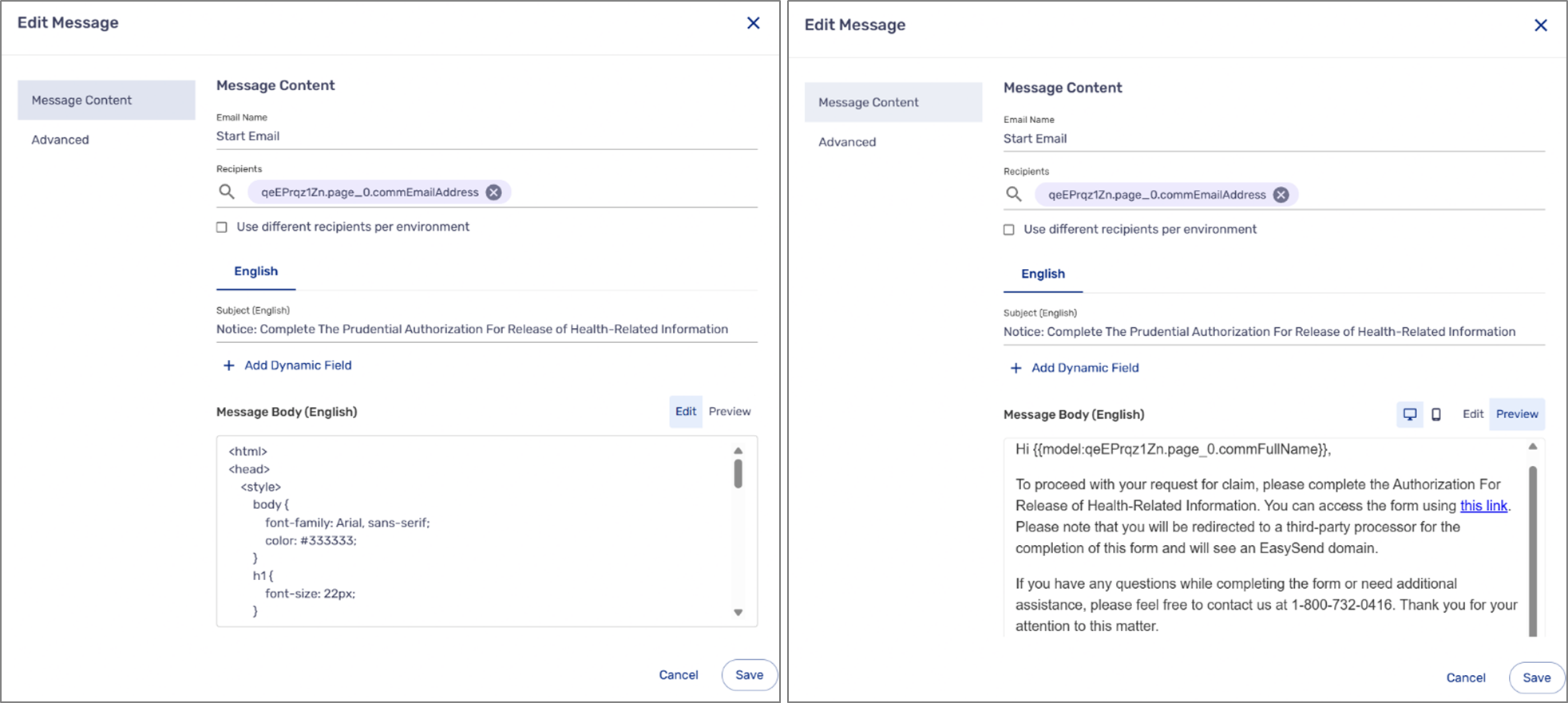
Figure 10: Edit and Preview
SMS
(See Figure 11 to Figure 15)
The SMS contains the following options and fields:
Label
Role
Edit Message
Description

Figure 11: SMS/Label and Role
When clicking the Edit Message button, the Edit Message window appears. This window contains the Message Content section with the following fields and options:
Email Name
Recipients - can be static or dynamic:
Static - for example, 2679834455
Dynamic - data items and/or metadata items
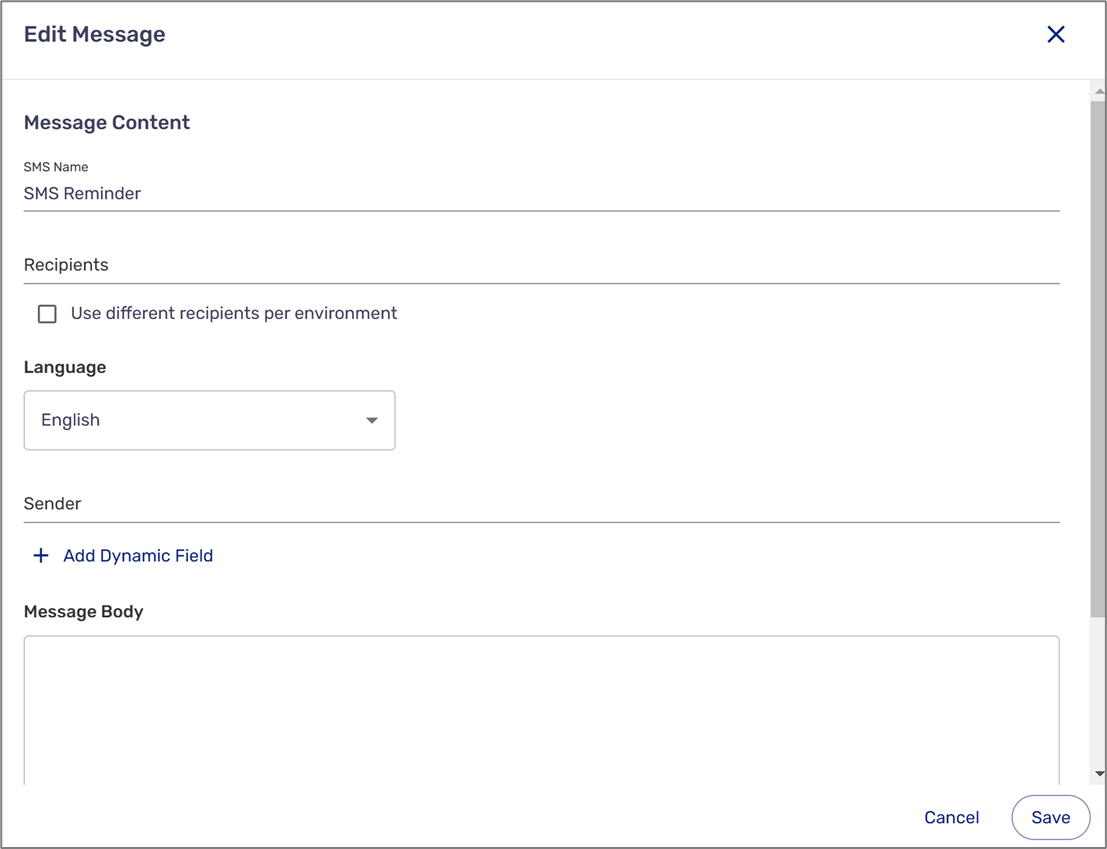
Figure 12: Edit Message Window
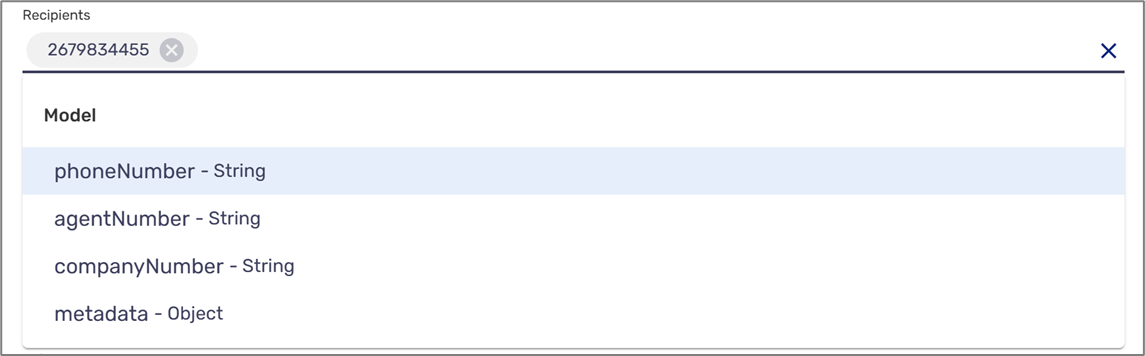 Figure 13: Adding Recipients
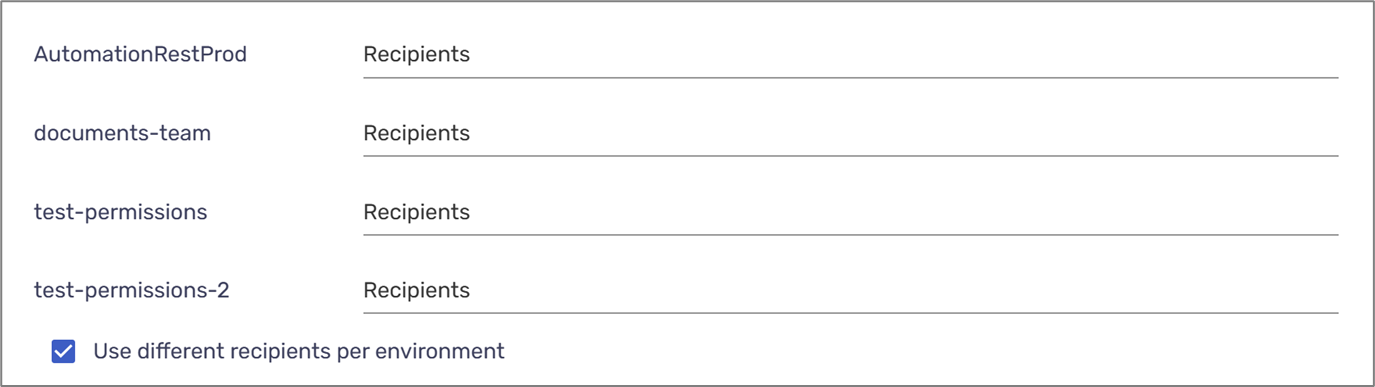
NOTE
You can add recipients to different environments.
The language of the SMS (according to available languages in your environment)
Sender - can include dynamic data items and/or metadata items

Figure 14: Sender
Message Body - the content of the SMS:
The content can include dynamic fields:
Data items
Metadata items
A Process link and a Co-Browsing link can be included in the content by clicking the + Add Dynamic Field option and selecting from the list under the Workflow category (1):
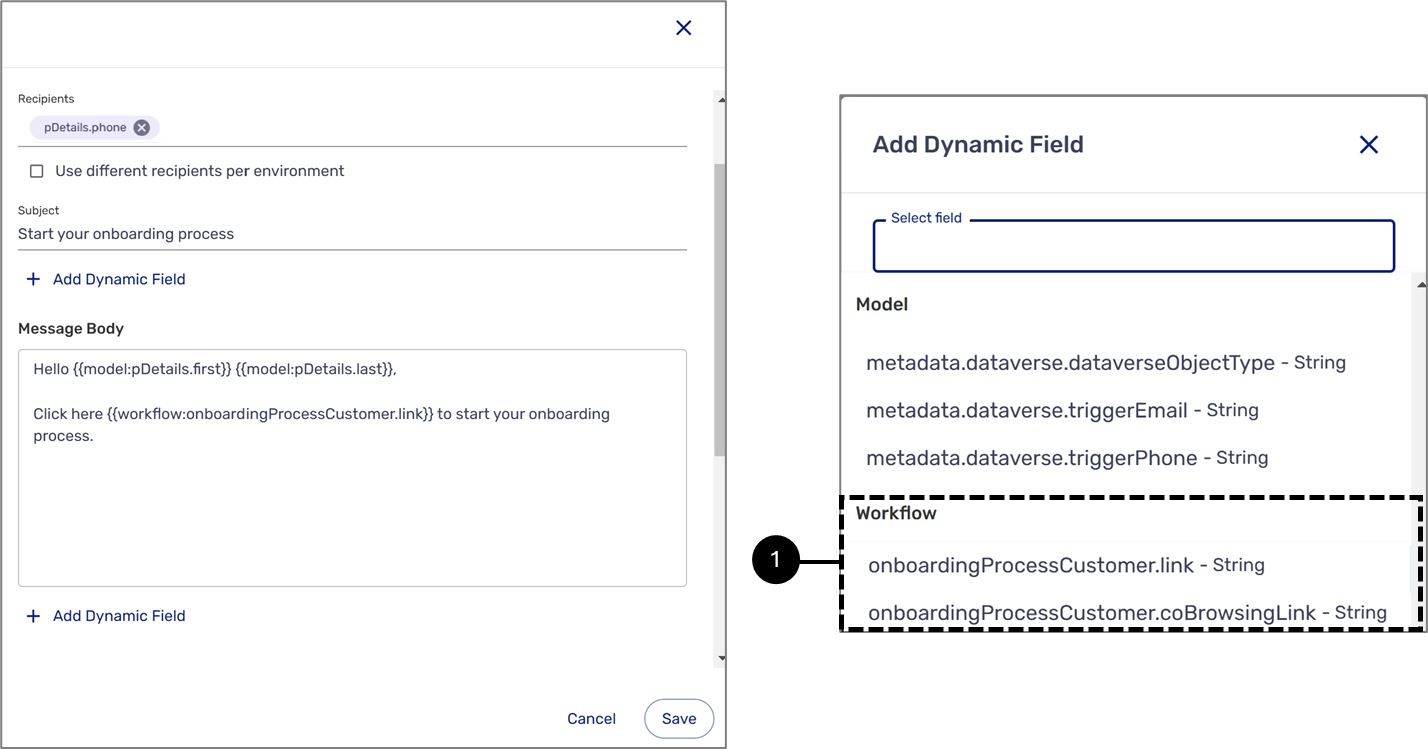
Figure 15: Message Body
Messaging
For detailed information about messaging, click here.
NOTE
To use Messaging, please upgrade your environment servers to version 50.1.0 or above.