Article Overview
The following article describes how to continuously add an EasySend sessions list.
Add the EasySend Sessions List
(See Figure 1 to Figure 6)
To add the EasySend Sessions list to all relevant record pages, perform the following steps:
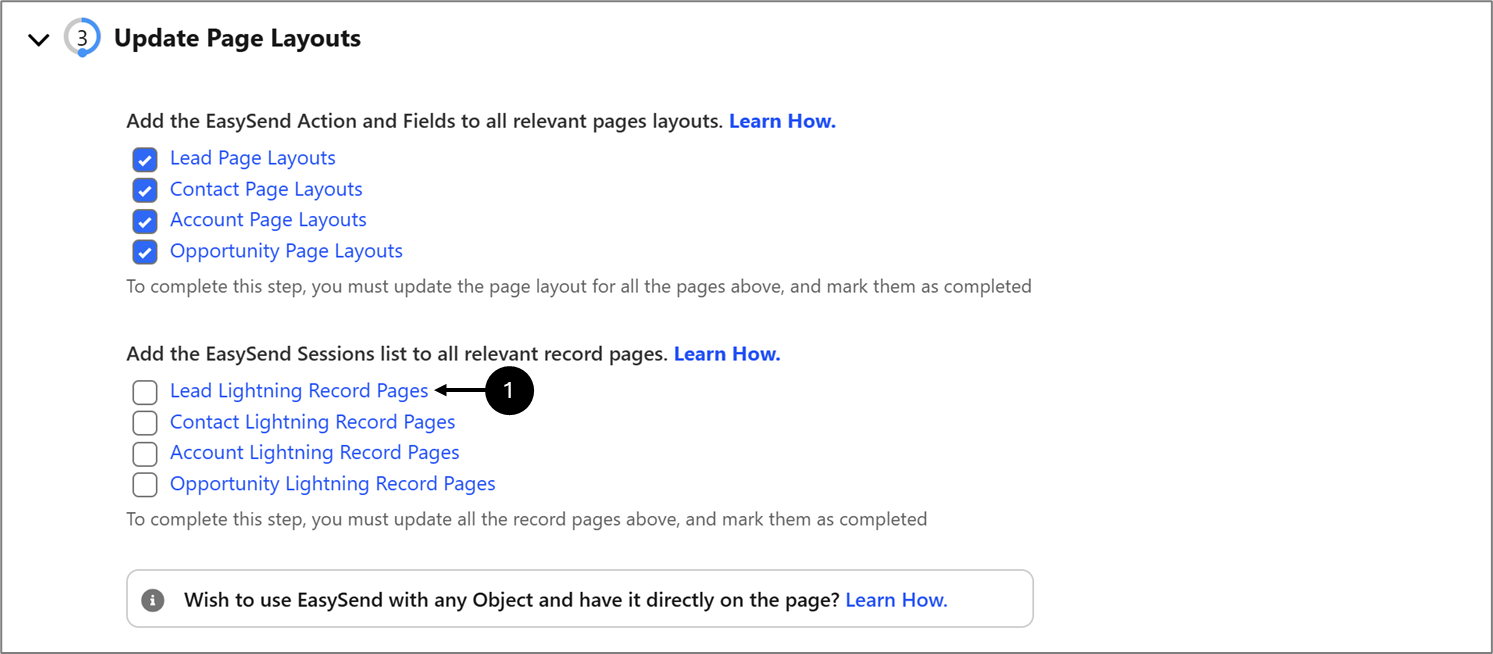
Figure 1: Lead Lightning Record Pages
Click Lead Lightning Record Pages (1).
Result:
The Lighting Record Pages appears:
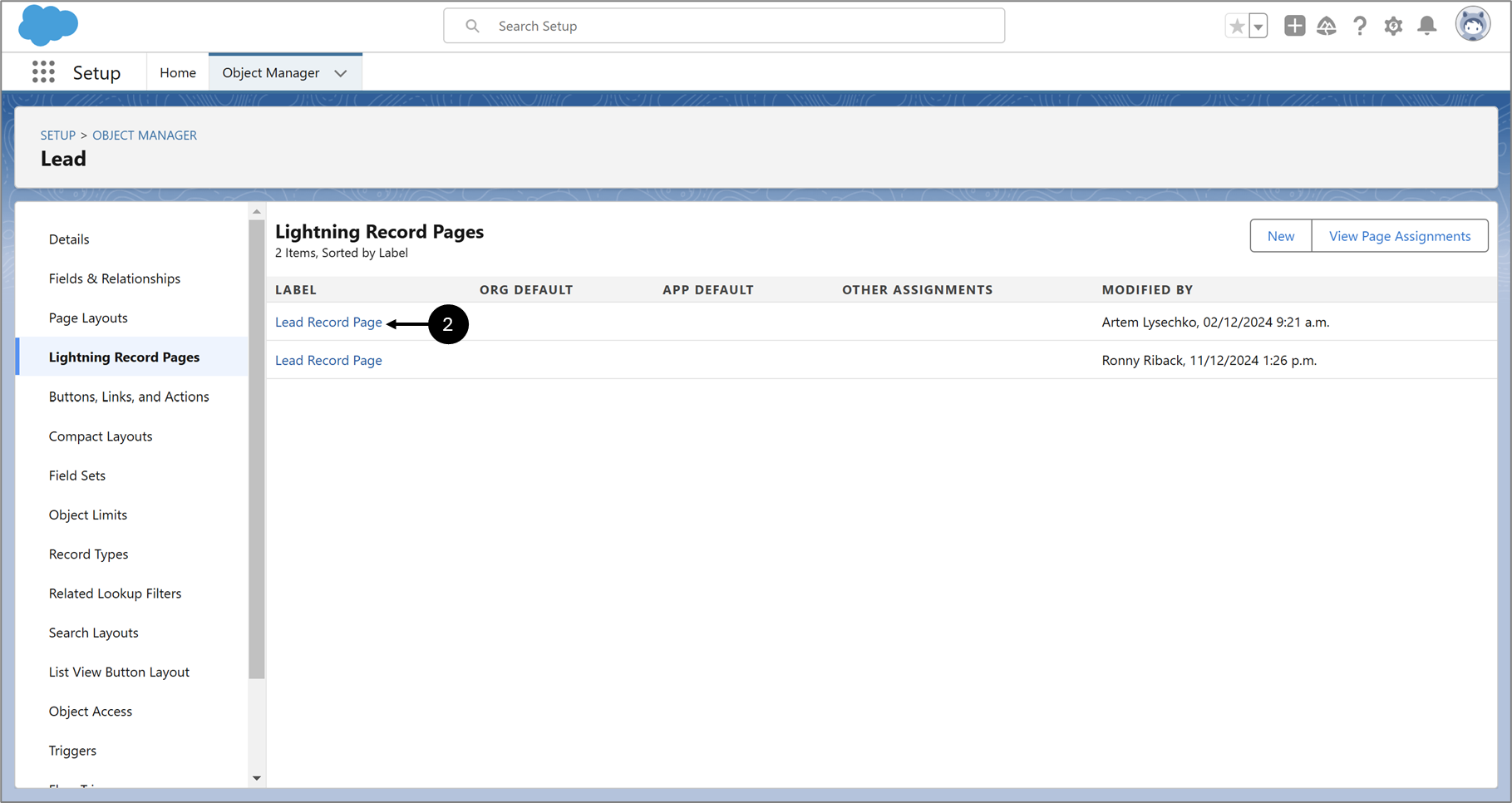
Figure 2: Lightning Record Pages
Click the desired Lead Record Page option, for example (2).
Result:
The Lead_Record_Page appears:
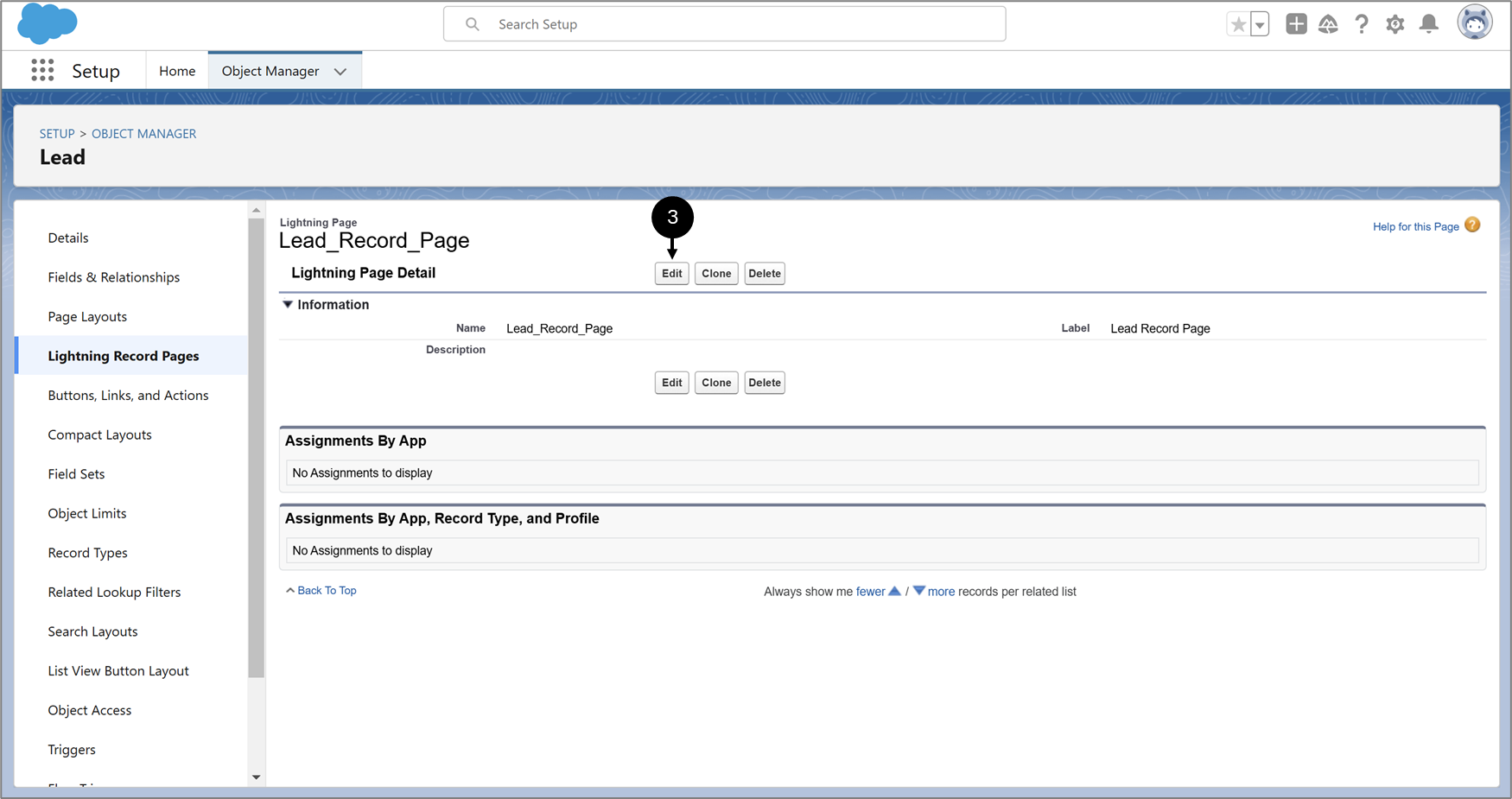
Figure 3: Lead_Record_Page
Click Edit (3).
Result:
The Lightning App Builder appears:
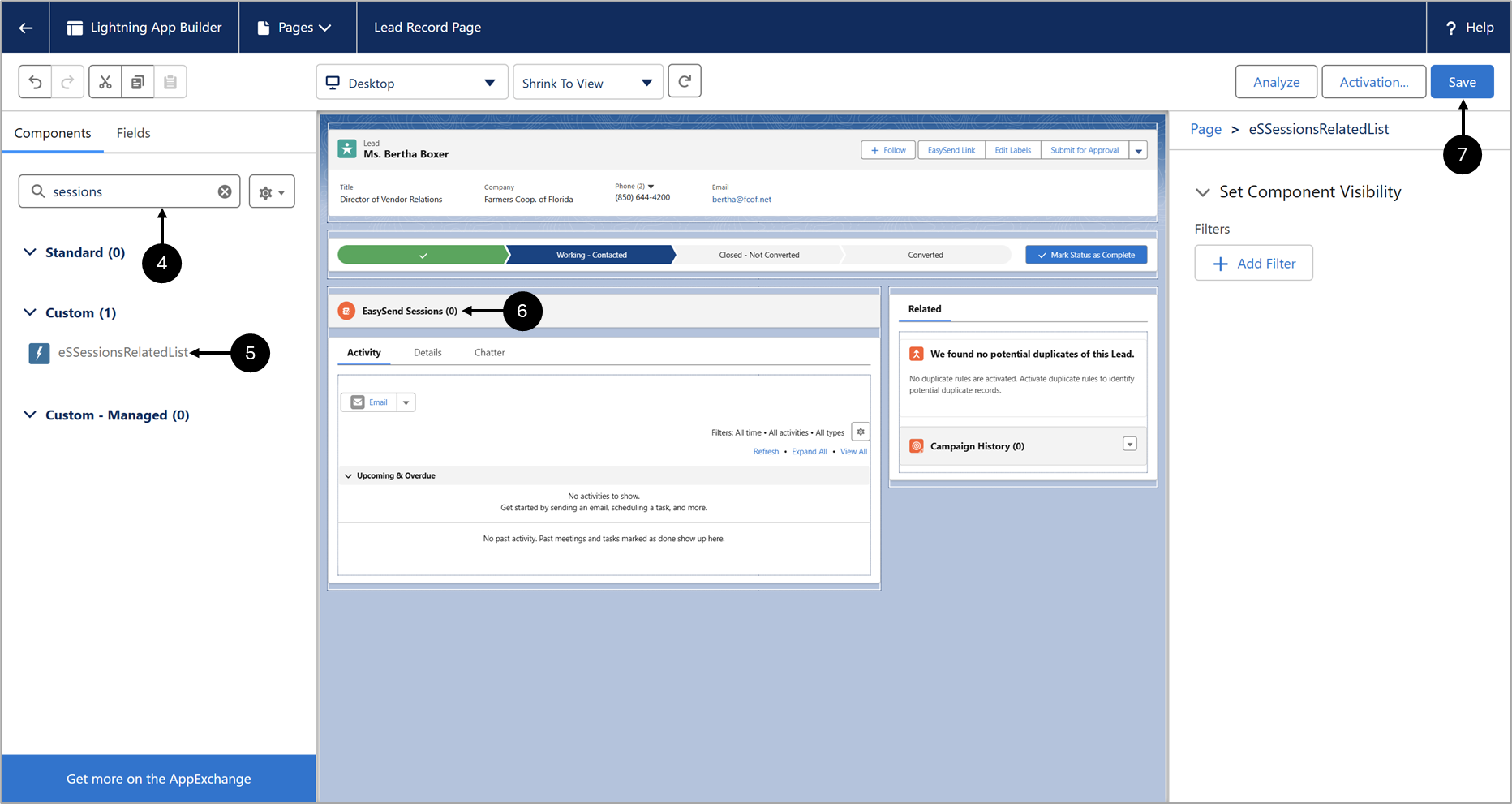
Figure 4: Lightning App Builder
Search for sessions (4).
Drag eSSessionsRelatedList (5).
Drop eSSessionsRelatedList anywhere on the page (6).
Click Save (7).
Navigate back to Quick Setup and the Update Page Layouts section.
Result:
The Update Page Layouts section appears:
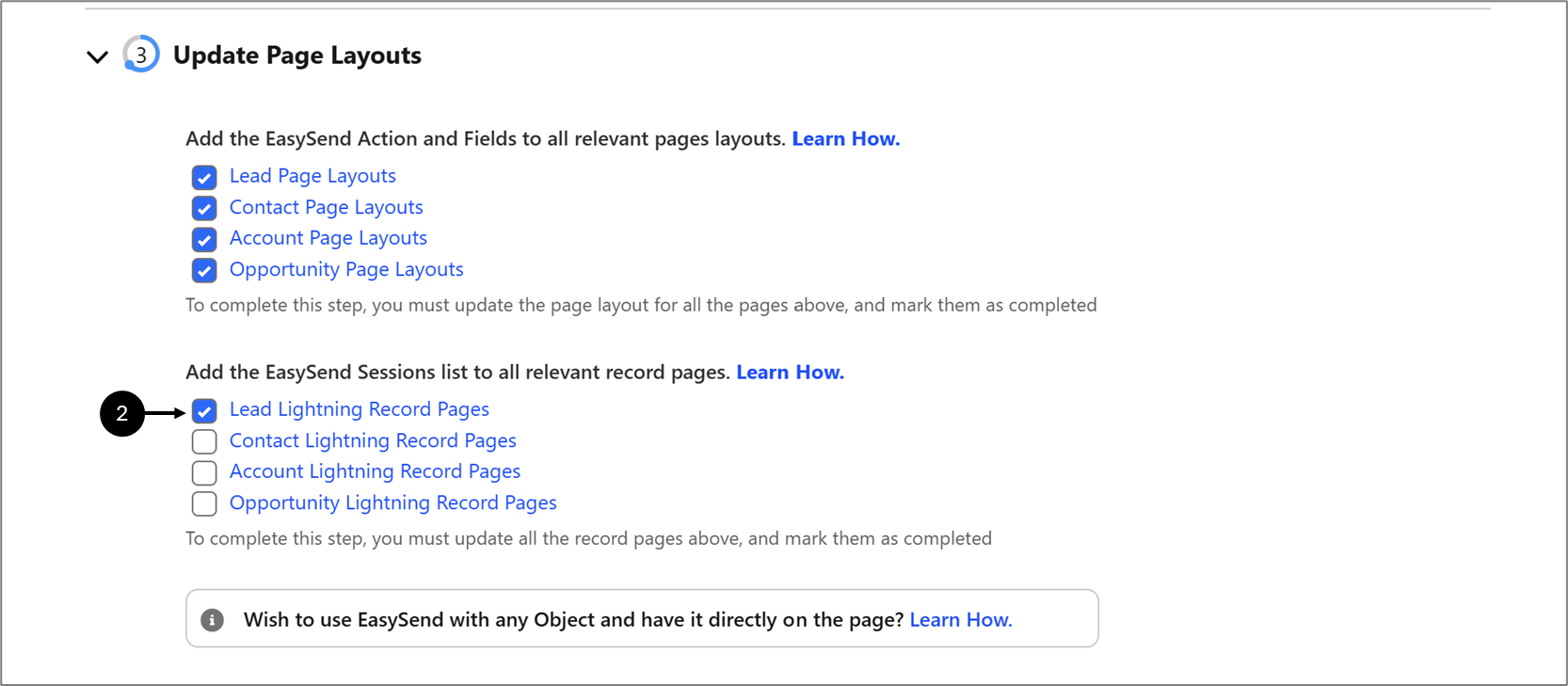
Figure 5: Lead Lightening Record Pages Checkbox
Check the Lead Lightning Record Pages checkbox (2).
Repeat Steps 1 to 9 for the Contact Lightning Record Page, Account Lightning Record Page, and Opportunity Lightning Record Page with the proper adjustments.
Result:
All the record pages are updated:
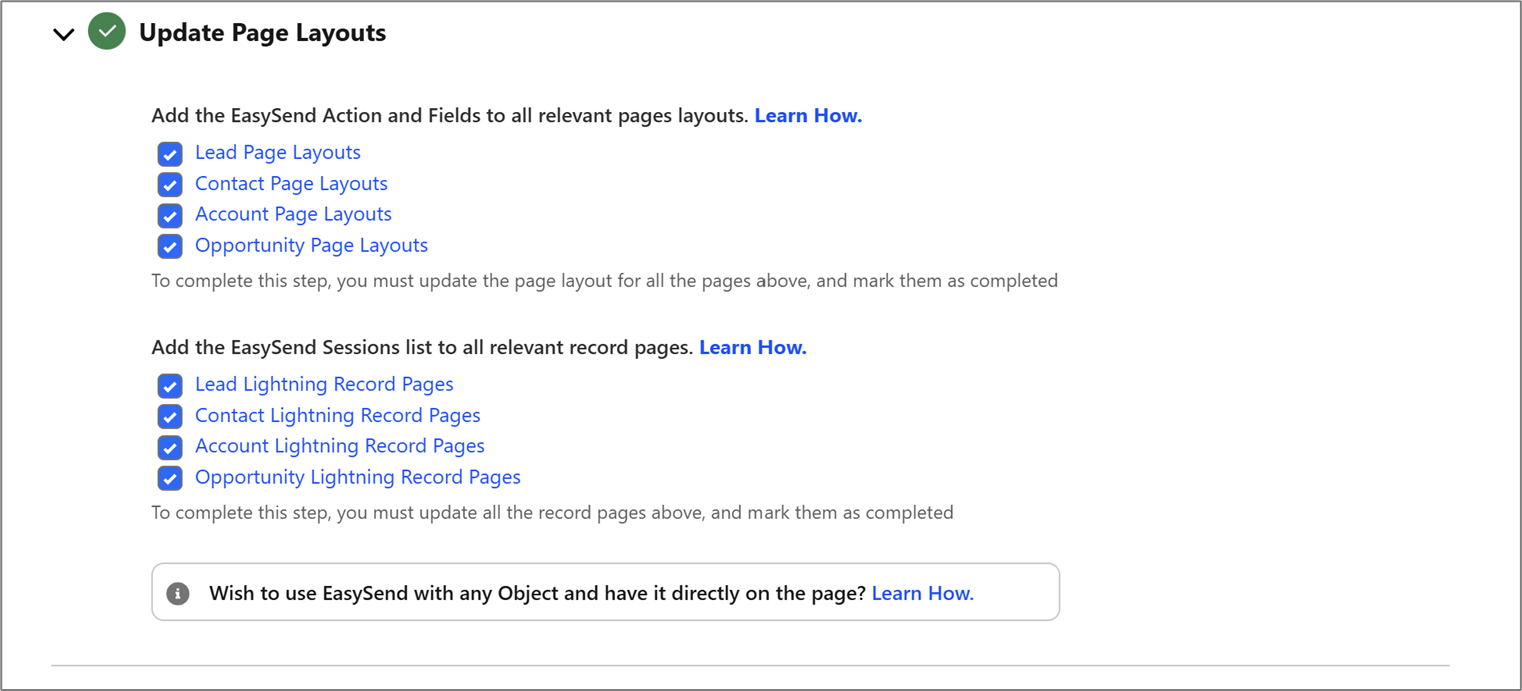
Figure 6: Updated Page Layouts