Article Overview
The following article describes how to detach and map Salesforce fields.
Detaching and Mapping Salesforce Fields
When a webflow is connected to a Salesforce environment, you can map fields to Salesforce or detach them from Salesforce. For example, if a field on the canvas is linked to the wrong Salesforce field, use the Detach button to disconnect it without deleting the component. Then, use the Map to Salesforce button to link it to the correct field.
NOTE
The options to map and detach are not available for the following components:
Page
Container
Grid
Array
file Upload
Signature
How to Detach Salesforce Fields
(See Figure 1 and Figure 2)
To detach Salesforce fields from Salesforce, perform the following steps:
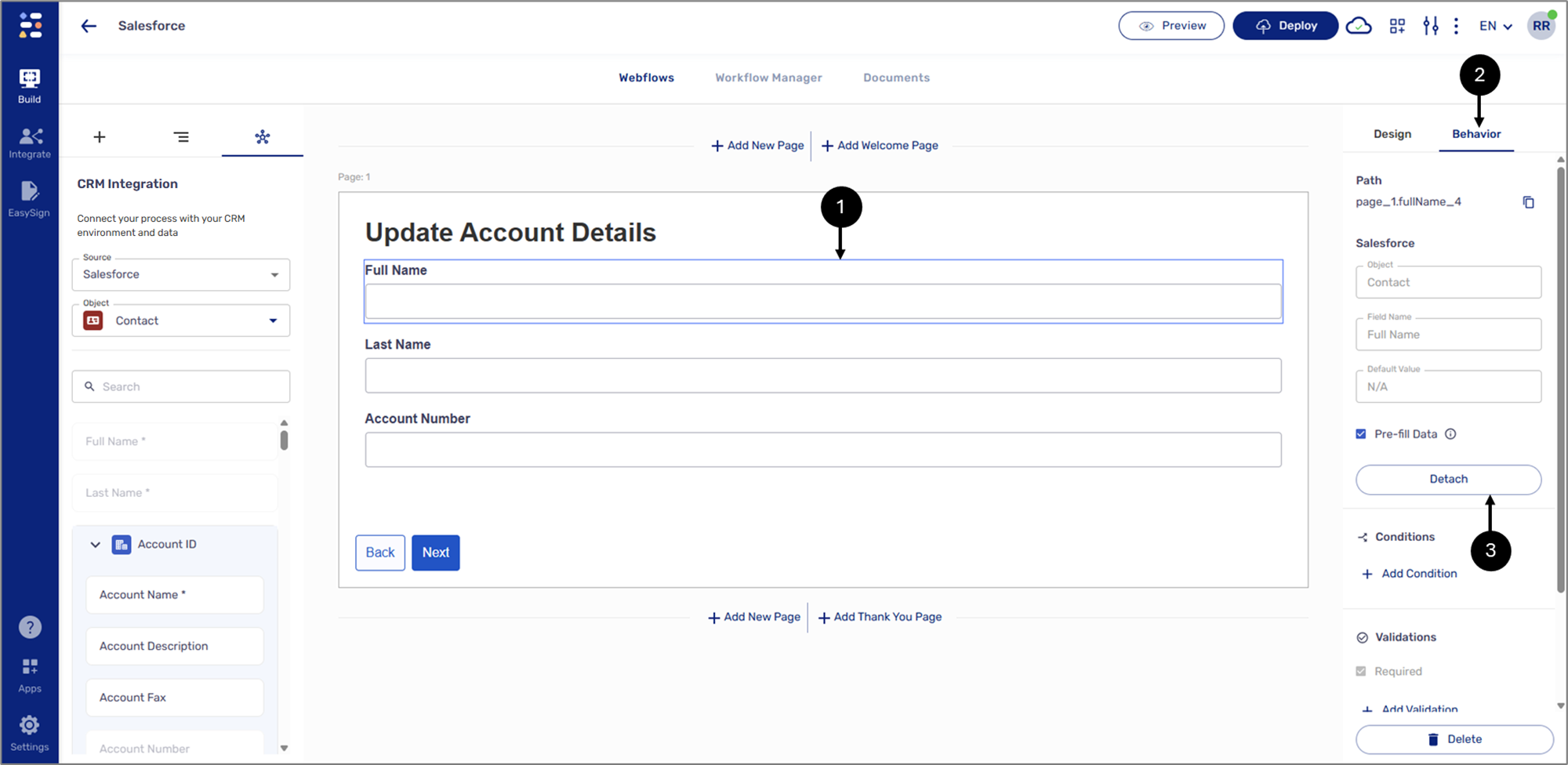
Figure 1: Detach Button
Click a desired field (1).
Click the Behavior tab (2).
Click the Detach button (3).
Result:
The field is detached from Salesforce (4):
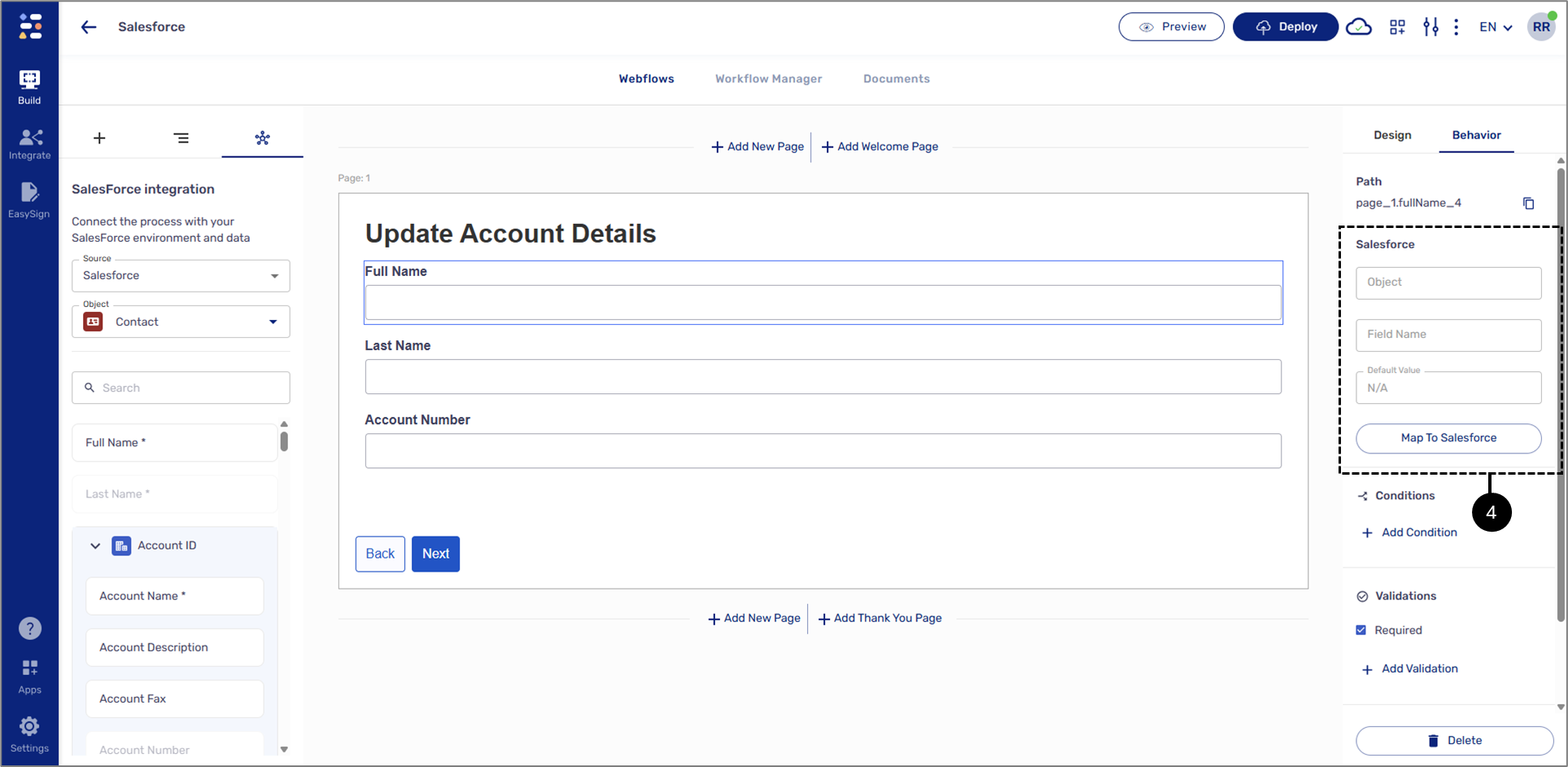
Figure 2: Detached Field
Map Field to Salesforce
(See Figure 3 to Figure 5)
To map a field to Salesforce, perform the following steps:
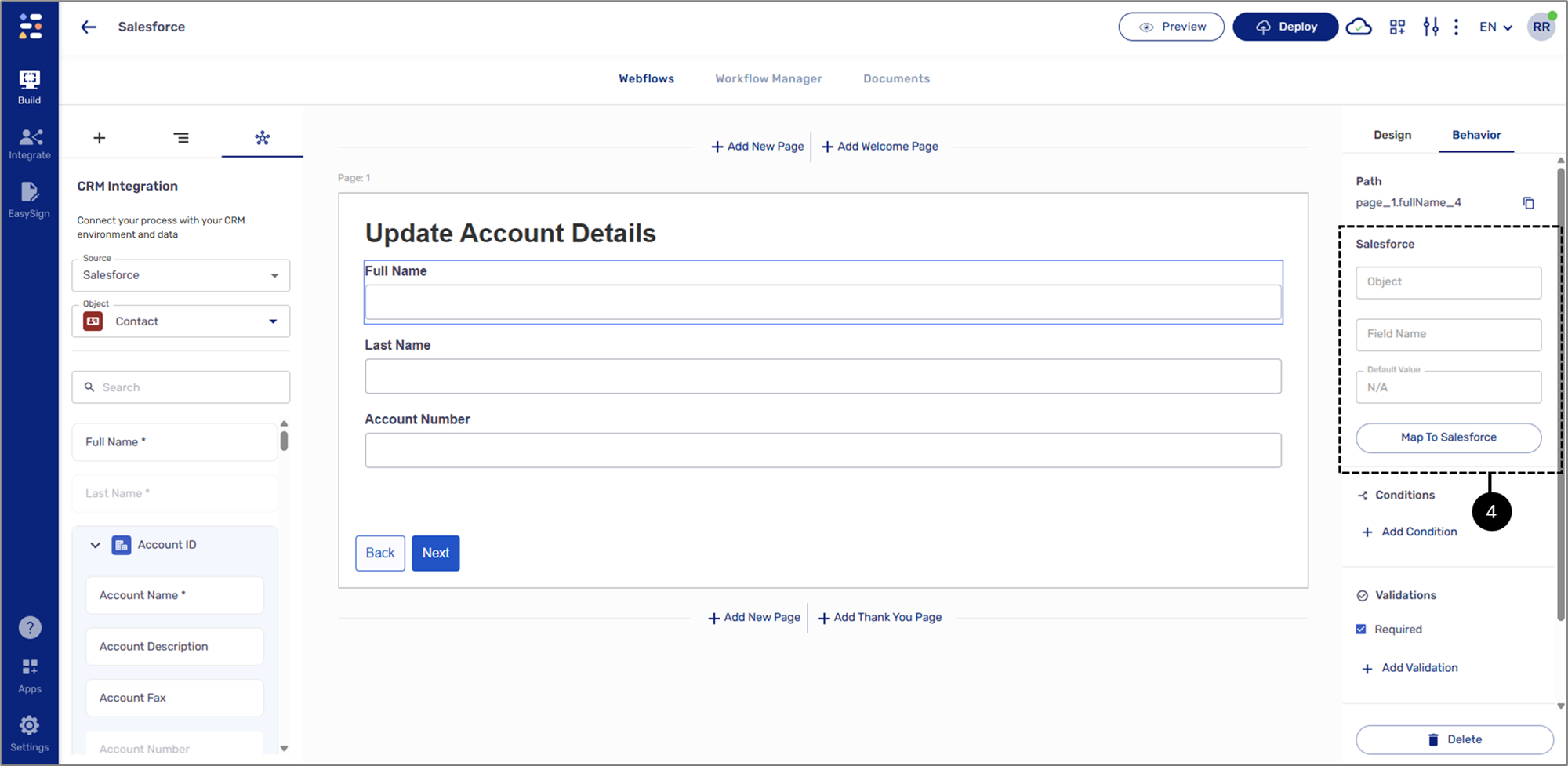
Figure 3: Detached Field
Click a desired field (1).
Click the Behavior tab (2).
Click the Map To Salesforce button (3).
Result:
The Map Component to Salesforce window appears:
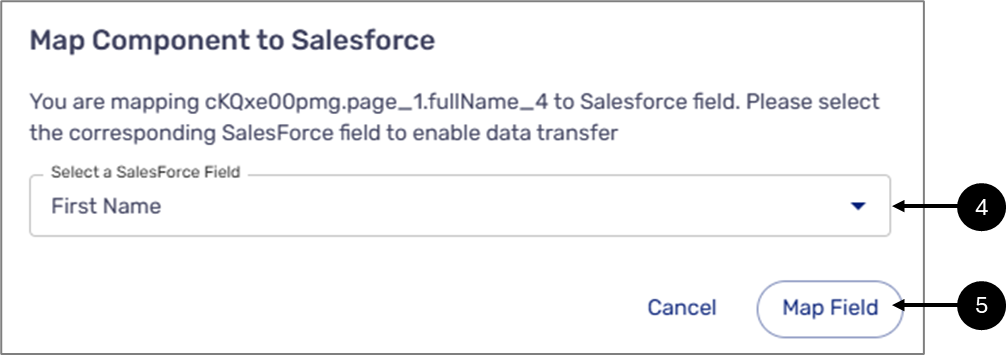
Figure 4: Map Component to Salesforce Window
Click the Select a Salesforce Field dropdown and select a field (4).
Click the Map Field button (5).
Result:
The field is mapped (6):
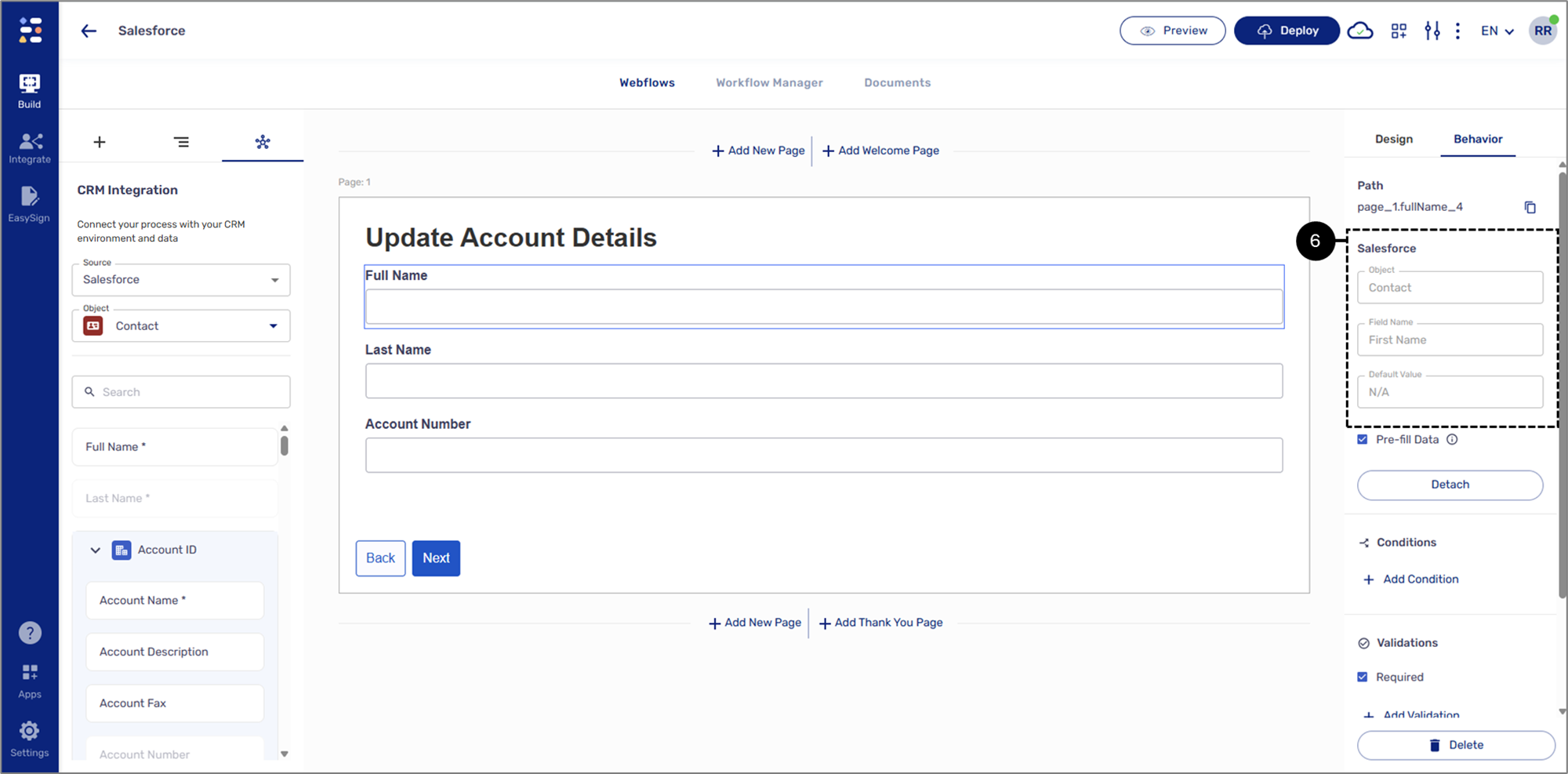
Figure 5: Mapped Field