Article Overview
The following article describes the steps to track EasySend sessions on monday.com.
How to Track EasySend Sessions
(See Figure 1 and Figure 2)
To track EasySend sessions, perform the following steps:
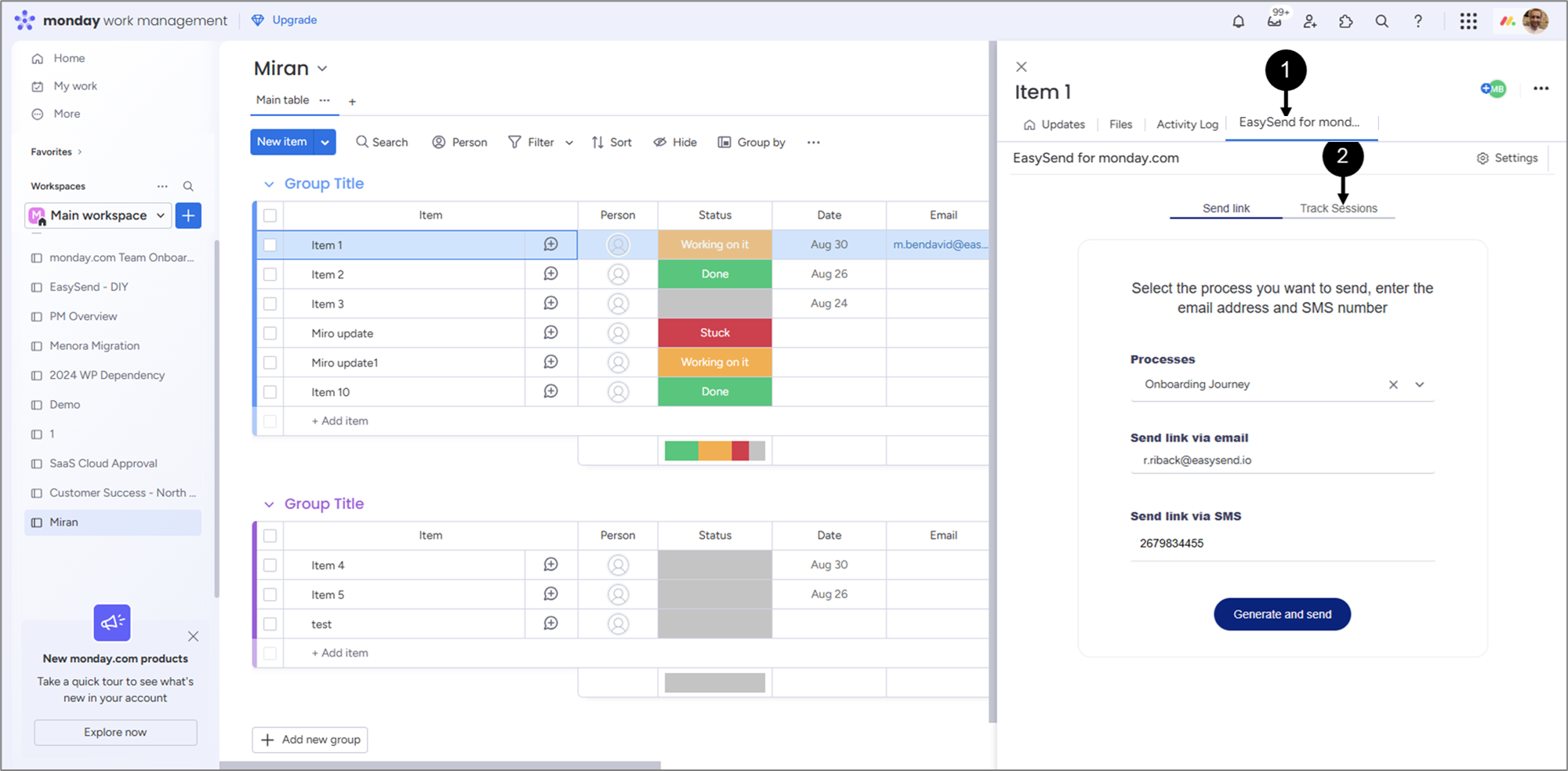
Figure 1: Track Sessions
Access your resources (source, workspace, board) and click an item.
Click the EasySend for monday.com view (1).
Click Track Sessions (2).
Result:
A list of EasySend sessions appears (3):
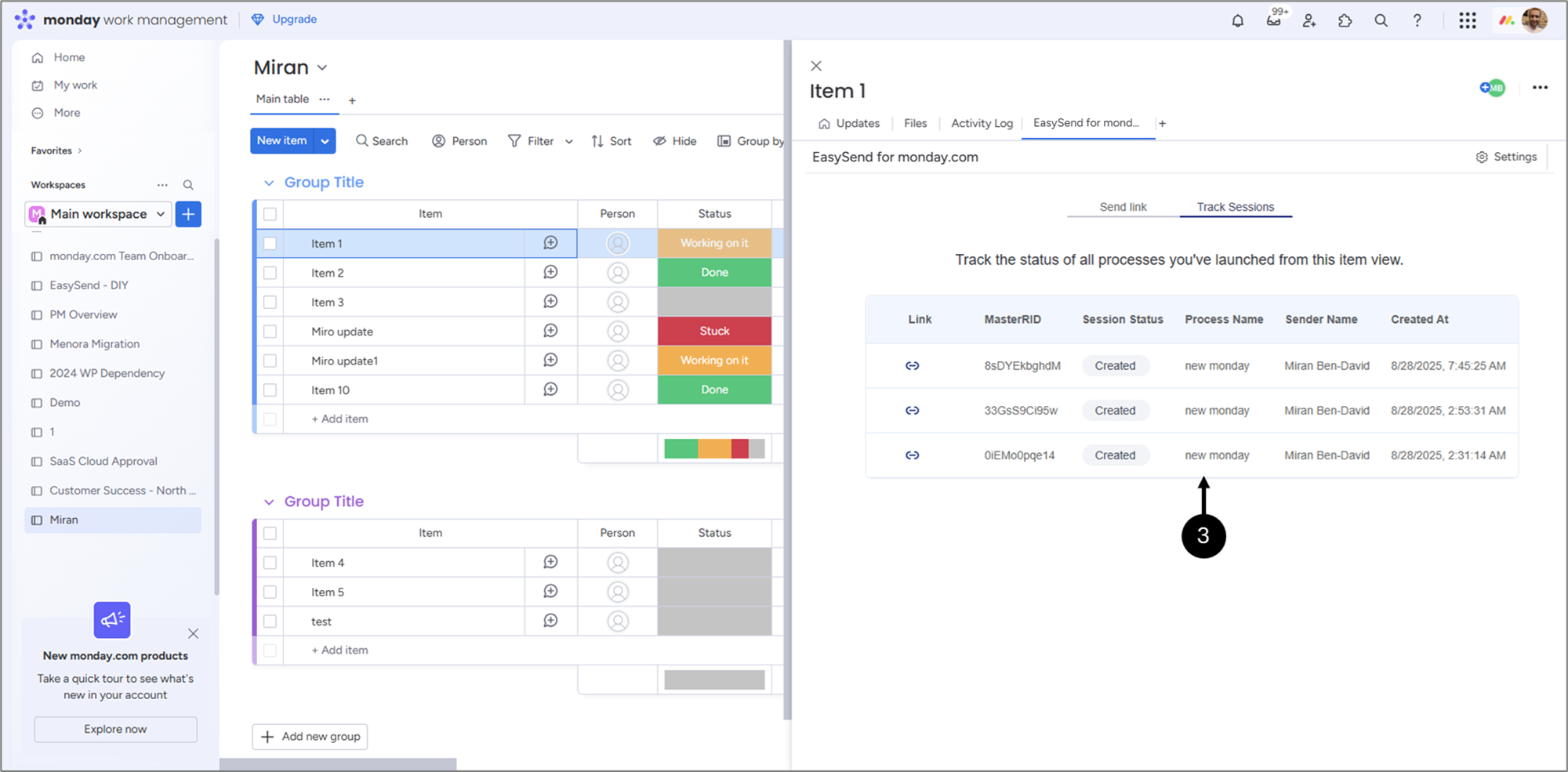
Figure 2: Sessions
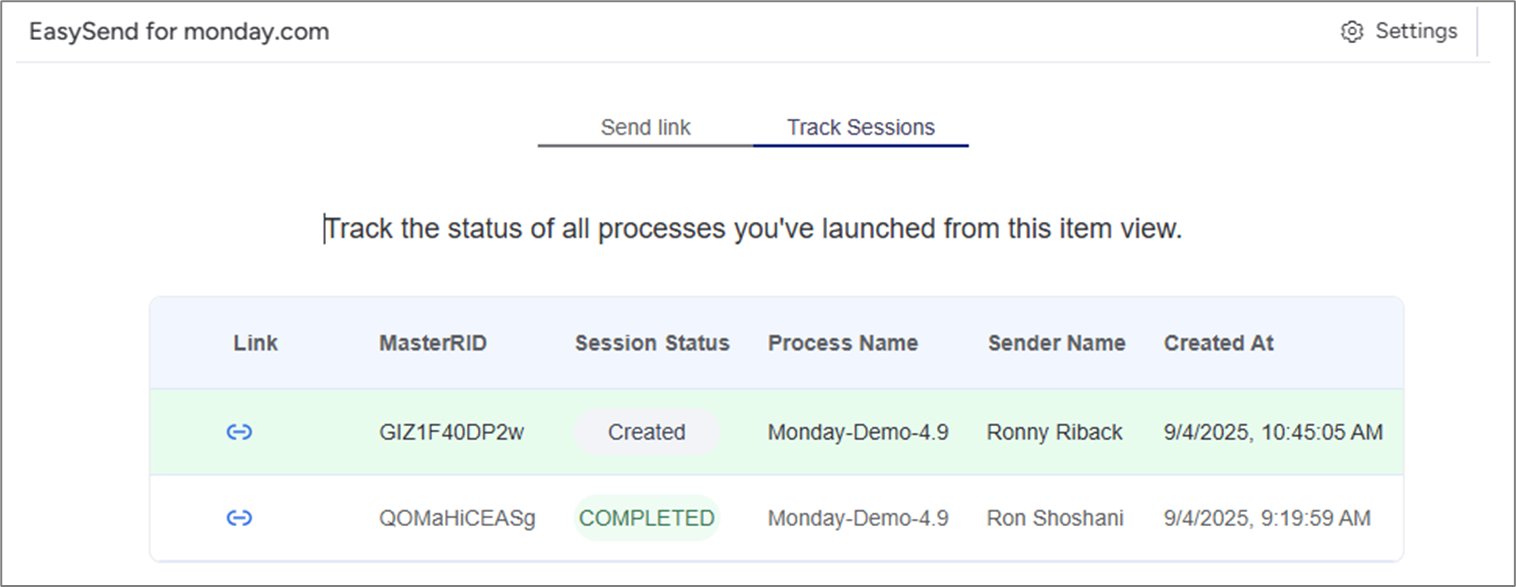
Each session contains the following information:
Link - enables you to copy, paste, and use the link
NOTE
Each link is valid for one submission only. If a user tries to access a link after the submission has been completed, an error message will be displayed.
MasterRID - the session's unique identifier
Status:
Created
Opened
Completed
Name
Sender Name
Created At
NOTE
After clicking Generate and send, you will be automatically redirected to the Track Sessions tab, where the sent journey information is highlighted in green.