Article OVerview
The following article provides tools for troubleshooting dynamic document issues.
Cannot Open A Word Document Using the Builder
(See Figure 1 to Figure 8)
Your Microsoft Word settings might cause documents to open in Protected View. This can create issues when accessing these documents through the Builder, whether you are creating (1) a new document, uploading (2) one, or editing it (3).
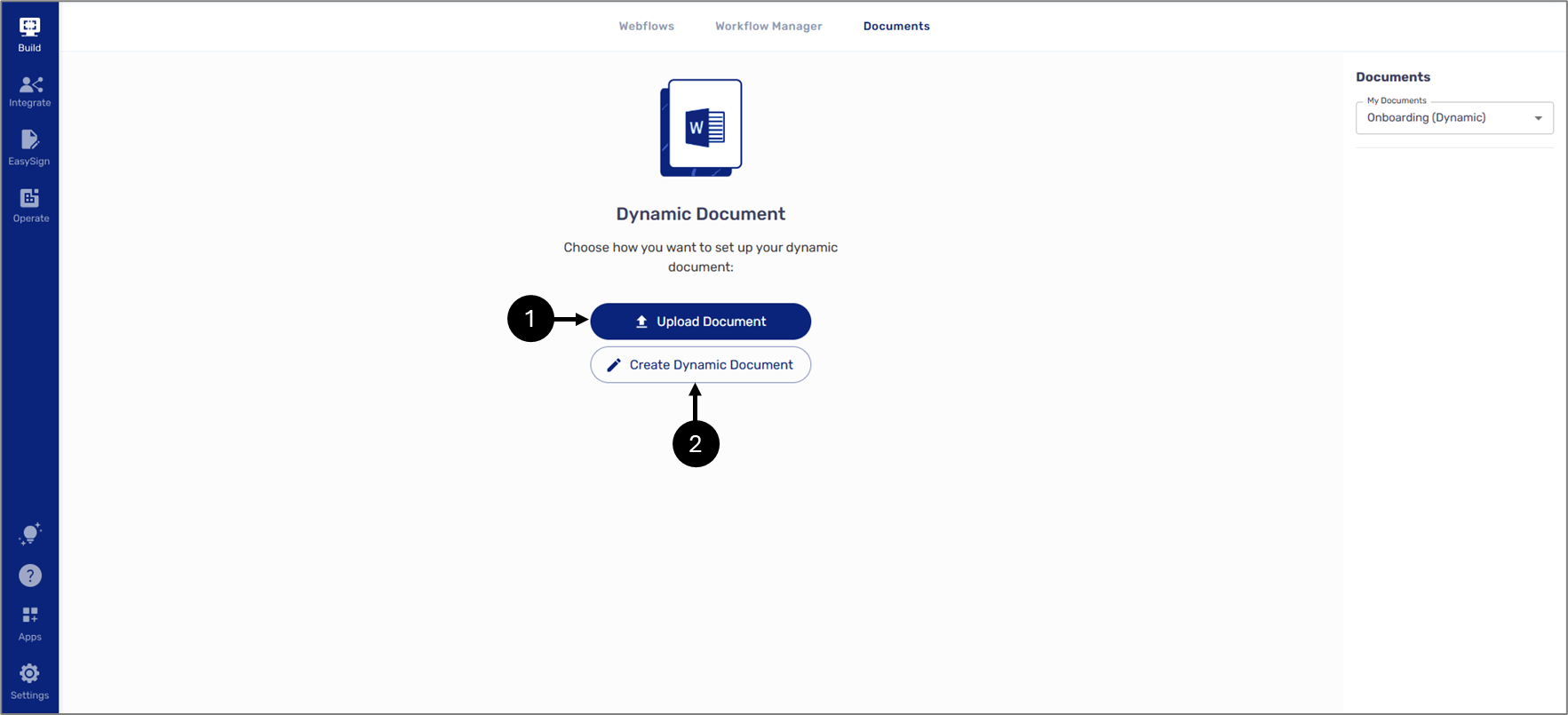
Figure 1: Creating/Uploading
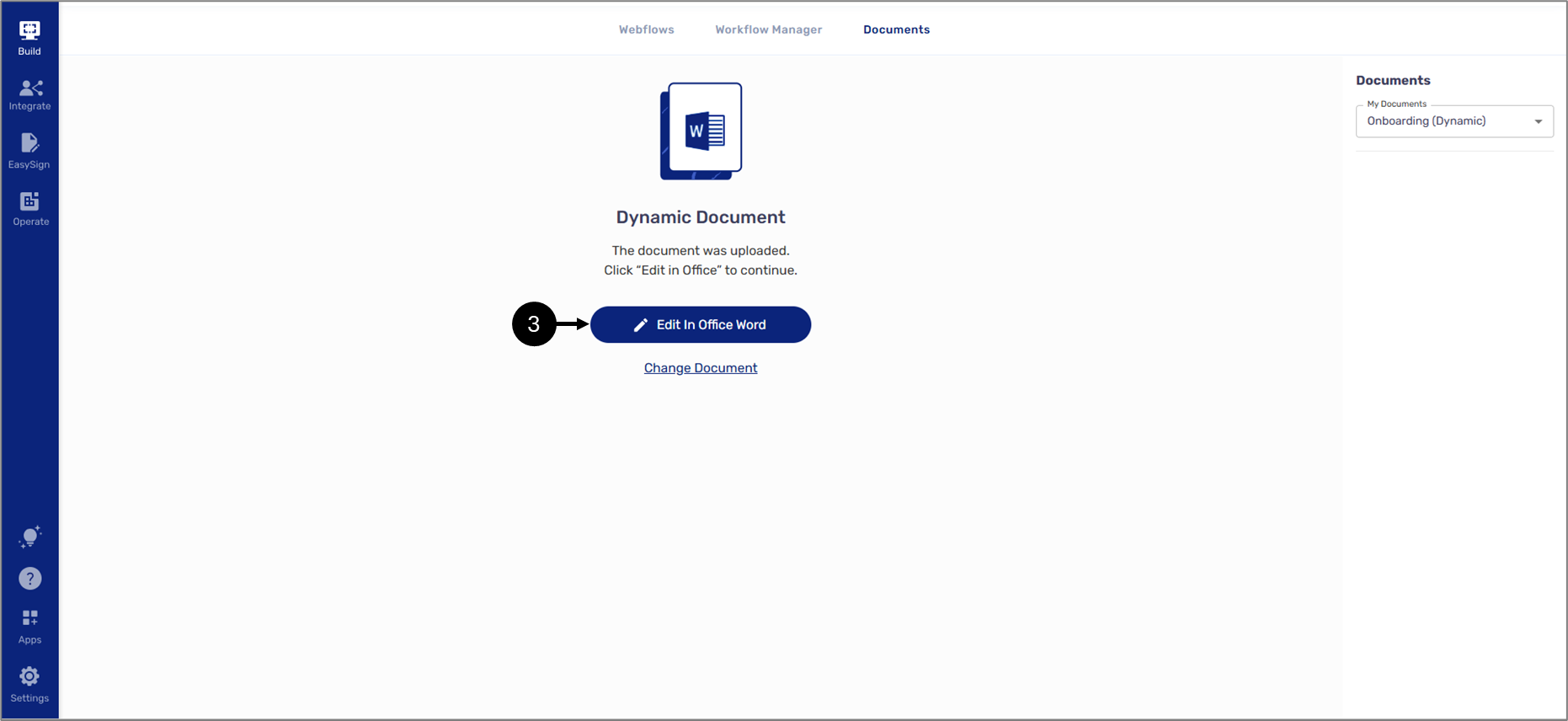
Figure 2: Editing
If after selecting either of the options, the following message appears:
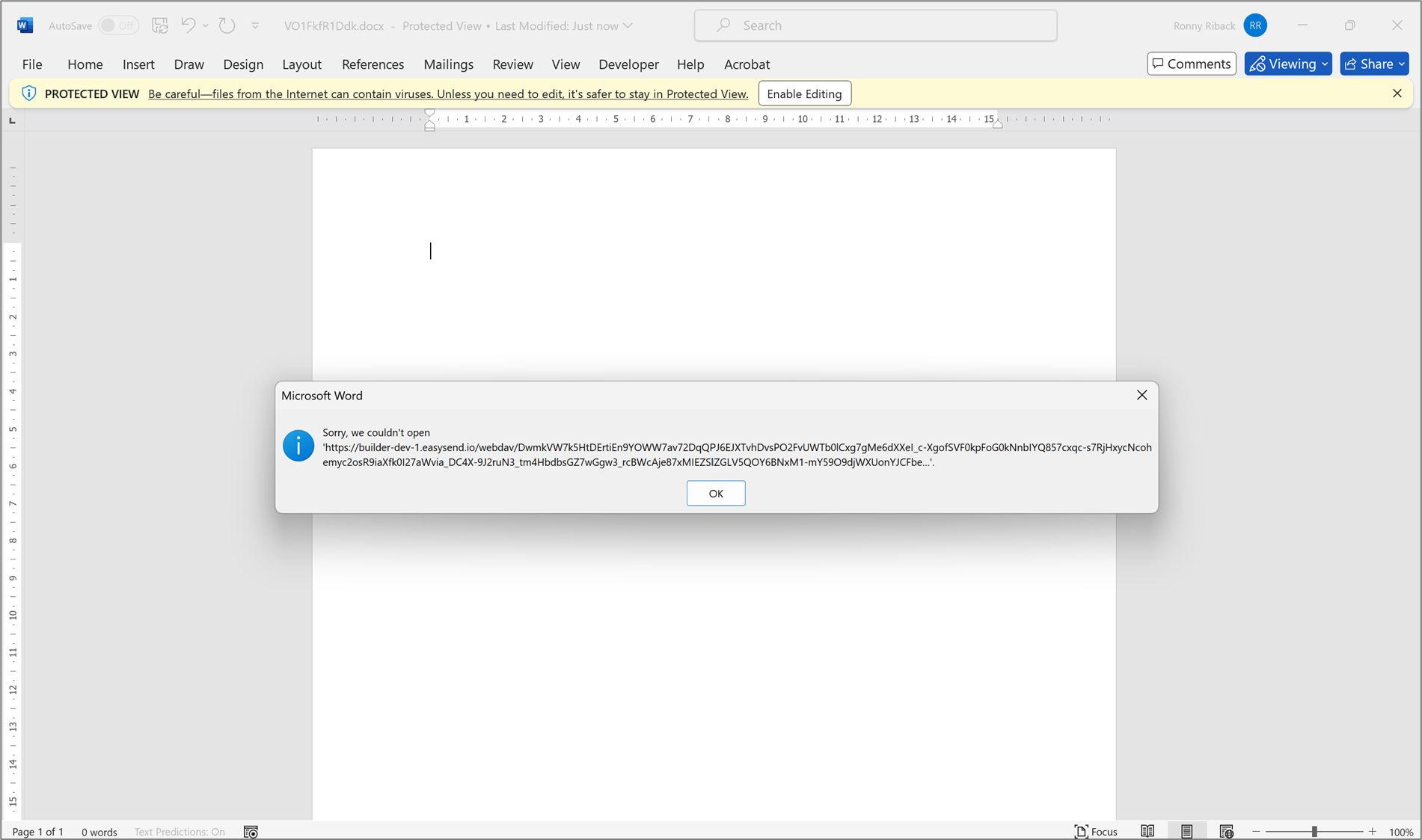
Figure 3: Error Message
perform the following steps:
NOTE
Please note that screenshot images may differ depending on your Microsoft Word version.
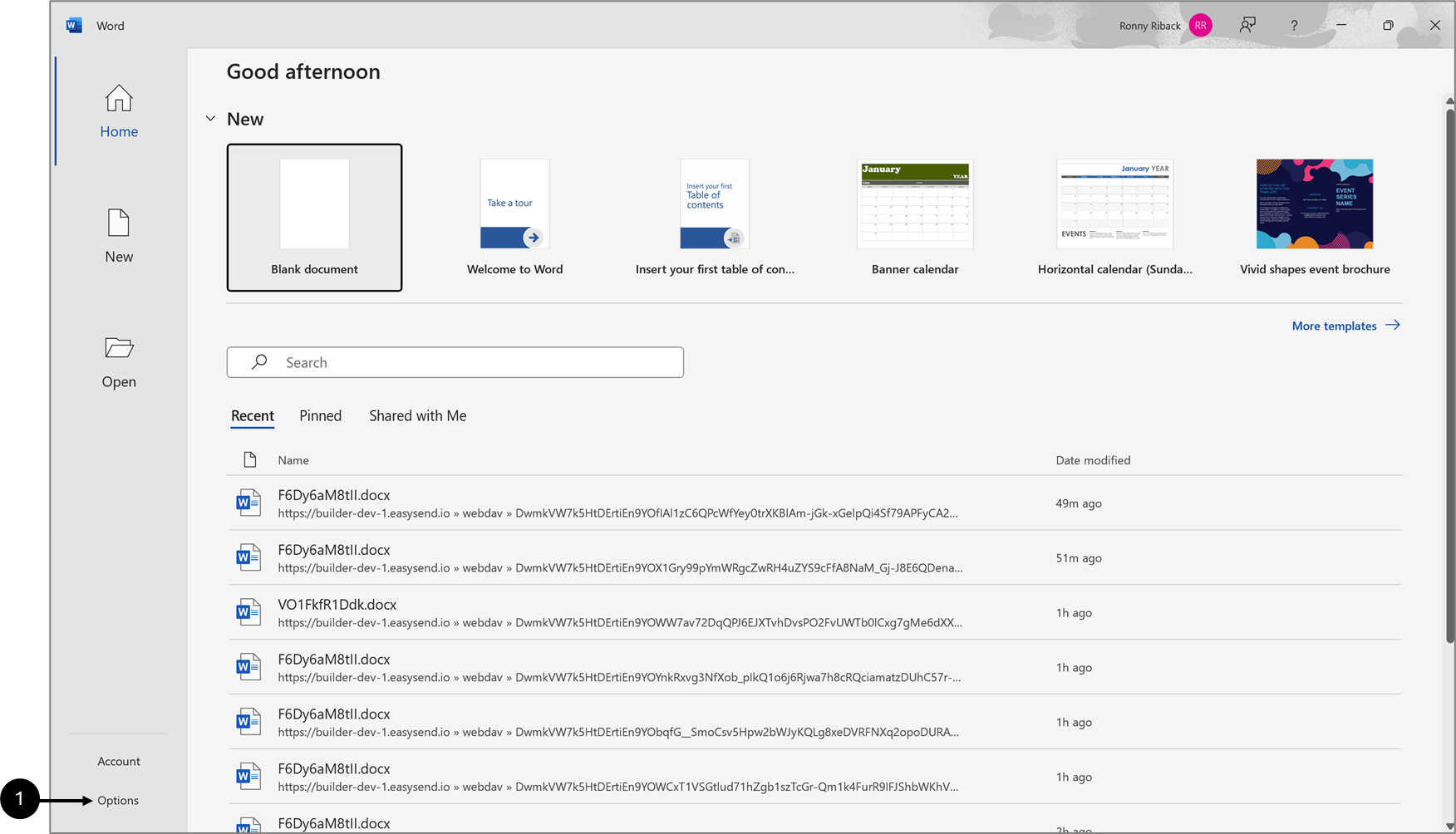
Figure 4: Options
Open Microsoft Word on your machine locally.
Click Options (1).
Result:
Word Options window appears:
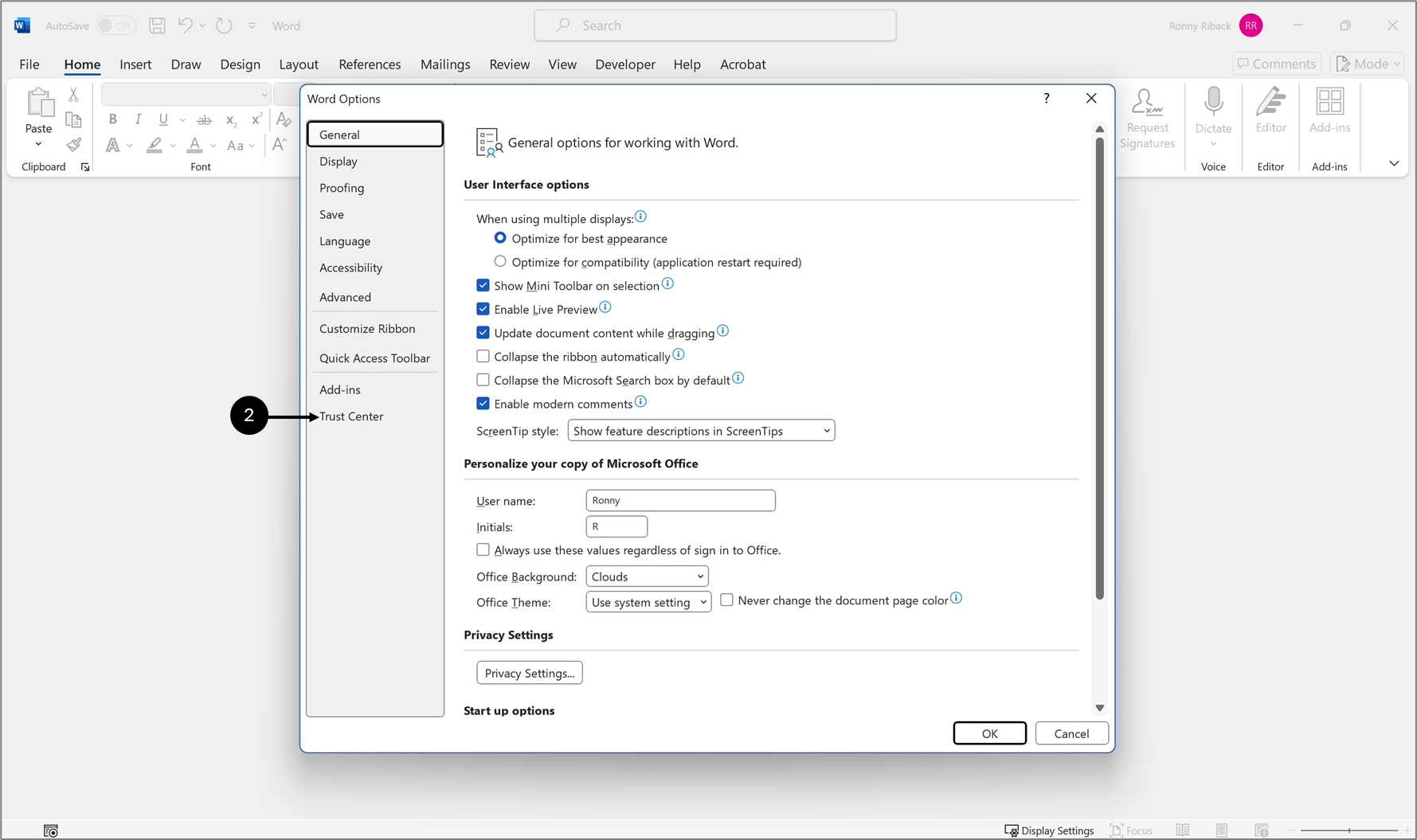
Figure 5: Trust Center
Click Trust Center (2).
Result:
Trust Center options appear:
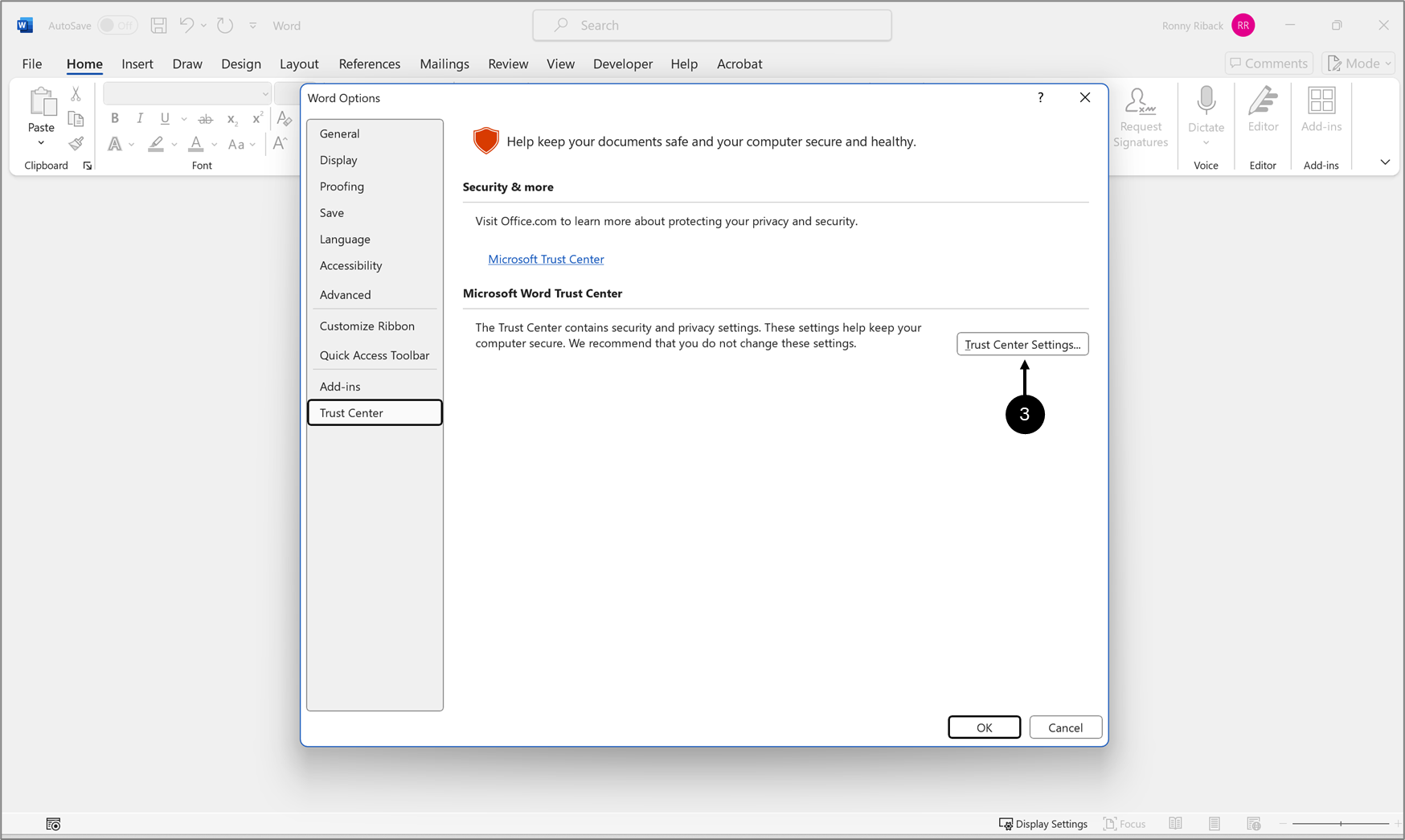
Figure 6: Trust Center Settings
Click Trust Center Settings (3).
Result:
Trust Center settings appear:
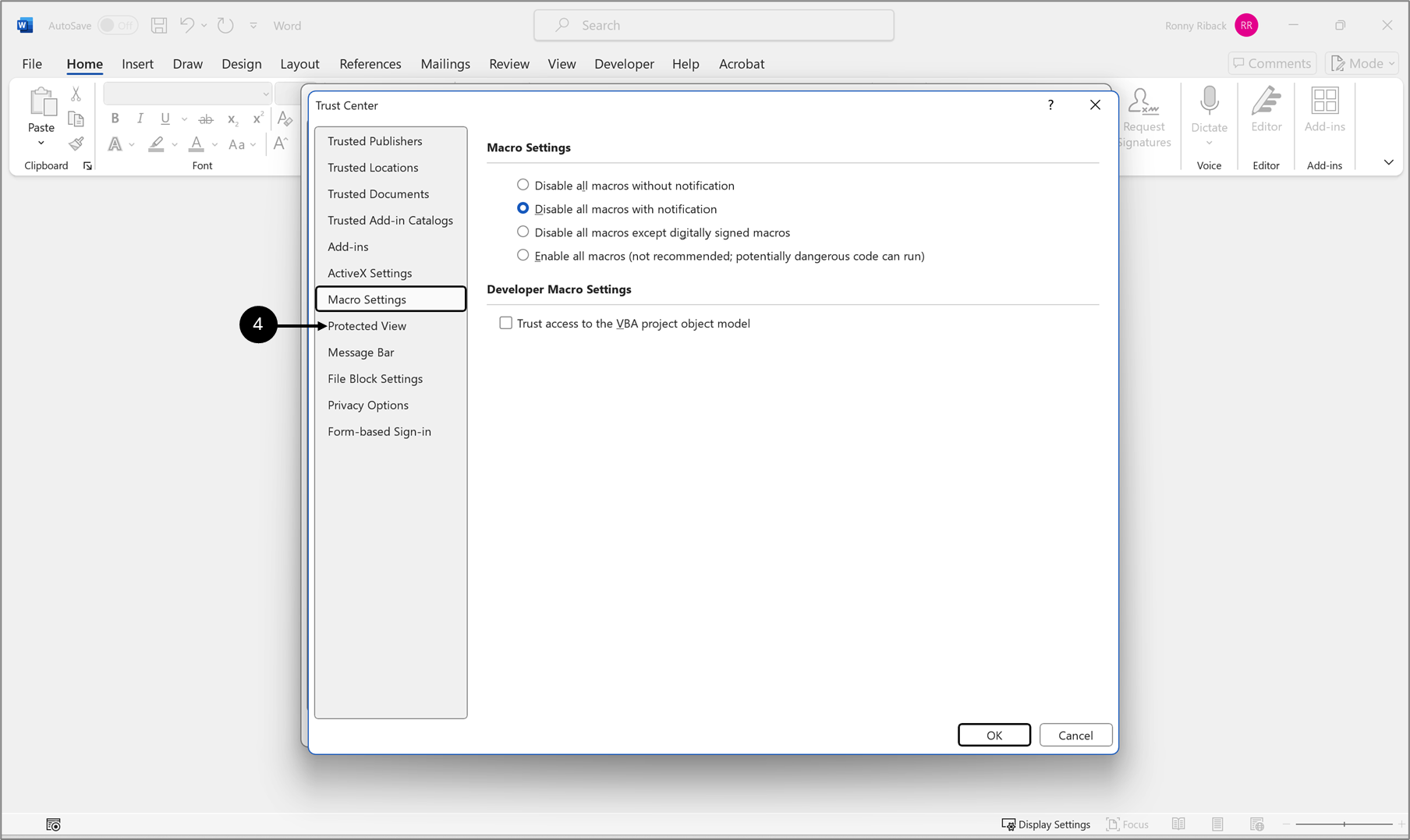
Figure 7: Protected View
Click Protected View (4).
Result:
Protected View checkboxes appear:
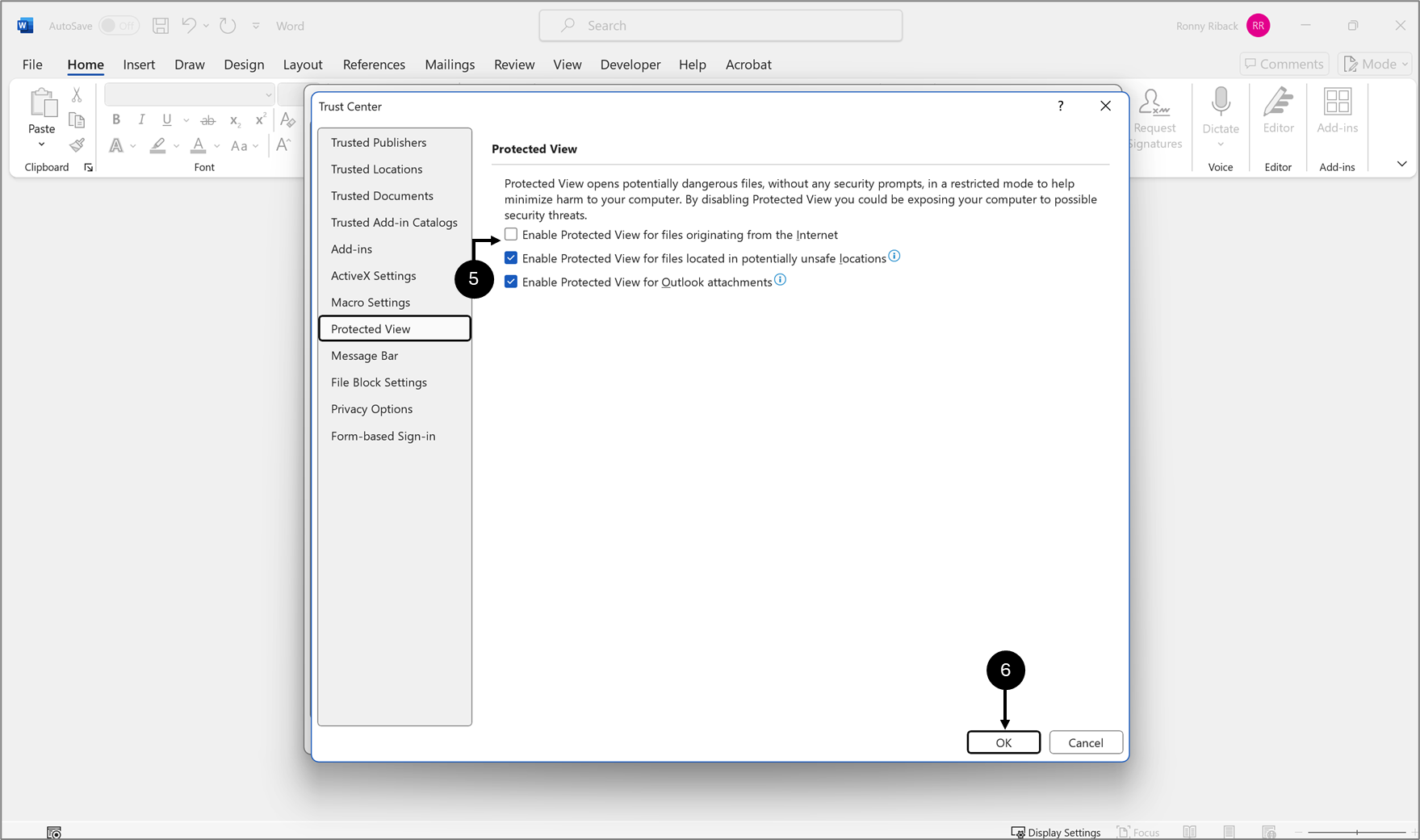
Figure 8: Protected View Checkboxes
Uncheck the Enable Protected View for files originating from the Internet checkbox (5).
Click OK (6).