Article Overview
The following article describes the Design properties of the Video component.
Add Media Window
(See Figure 1 and Figure 2)
To add a video, drag and drop the Video component onto the canvas, and wait for the Add Media window to appear.
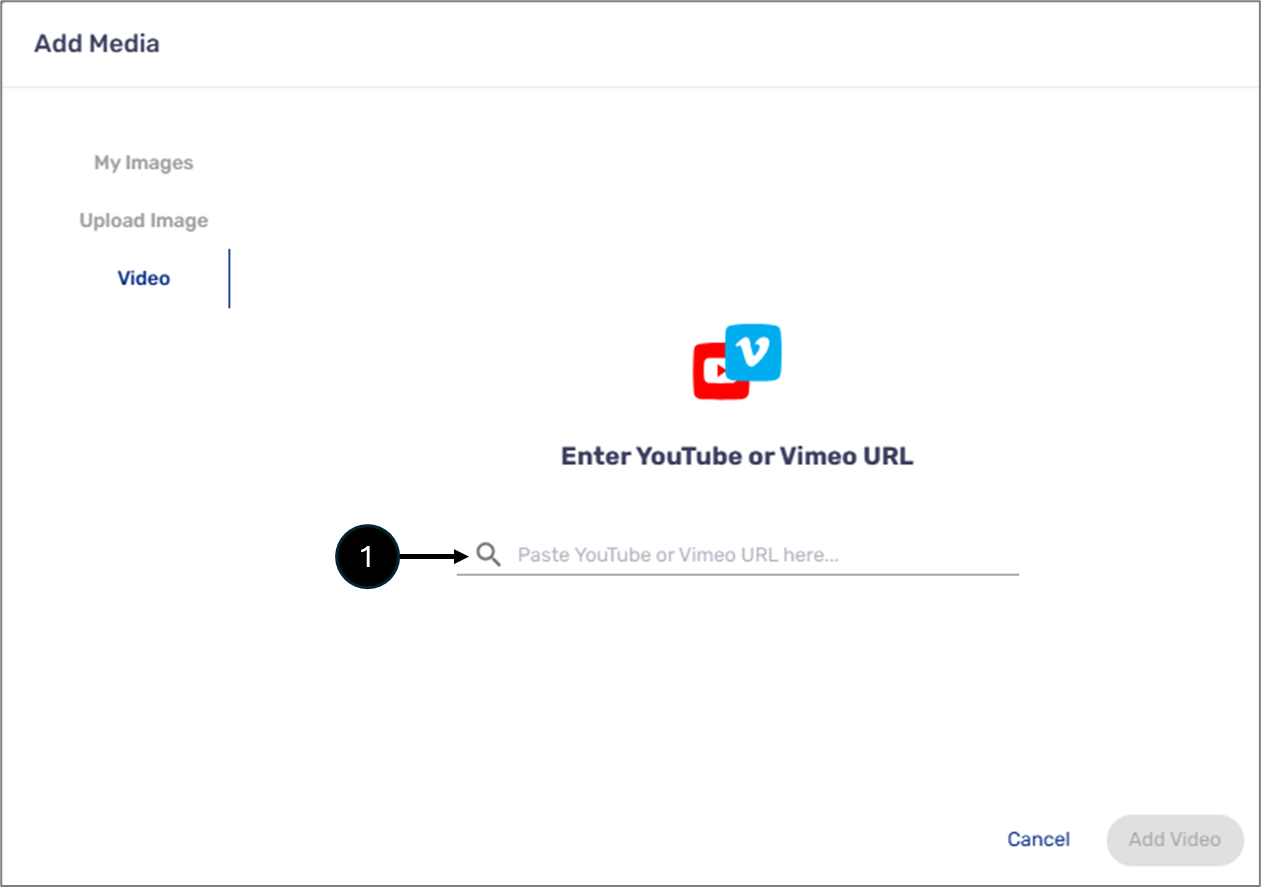
Figure 1: Add Image Window
Paste a YouTube or a Viemo link (1). Wait for the video to display, then click Add Video (2).
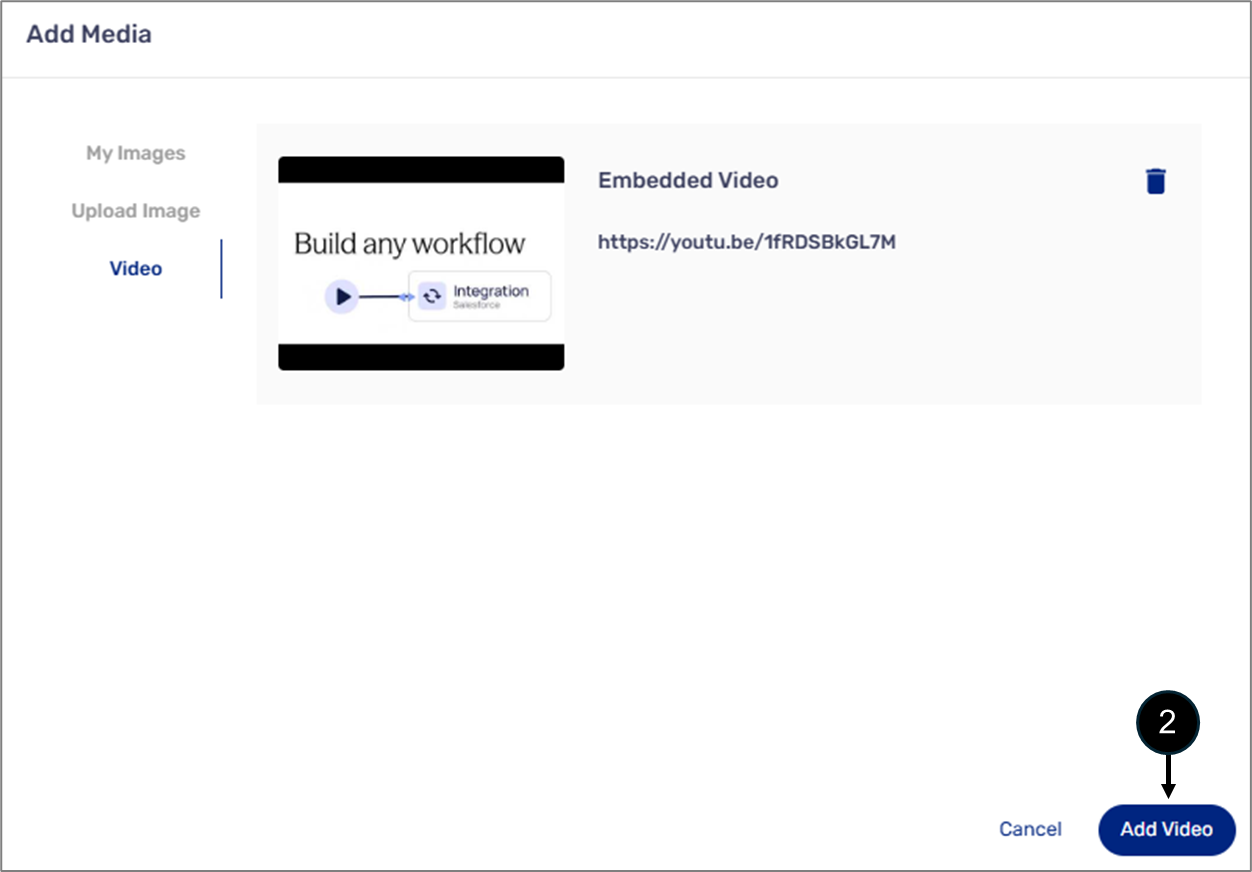
Figure 2: Add Video
Image Design Properties
(See Figure 3)
The Video component has the following Design properties:
+ Choose Media - opens the Add Media window. Enables you to select the video to display.
Video size -enables you to set the size of the video. Will be active once an image is uploaded.
Rest size to default - enables you to set the size of the image to its default state.
Image alignment:
Left
Middle
Center
Delete - removes the component from the canvas.
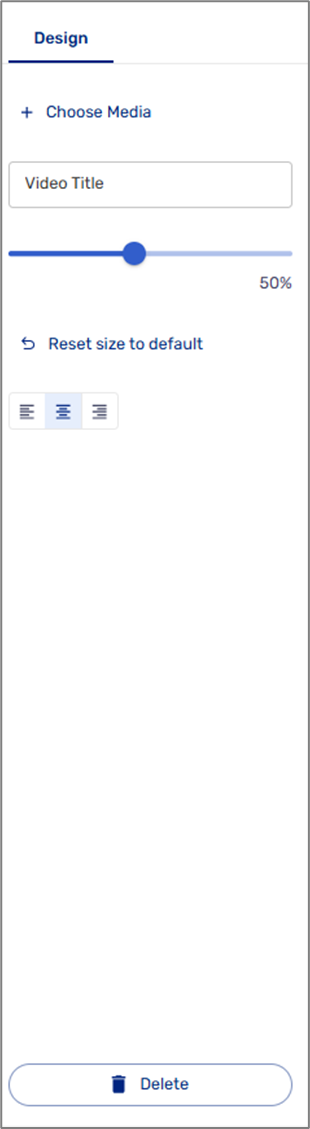
Figure 3: Video Design Properties