Article Overview
The following article describes how to connect your monday.com resources to a journey.
Connecting Your Resources
(See Figure 1 to Figure 7)
To connect your monday resources, perform the following steps:
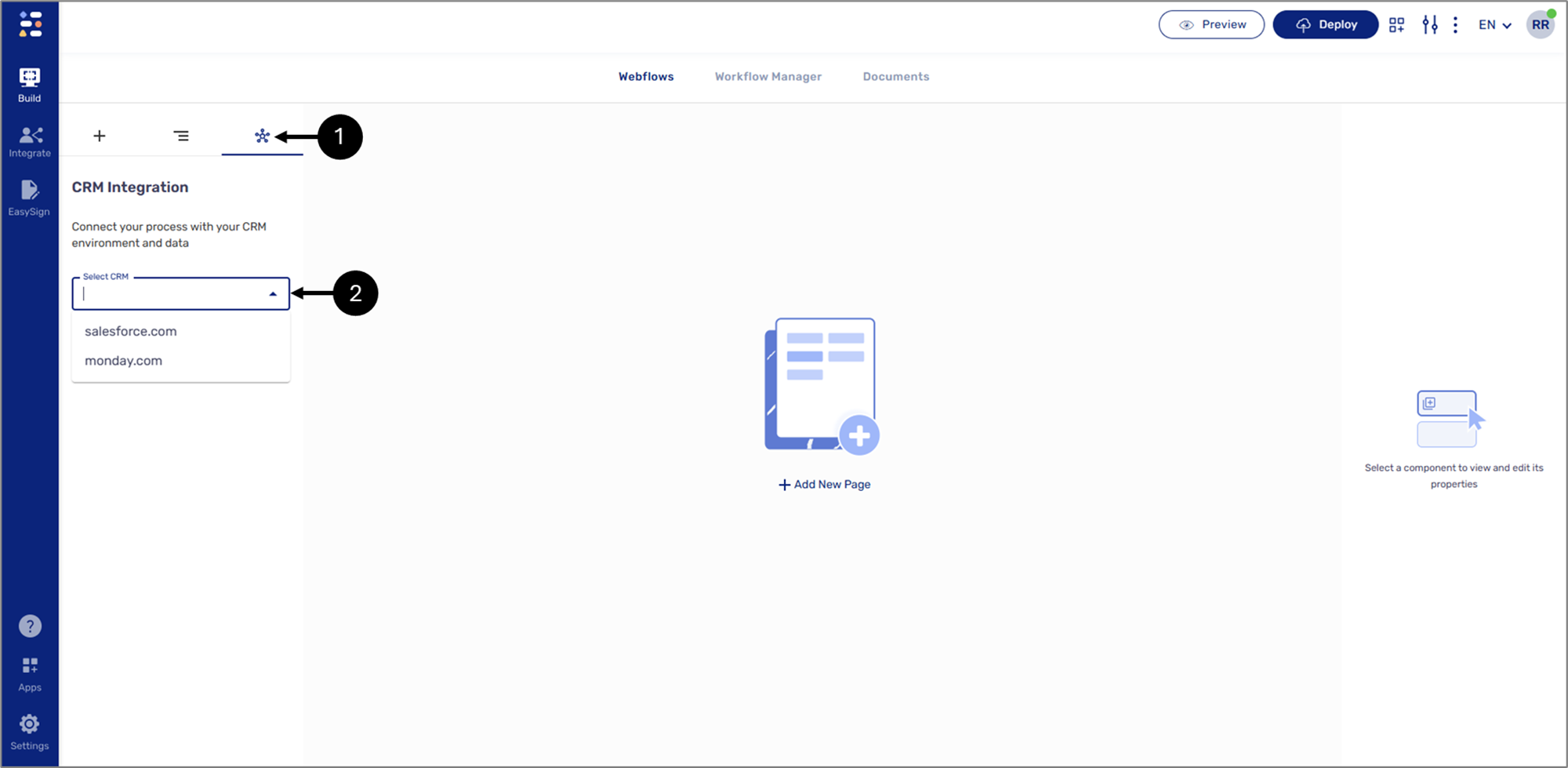
Figure 1: Connecting monday.com Resources
Click the CRM icon (1).
Select your CRM, for example, monday.com (2).
Result:
The Source dropdown appears:
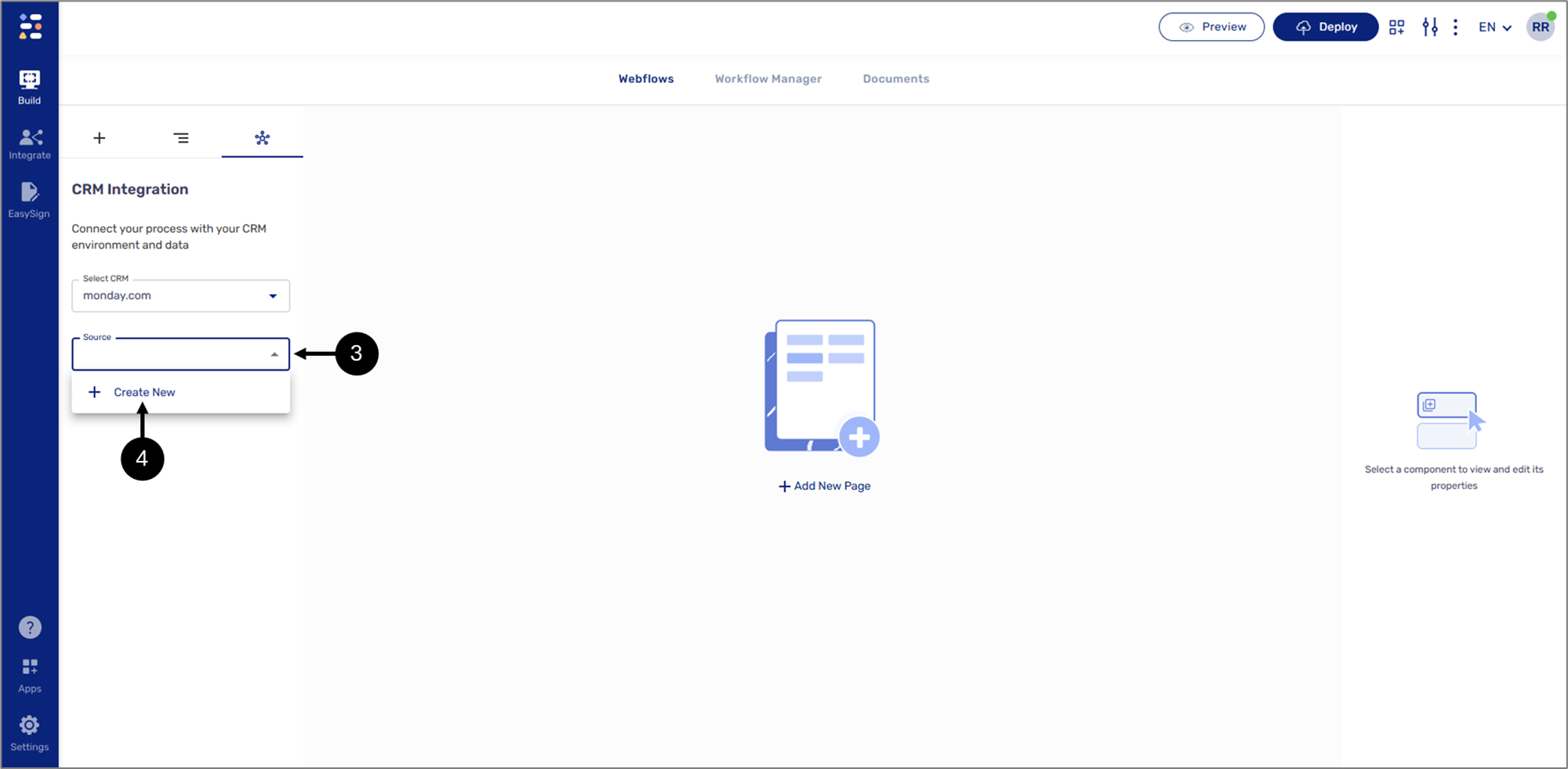
Figure 2: Source Dropdown
Click the Source dropdown (3).
Click + Create New (4).
Result:
The Create New monday Resource window appears:
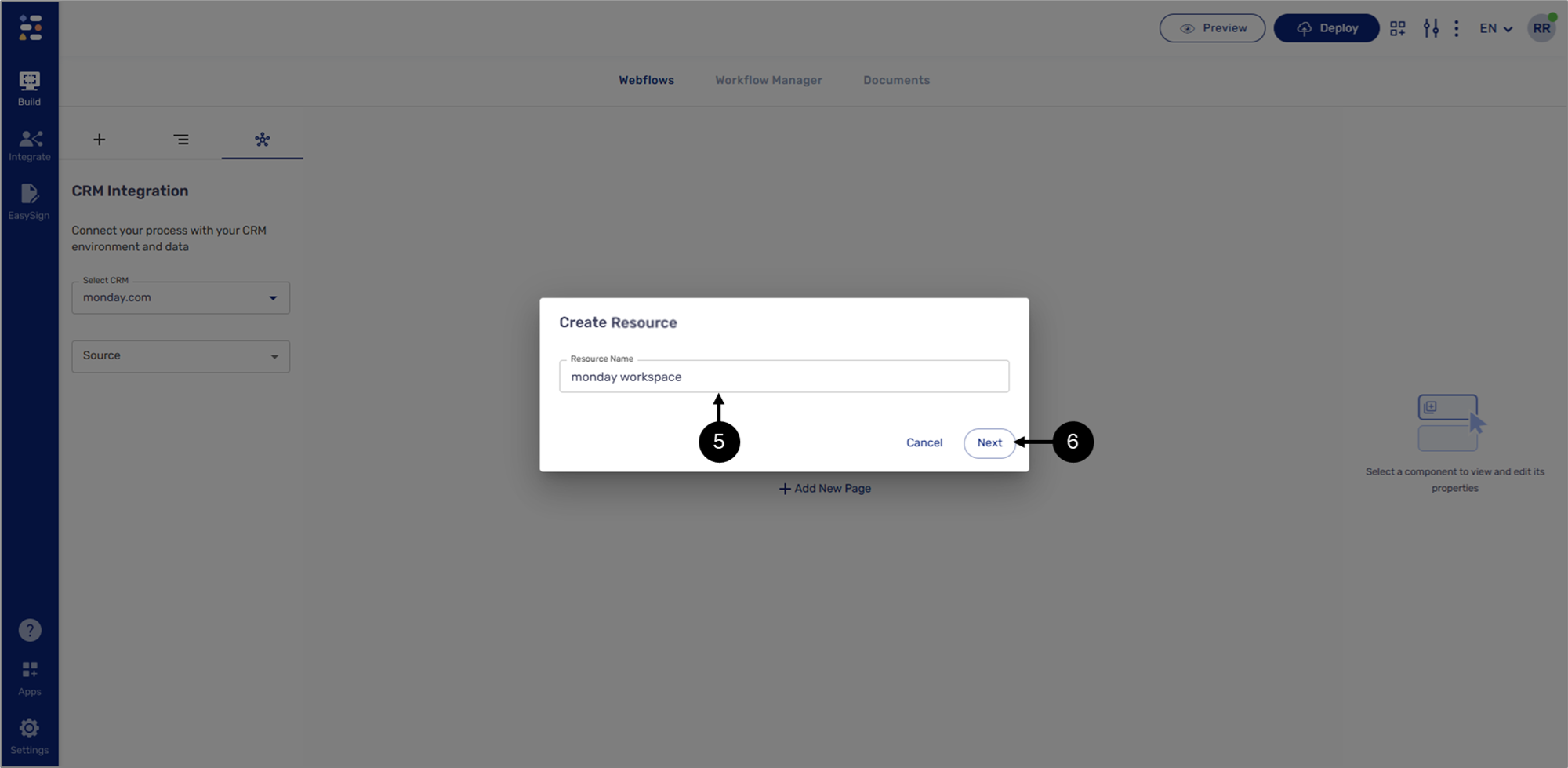
Figure 3: Create New monday Resource Window
Enter a Resource Name (5).
Click Next (6).
Result:
The following window appears:
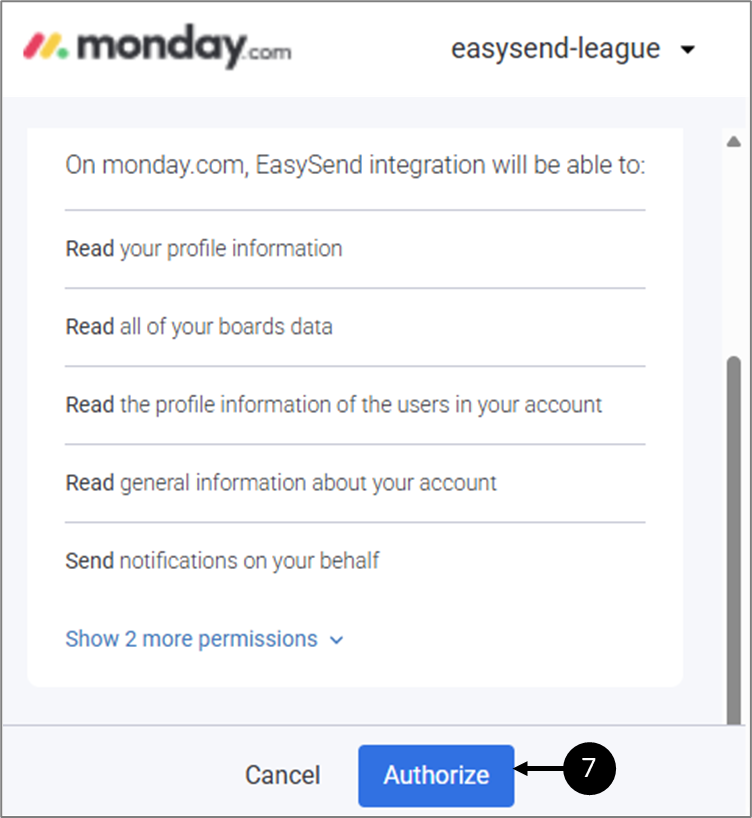
Figure 4: Authorize
Click Authorize (7).
Result:
The Workspace dropdown appears (8), indicating a successful connection:
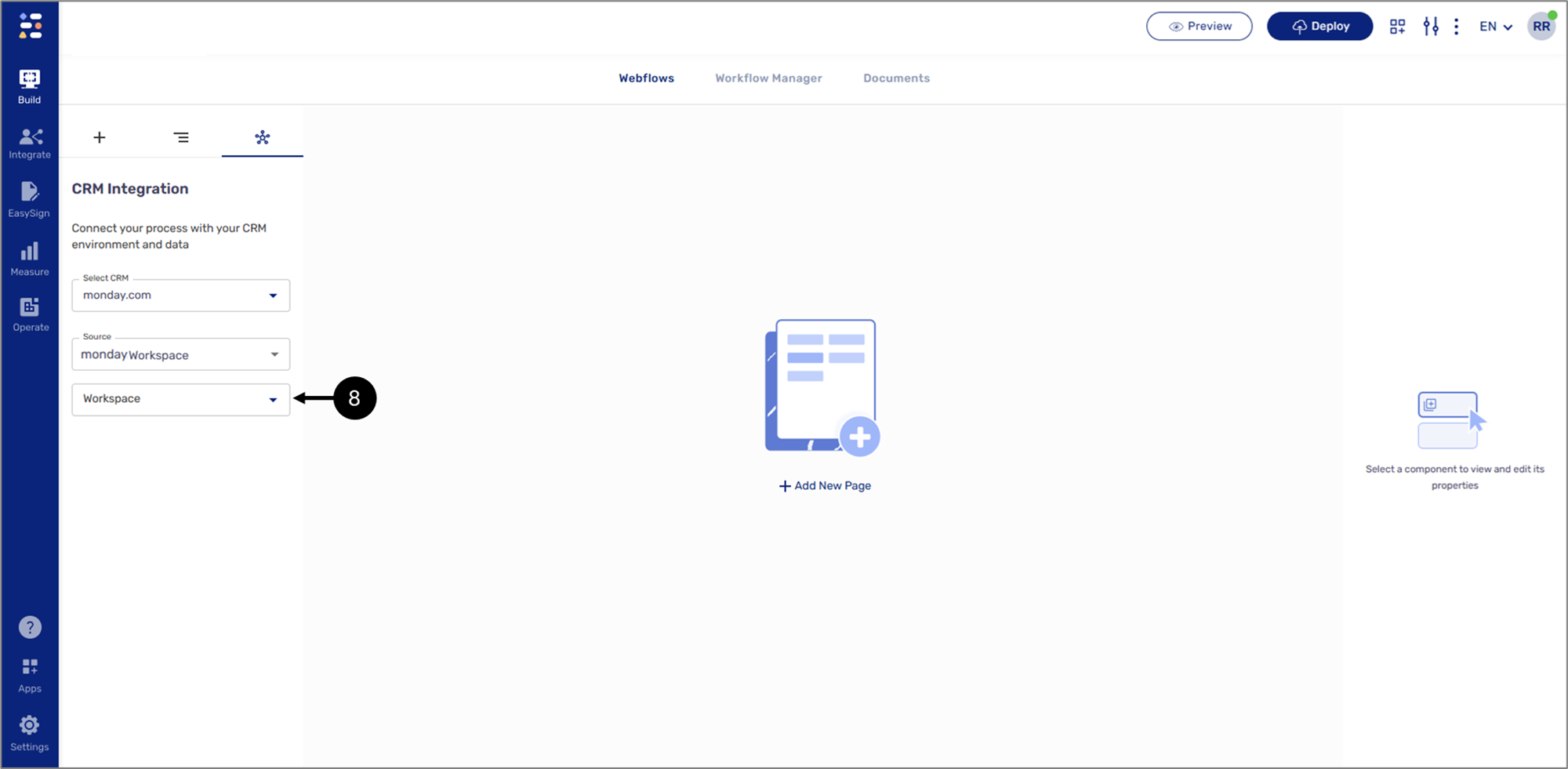
Figure 5: Workspace Selection
Click the Workspace dropdown (8) and select one.
Result:
The Board dropdown appears (9), indicating a successful connection:
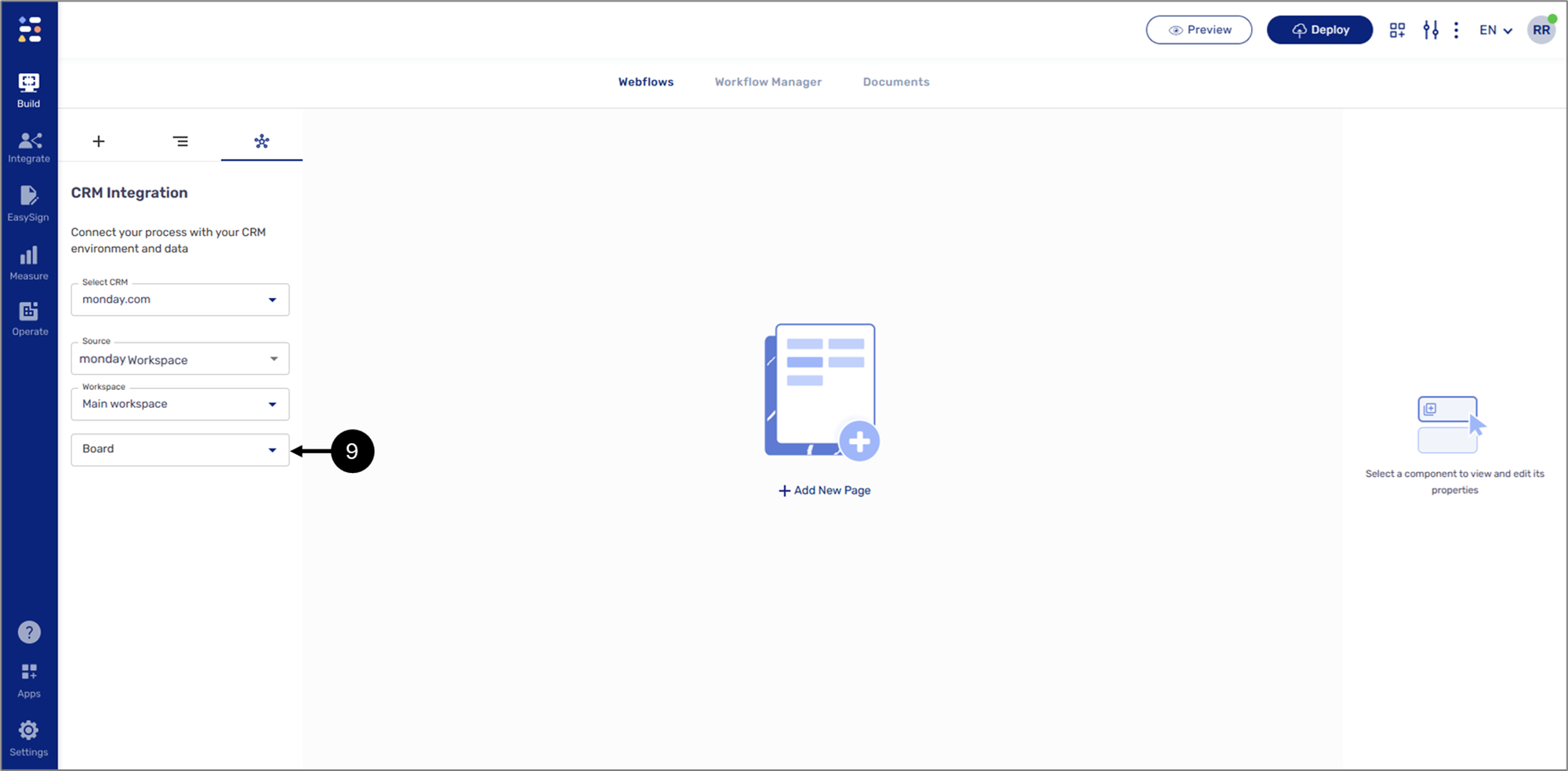
Figure 6: Board Selection
Click the Board dropdown (9) and select one.
Result:
monday columns appear (10), indicating a successful connection:
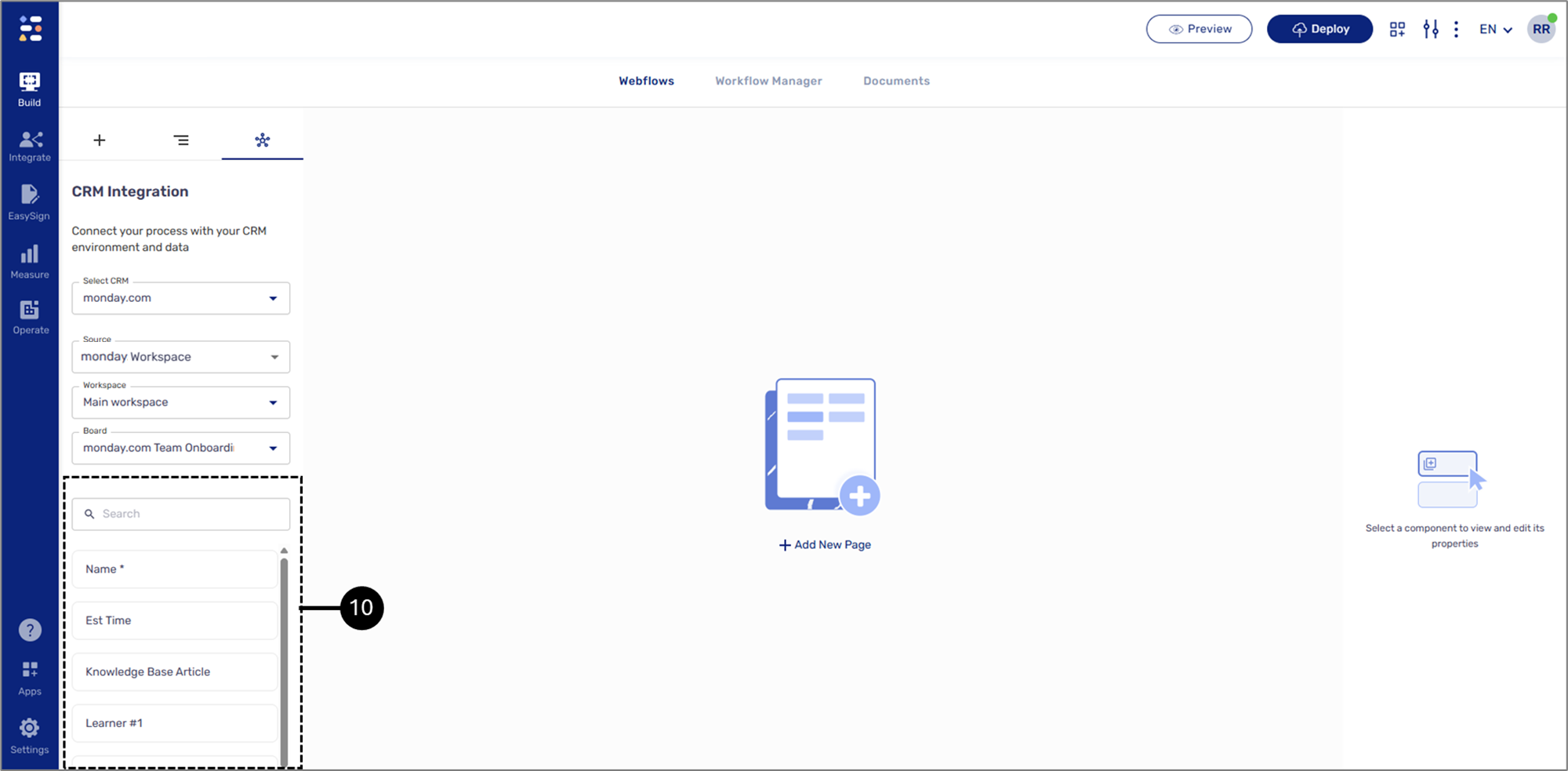
Figure 7: monday Columns