Article Overview
The following article describes steps to create new records in Salesforce using an EasySend process and a use case.
Step 1: Building the Process
Drag and drop all the required components.
Build the business logic (conditions and validations).
Step 2: Integrate your Salesforce Environment with the Process
Connect your Salesforce environment as described in the Connecting Your CRM Environment article.
Add all the required Salesforce fields as described in the Adding Salesforce Fields article.
If required, detach and map fields as described in the Detaching and Mapping Salesforce Fields article.
Decide which fields will appear with pre-filled data by checking/unchecking the Pre-fill Data checkbox of each field. For example:
Deploy the process.
Step 3: Map the Journey Steps Using the Workflow
(See Figure 1 and Figure 2)
Add all the building blocks and connect them, for example:
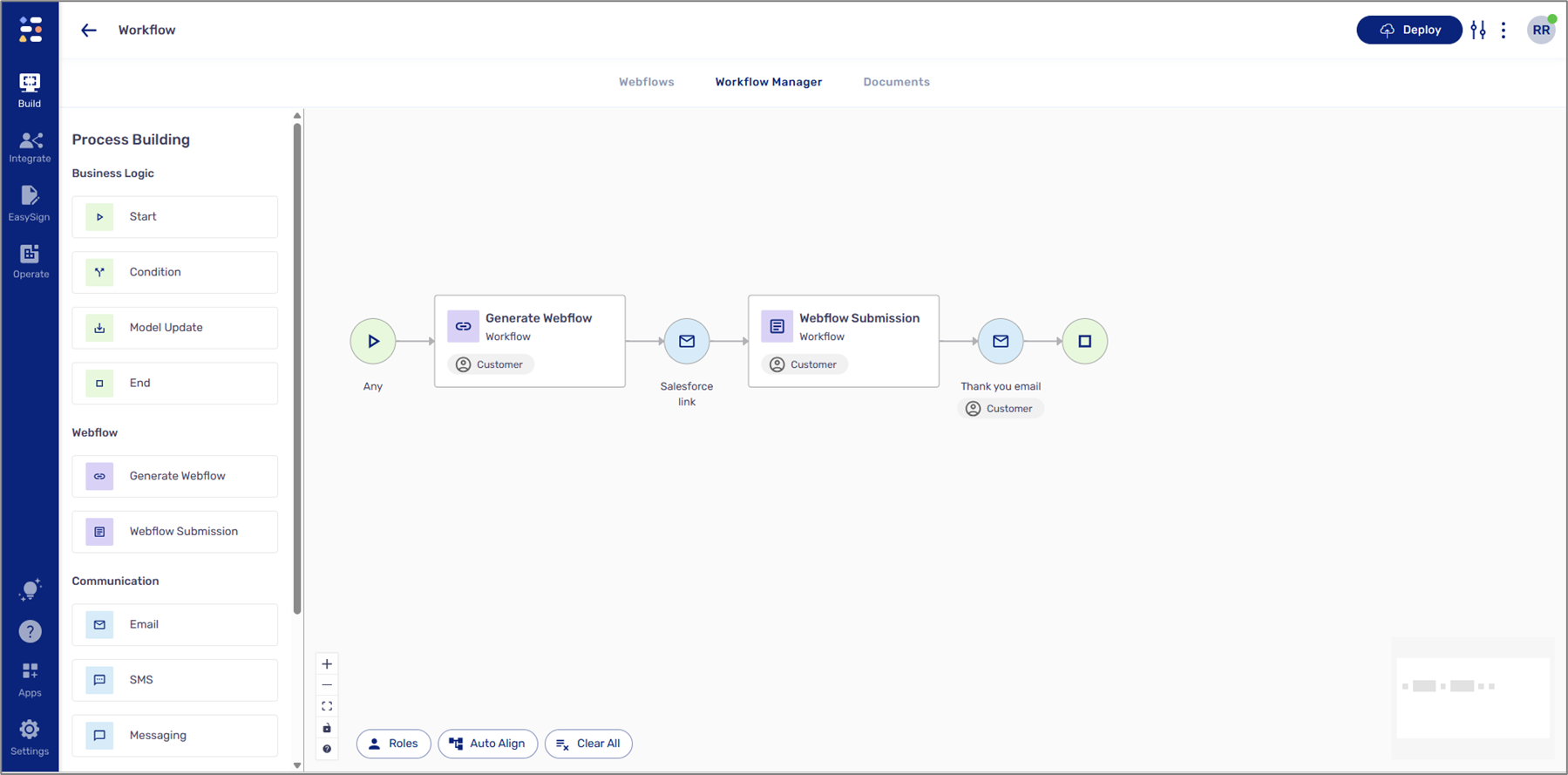
Figure 1: Building Blocks
Configure the Communication building block, Email or SMS (the one connected between the Generate Webflow building block and the Webflow Submission building block):
Add the following recipeint - metadata.salesforce.triggerEmail or metadata.salesforce.triggerPhone.
Add the journey's link to the Message Body.
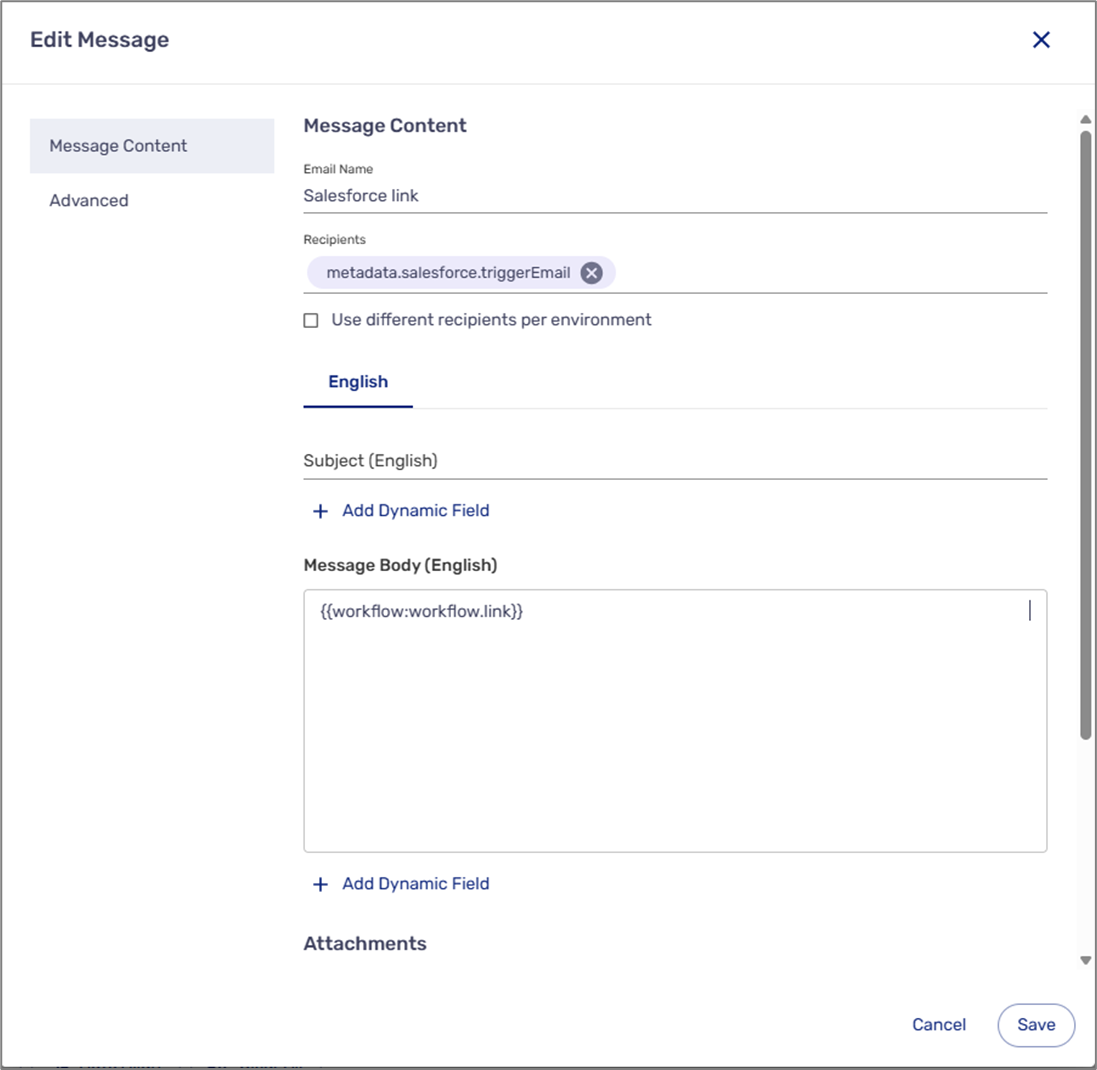
Figure 2: Edit Message Example
Step 4: Initiate the Process from Salesforce
Access the relevant object in Salesforce.
Locate the desired item.
Initiate and send the process from Salesforce.
Step 5: Interact with the Process
Click the link to access the process.
Fill out the information.
Submit the process.
Navigate back to Salesforce and view the updated data.
Use Case - Creating New Contacts
(See Figure 3 to Figure 5)
This process is connected to a Salesforce environment and is designed to create new contacts in Salesforce. The agent initiates the process, fills out all the required information, and submits it. Upon submission, a new contact is created in Salesforce.
.png)
Figure 3: Process
When the process starts, the agent fills out all the information.
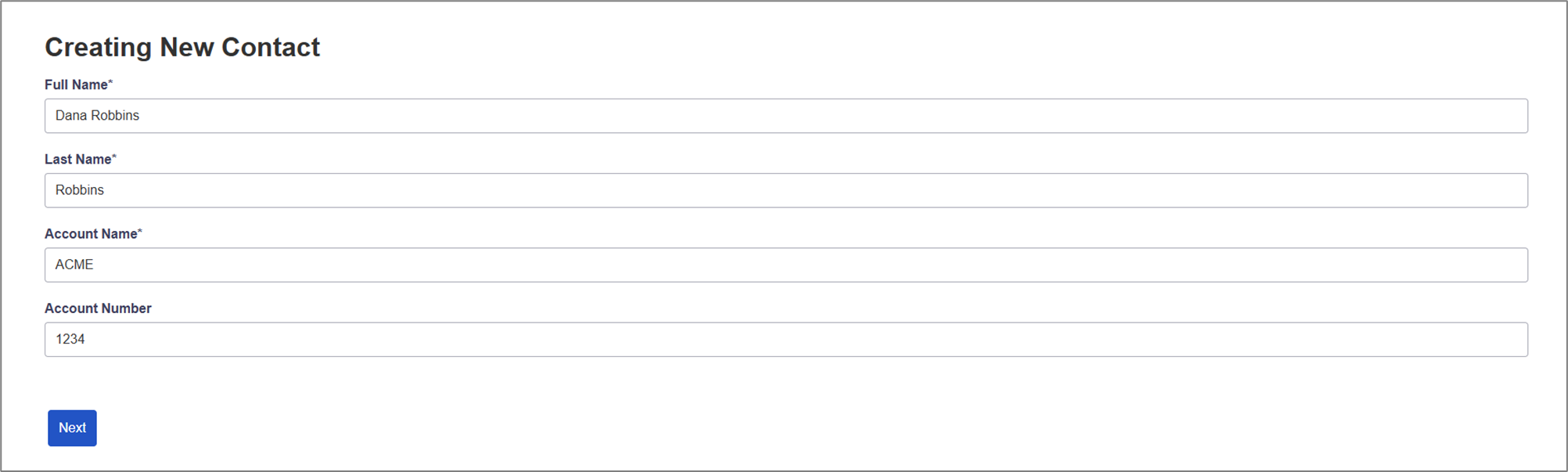
Figure 4: Updating Information
After the process is submitted, the contact and account are created in Salesforce.
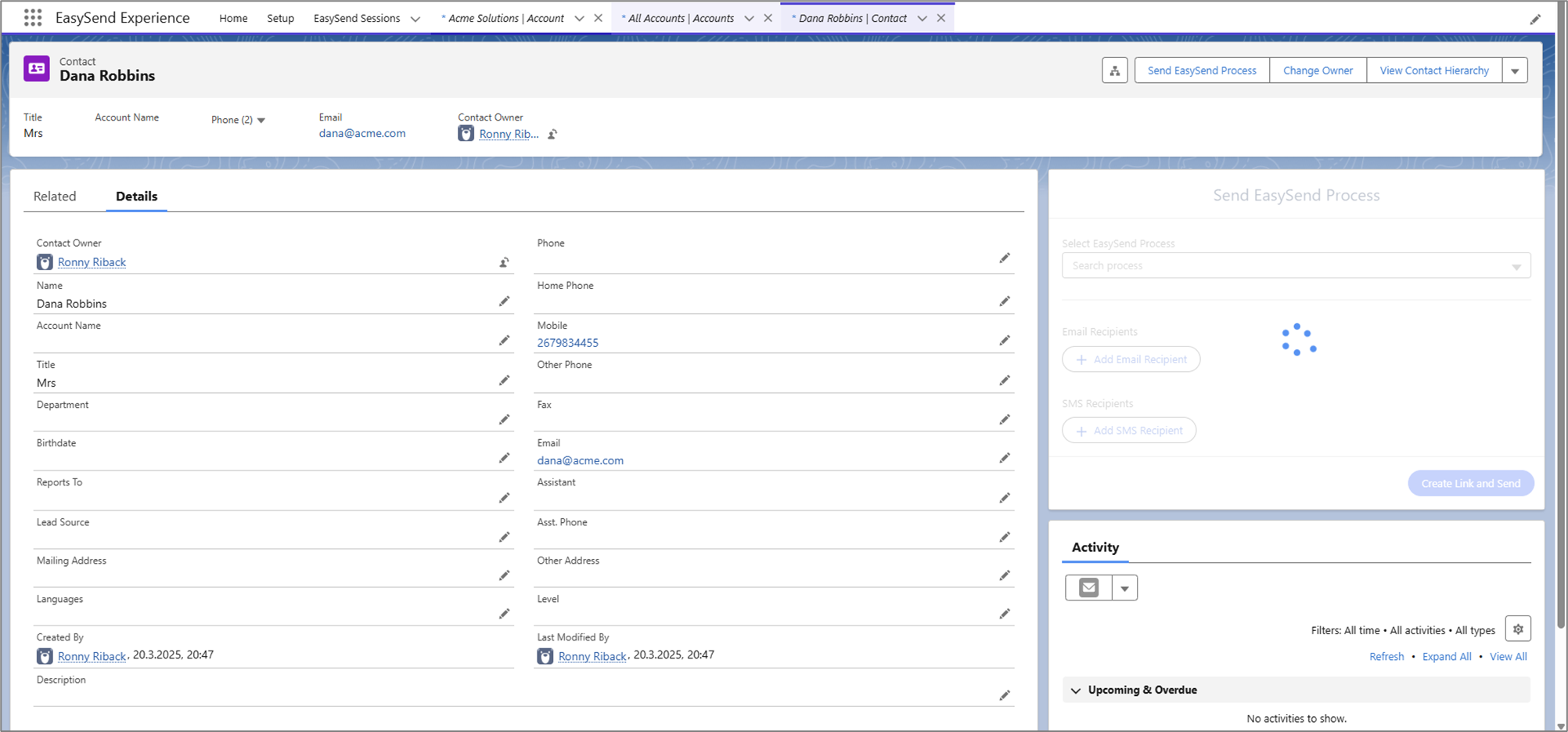
Figure 5: Salesforce