Welcome New Customer!
Welcome to EasySend! In this article, learn how to access our Support Center, open a ticket, gain platform access, and more.
How to Open a Ticket in Our Support Center
The following sections describe how to perform an initial sign-in to EasySend's support center and how to open a ticket.
How To Sign In To The Support Center for The First Time
(See Figure 1 to Figure 4)
Go to the Support Center.
Click Sign in.
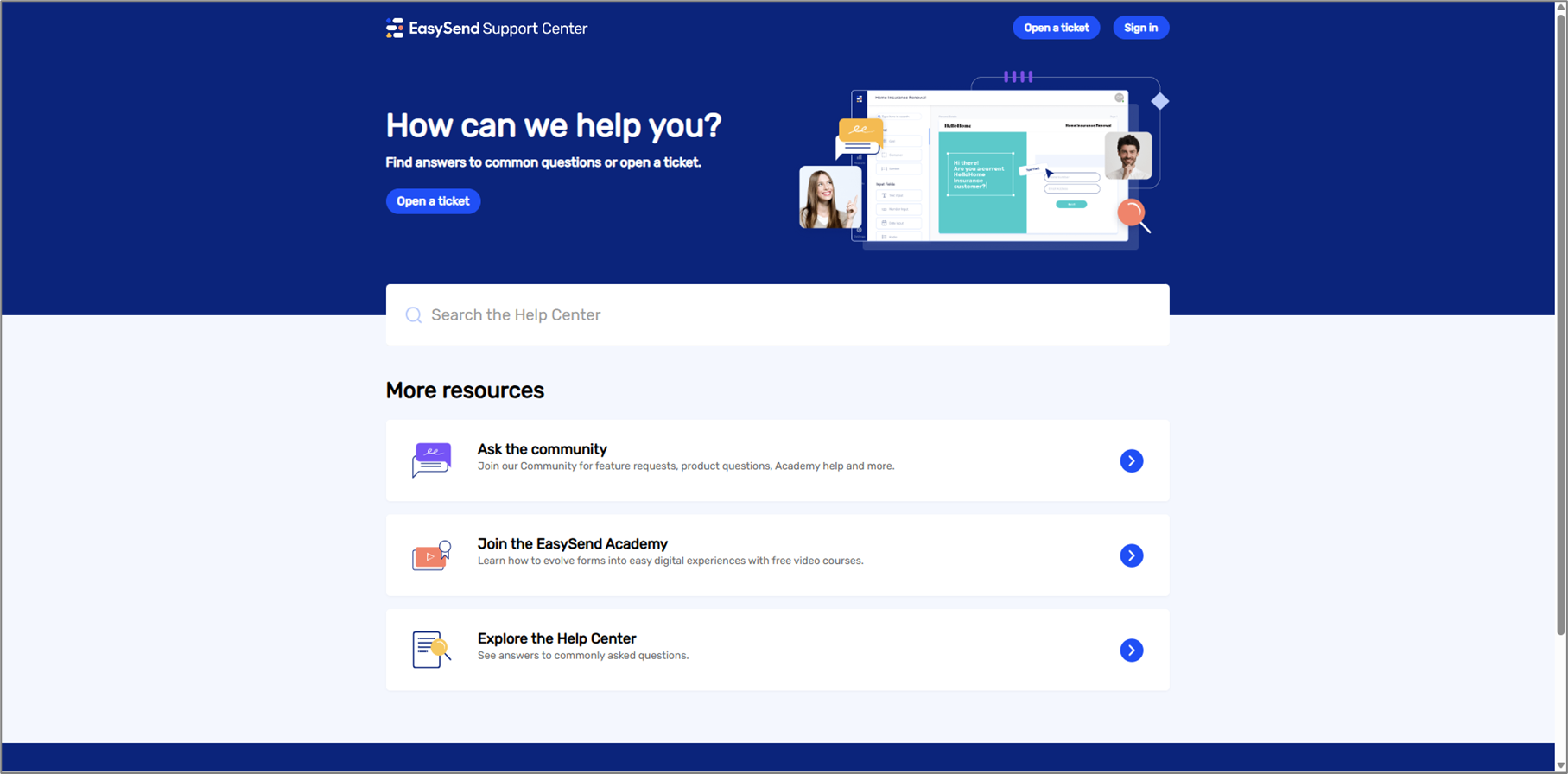
Figure 1: Support Center
Enter your email and click Forgot Password?.
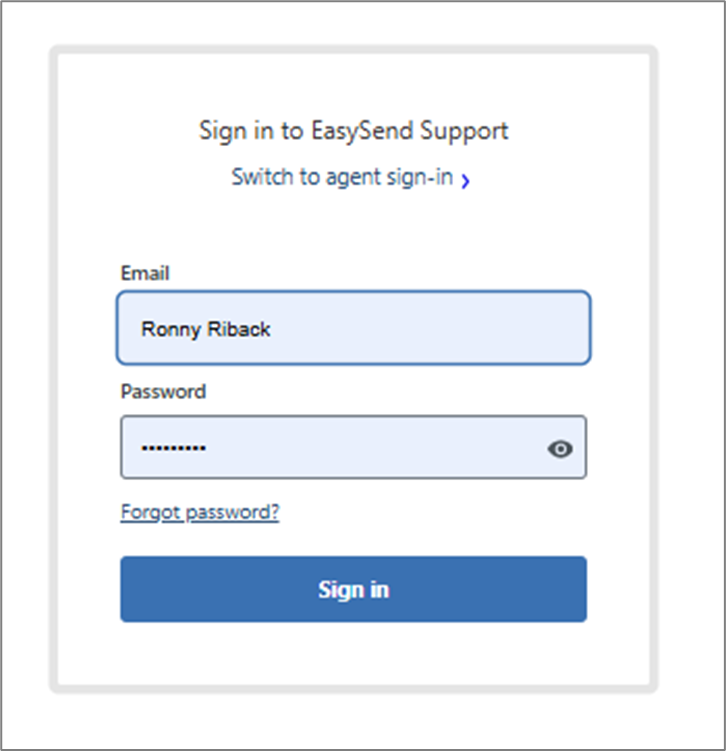
Figure 2: Sign in 1 of 2
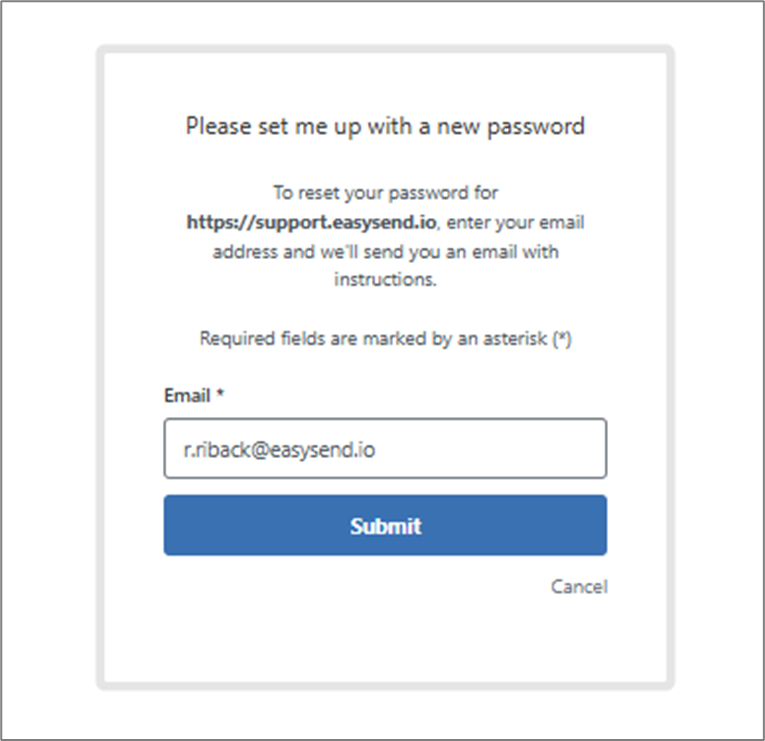
Figure 3: Sign in 2 of 2
You’ll receive an email to set a new password.
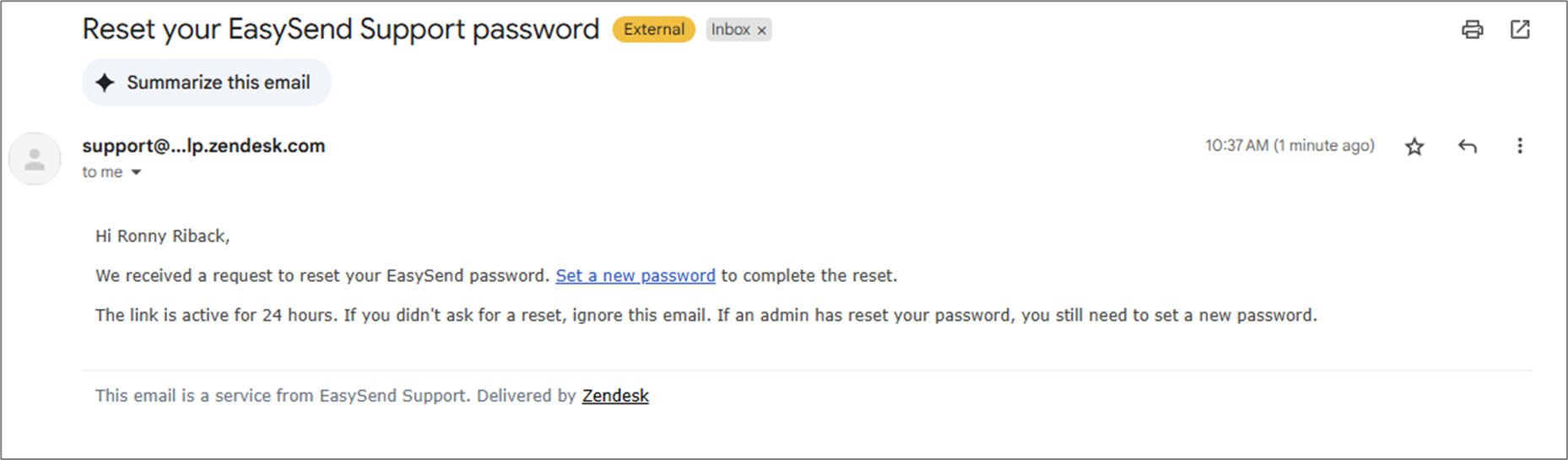
Figure 4: Reset Password Email
How To Open a Ticket
(See Figure 5 and Figure 6)
Once you’re signed in, click Open a ticket.
Figure 5: Open a ticket 1 of 2
Click I need support, or I have a request.
I need support - if you need help solving technical issues
I have a request - if you want to request a process modification
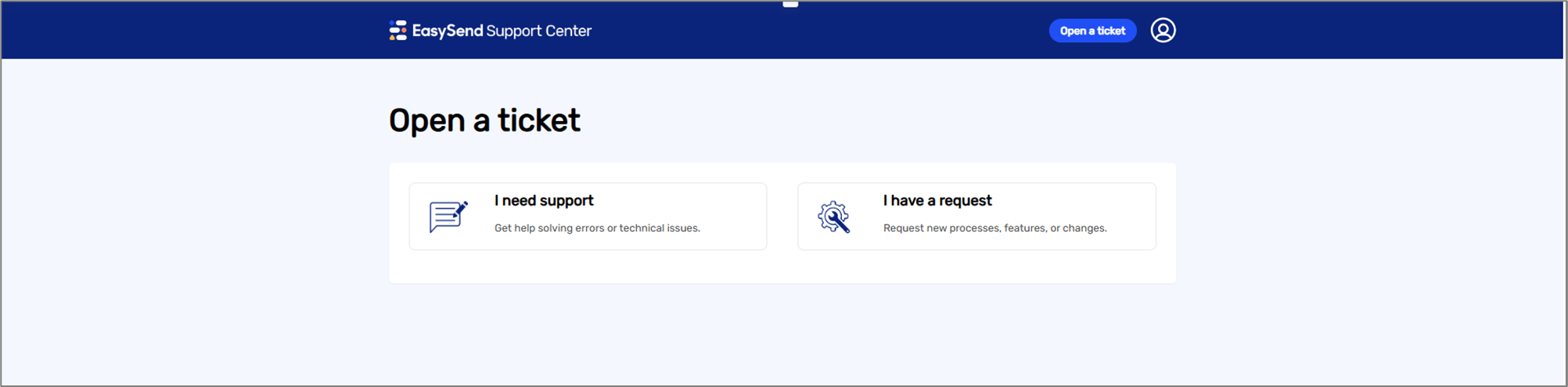
Figure 6: Open a ticket 2 of 2
Submit your ticket.
To track your support status, click the profile icon, then select My activities.
How to Add Support Users
(See Figure 7 to Figure 9)
After you’ve signed in to the Support Center:
Click Open a ticket.
Figure 7: Open a ticket
Choose I have a request.
Figure 8: I have a request 1 of 2
Enter the Subject: “Add support users.”
Enter the details for each new user:
User’s full name
Email address
Company name
Submit your ticket.
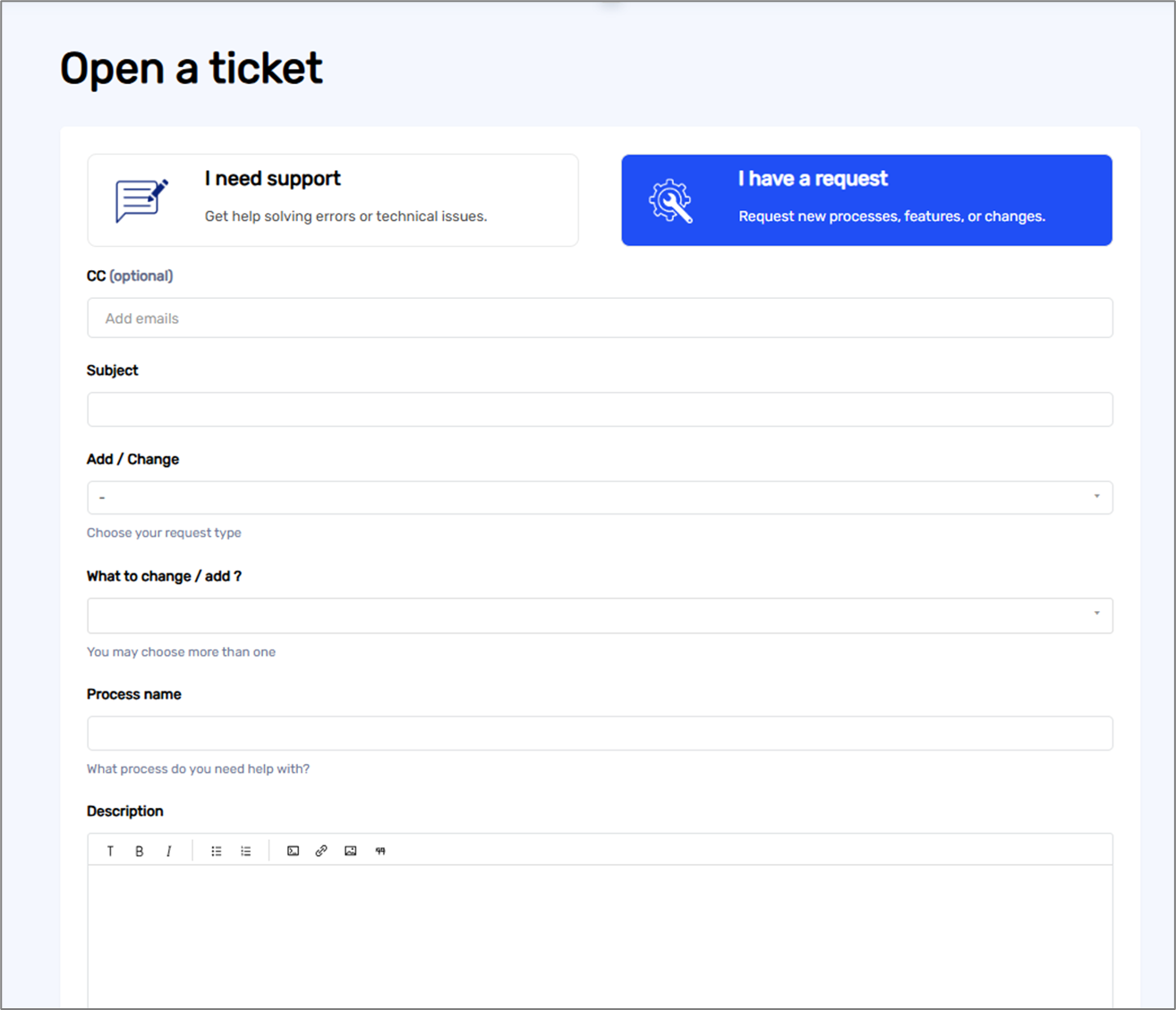
Figure 9: I have a request 2 of 2
How to Request Technical Support
(See Figure 10 to Figure 12)
If you need help solving a technical platform issue:
Enter our Support Center.
Click Open a ticket.
Figure 10: Open a ticket
Choose I need support.
Figure 11: I need support 1 of 2
Fill out the ticket.
Submit your ticket.
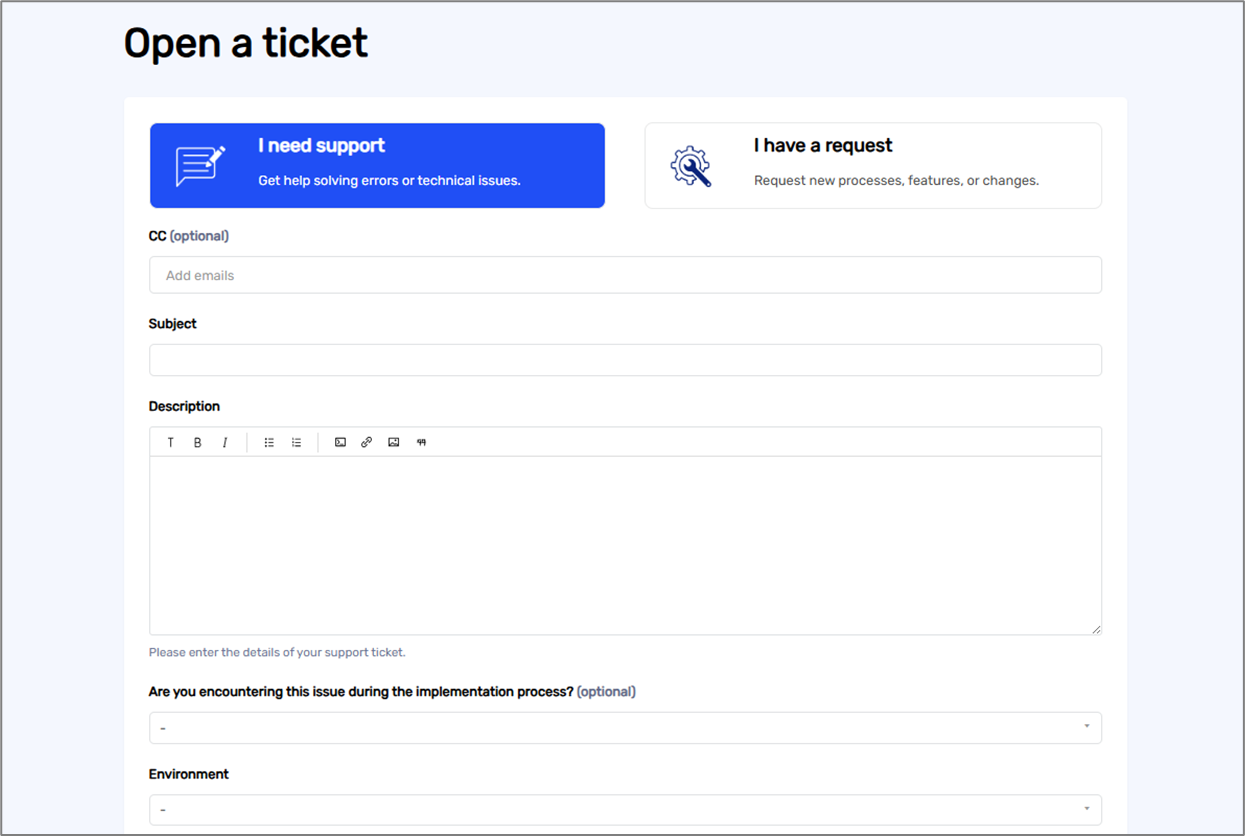
Figure 12: I need support 2 of 2
Need Professional Services?
We offer paid consulting and hands-on work, such as:
Process modifications
Process implementation
Platform training
How to Request Professional Services
(See Figure 13 and Figure 14)
If you want to request a process modification, process implementation, or platform training:
Open a ticket.
Figure 13: Open a ticket
Click I have a request.
Specify your request.
Submit your ticket.
Figure 14: I have a request
How to Create Your EasySend Account
(See Figure 15 and Figure 16)
Open a ticket.
Figure 15: Open a ticket
Click I have a request.
Enter the Subject: I need platform access.
In the description, add the following details:
Your full name
Email address
Company name
Figure 16: I have a request
Once you’ve gained platform access as an Admin, you can add additional users.
How to manage users and groups >
Tools for Monitoring & Troubleshooting
Automatic Error Notifications
Notifies you (and other recipients) about transaction failures.Detailed Tracking Reports
Receive scheduled reports and monitor the performance of your transactions.EasySend Analytics and Reports
Make data-driven decisions with performance data and insights.Journey Tracker
Track live processes and their status.Transaction Log
View and manage transaction statuses.
Platform Resources
How to enroll in the EasySend Academy
(See Figure 17 and Figure 18)
Open a ticket.
Figure 17: Open a ticket
Click I need support.
Enter the Subject: Enroll in the EasySend Academy.
Add the following details:
Your full name
Email address
Company name
Submit your ticket.
Figure 18: I need support