Article Overview
The following article describes how to troubleshoot issues that may occur while installing and integrating Salesforce with EasySend.
Long installation time
(See Figure 1 to Figure 3)
Issue
During EasySend package installation, the following message appears:

Figure 1: Long Installation Time
How to troubleshoot
Perform the following steps:
Check your email inbox for a confirmation email, for example:

Figure 2: Confirmation Email
To access EasySend's home page, click the Done button (1) and perform the actions described in the EasySend's Home Page article.

Figure 3: Done Button
EasySend Package cannot be installed
Issue
If an error occurs during pancake installation, it probably happens due to problems in your environment, such as:
Lack of Salesforce licenses
Current user permissions
Temporary instance (Salesforce server) issue
An issue during the package post-installation script
How to troubleshoot
If you received an email with the "EasySend Post-Installation Error Occurred" subject, contact EasySend support
Contact Salesforce Support.
Try to reinstall the package.
EasySend Link displays an error
(See Figure 4 and Figure 5)
Issue
After adding an EasySend link to an object (as described in the Use EasySend With Any Object article), the following error message appears:

Figure 4: Send EasySend Link Error Message
How to troubleshoot
Enter and apply the integration data described in the Create the Integration article.

Figure 5: Create the Integration
Some Processes are not available to be sent
(See Figure 6)
Issue
Some processes are missing when sending an EasySend link from a Salesforce object.
How to troubleshoot
Adjust the configuration under the Set Up Defaults section.

Figure 6: Set Up Defaults
EasySend is not available for specific objects
(See Figure 7)
Issue
Some objects do not include the EasySend app.
How to troubleshoot
Adjust the Object Configuration.

Figure 7: Object Configuration
Applying an integration fails
(See Figure 8 and Figure 9)
Issue
After configuring the integration as described in the Create the Integration article and clicking Apply, the following error message appears:
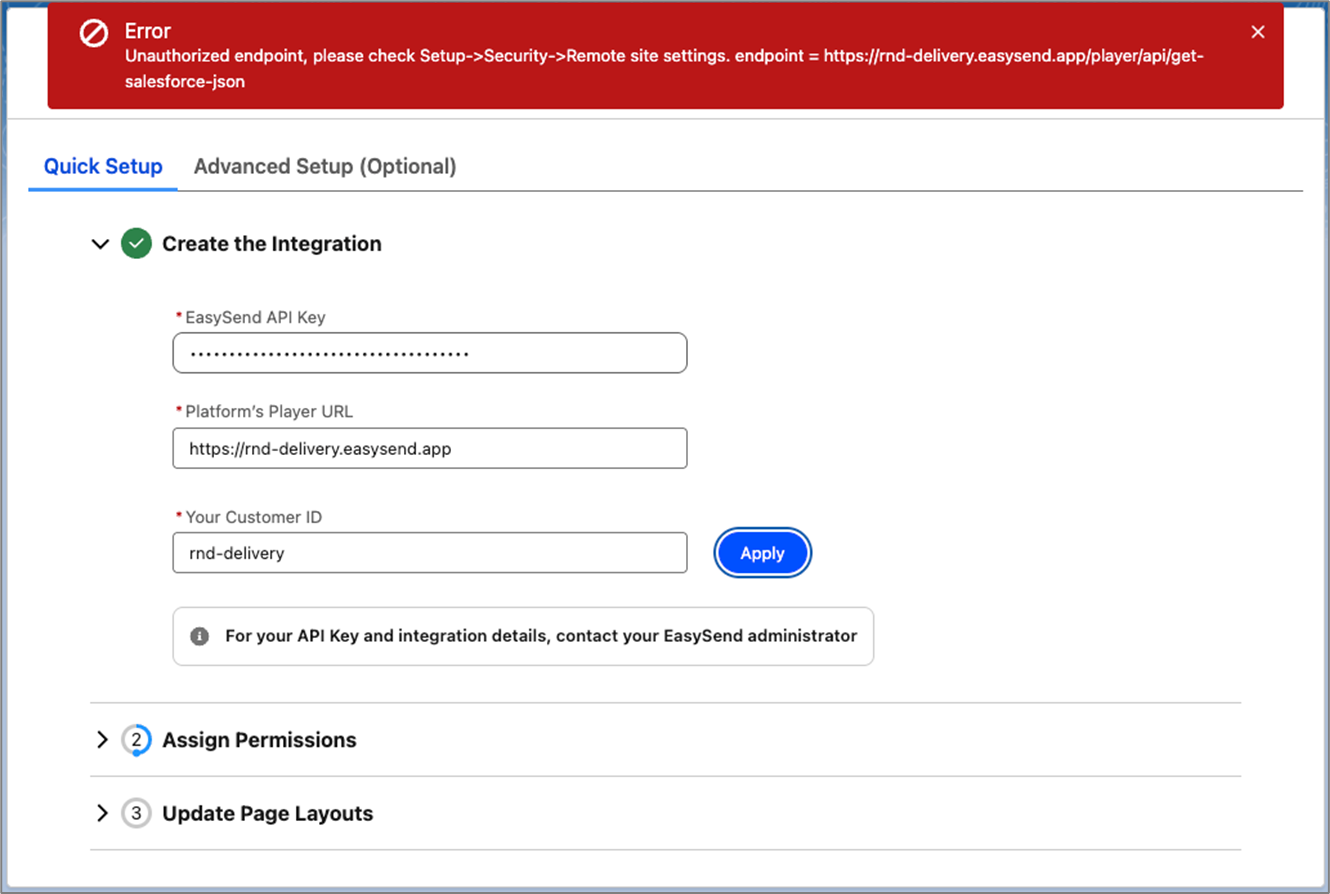
Figure 8: Error After Apply
How to troubleshoot
Perform the following steps:
Go to Setup in Salesforce
In the Quick Find box, search for:
Remote Site Settings
Click New Remote Site
Fill out the information, for example:
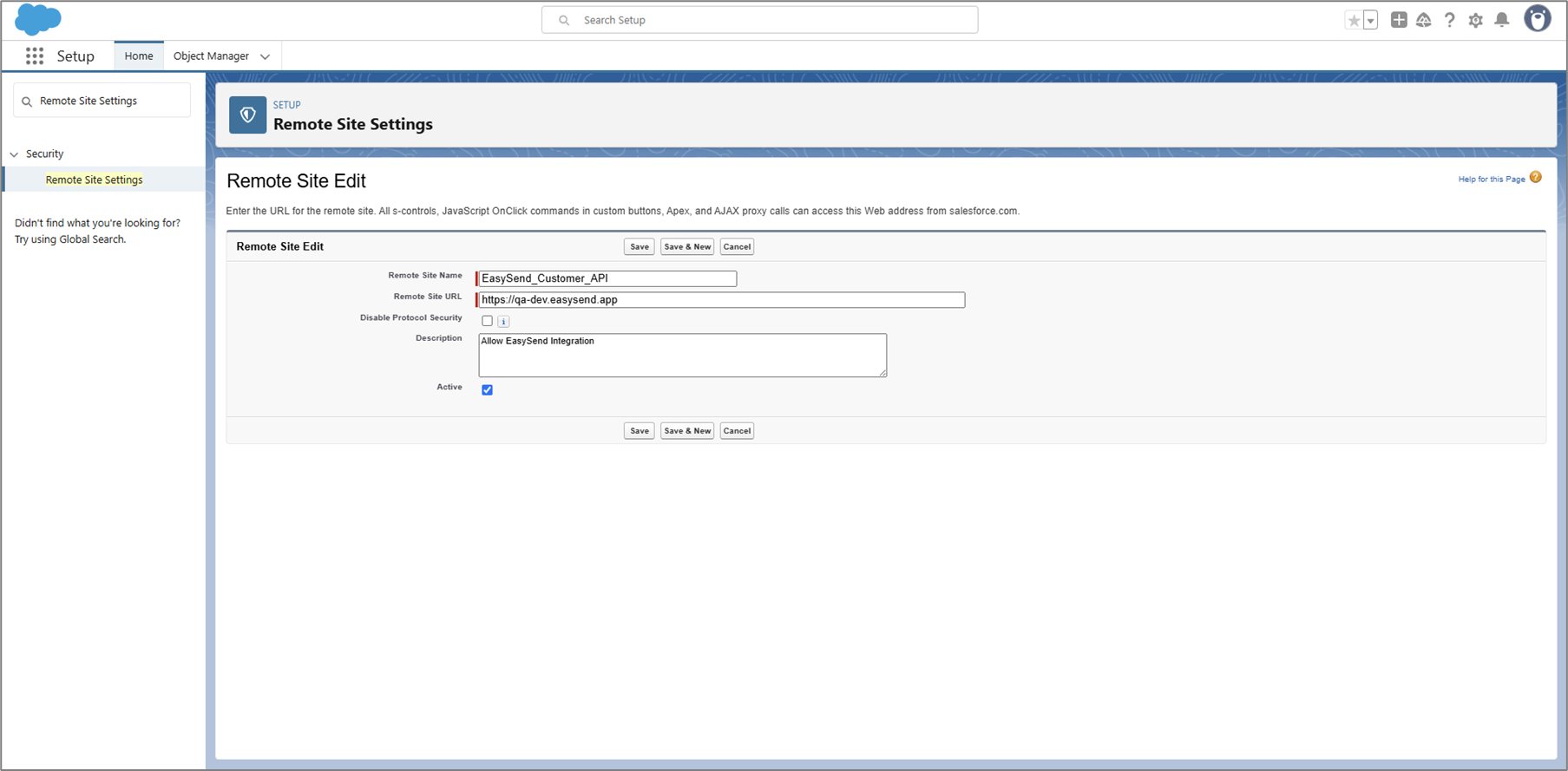
Figure 9: Remote Site Settings
NOTE
Make sure the Active checkbox is checked.