Article Overview
The following article describes how to use EasySend with any object.
Use EasySend With Any Object
(See Figure 1 to Figure 5)
If you wish to use EasySend with any object (besides Leads, Contacts, Accounts, and Opportunities), perform the following steps:

Figure 1: Searching for an Object
Click the icon (1).
Search for an object, for example, cases (2).
Click Cases (3).
Result:
The Cases page appears:

Figure 2: Cases Page
Click the dropdown (4).
Click a desired list view, for example, All Open Cases (5).
Result:
A list of cases appears:
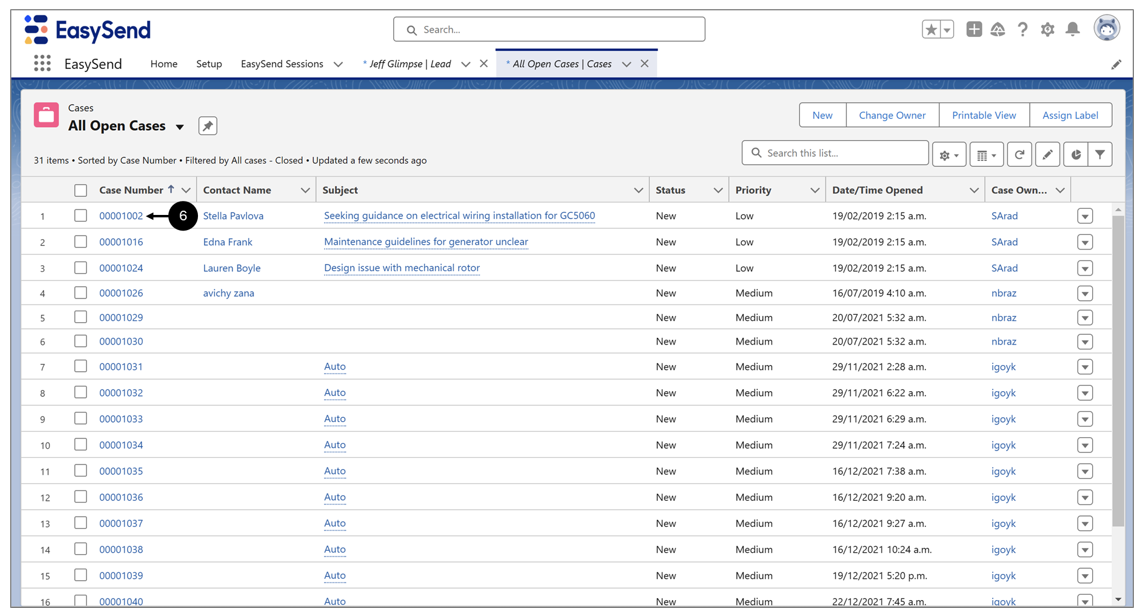
Figure 3: Cases
Click the desired case, for example (6).
Result:
The case page appears:

Figure 4: Case Page
Click the icon (7).
Click Edit Page (8).
Result:
The Lightning App Builder appears:
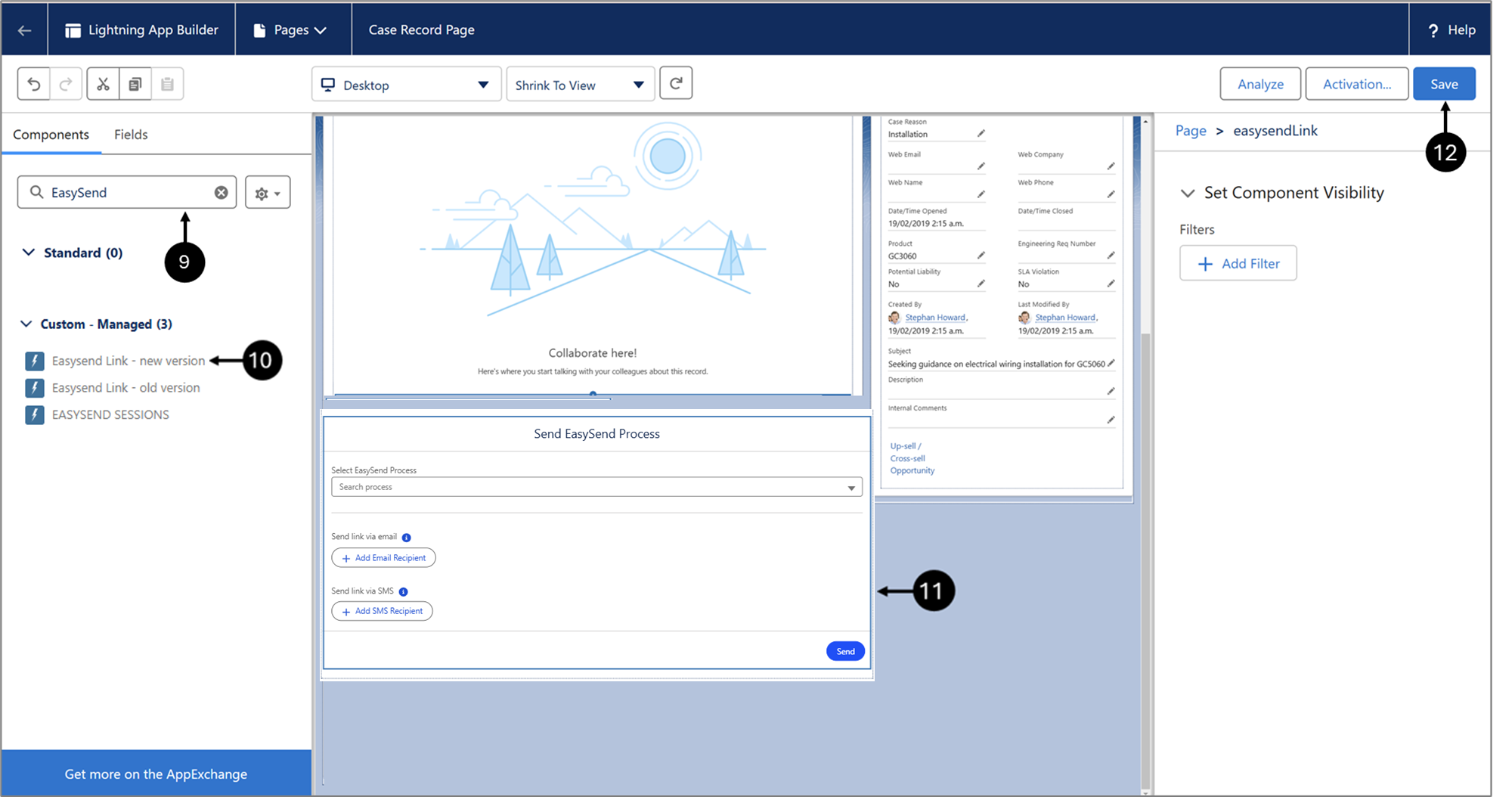
Figure 5: Lightning App Builder
Search for EasySend (9).
Drag easysendLink (new version) (10).
Drop easysendLink anywhere on the page (11).
Click Save (12).